How to Edit a Video From Google Drive or Dropbox Without Downloading It
Your recording is in Drive, you’re on your phone, and the file is 2 GB. Skip the download and the upload: share a link, paste it, and let the server copy it.
Google Drive and Dropbox import released November 4, 2026
On this page
The Short Answer
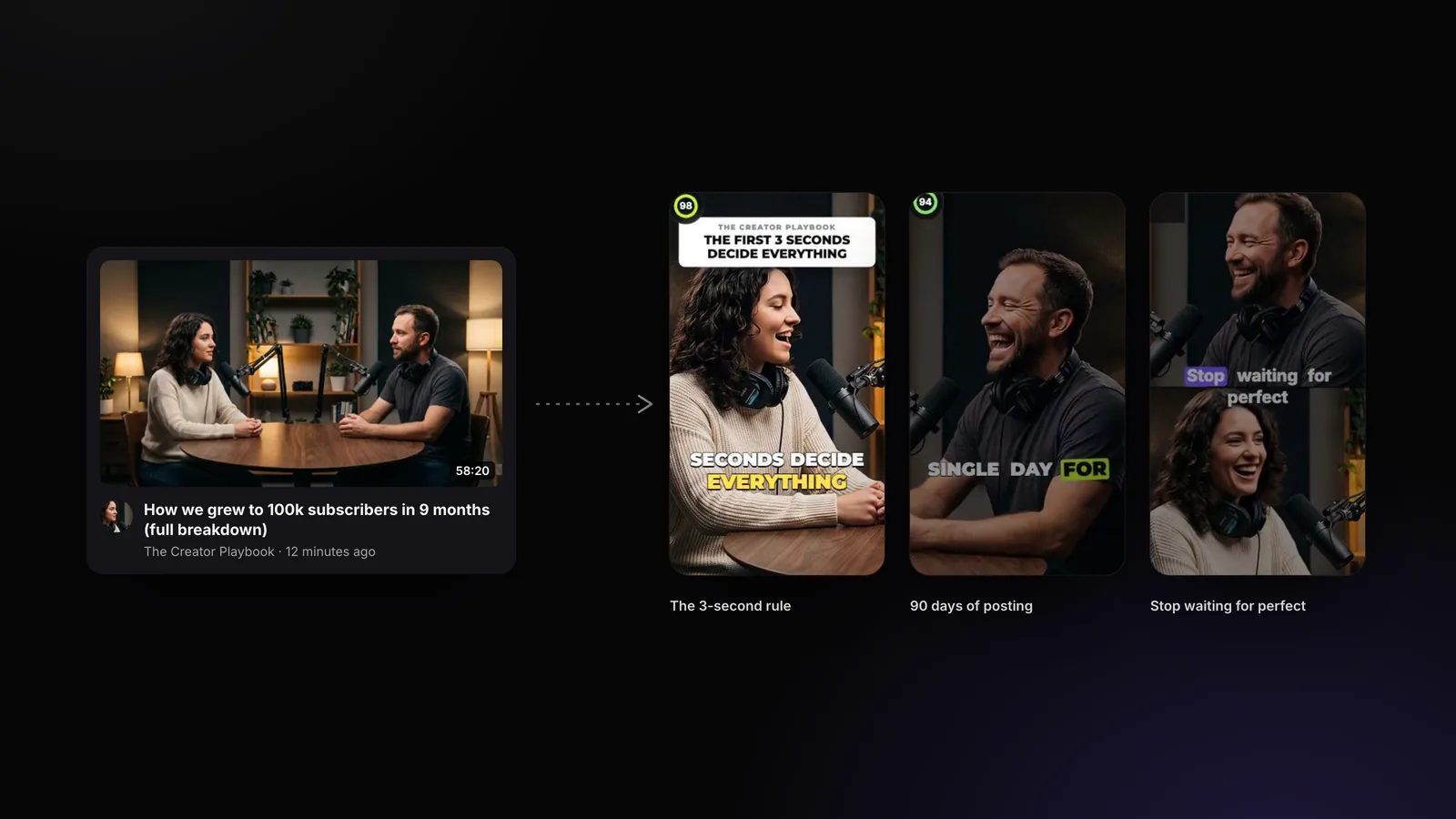
Share the video with a link, then paste that link into an editor that can import it. In Google Drive, open Share on the video, set General access to Anyone with the link, and copy the link. In StoryCut, paste it in the box on your dashboard: Make clips turns it into AI clips, Edit a video opens it in the editor with captions, Fix eye contact corrects the gaze. StoryCut’s server copies the file straight from Drive, so nothing goes through your phone. Dropbox share links work the same way.
It works on every plan, within the plan’s usual video limits.
Disclosure: StoryCut publishes this guide and makes the tool it describes.
Why Not Just Download It?
Because on a phone, downloading a long recording and then uploading it again moves the whole file twice over your connection, and fills your storage on the way. Podcasts, webinars, sermons and client recordings often live in Drive or Dropbox already, shared by whoever recorded them.
With a link, the copy happens between Google’s or Dropbox’s servers and StoryCut’s, at their speed. Your phone only sends a link.
Step 1: Share the Video
Open the video itself
In Google Drive, find the video file (not the folder it’s in) and open its menu.
Share it with a link
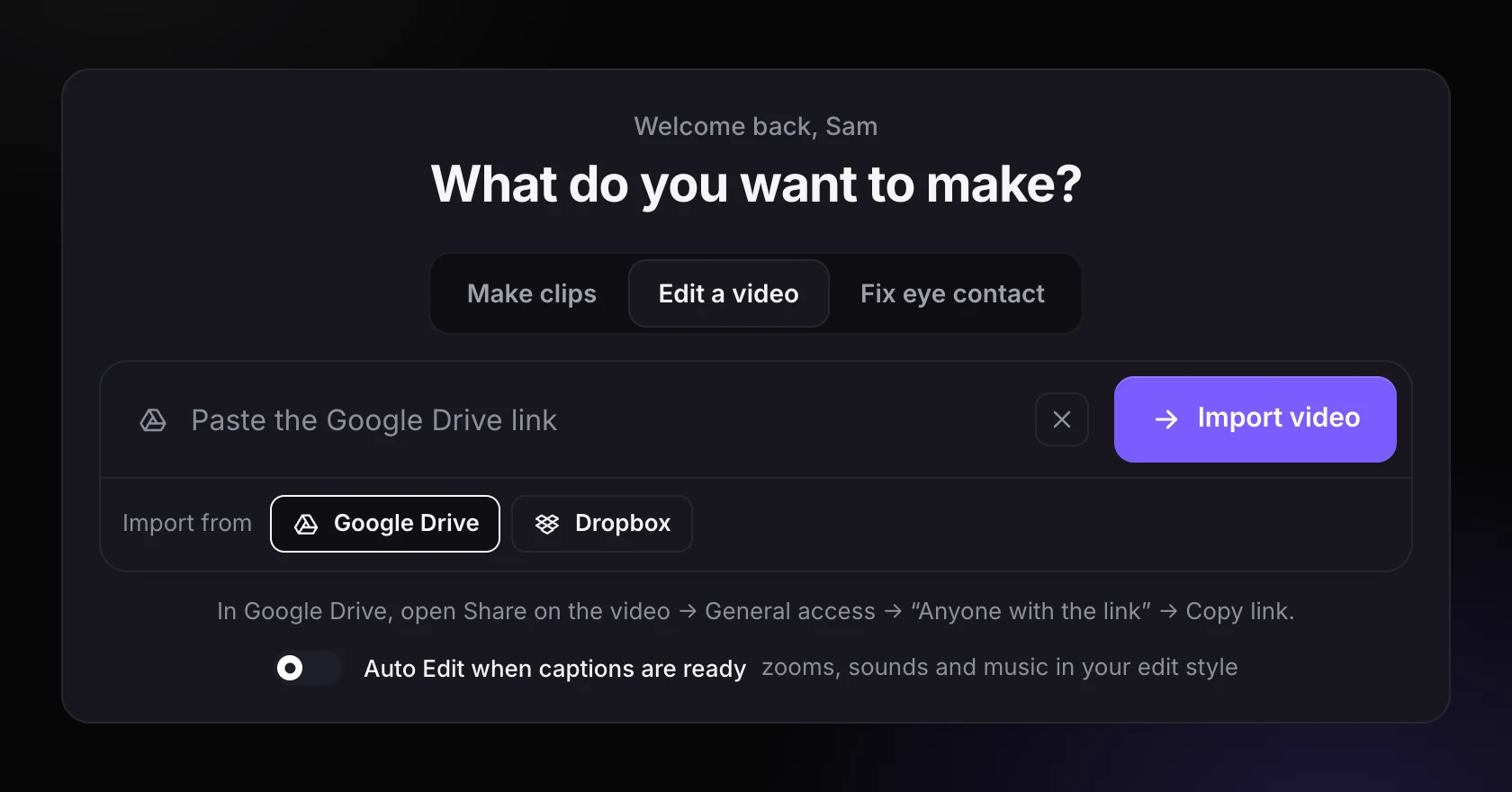
Choose Share, then under General access pick Anyone with the link. Viewer is enough.
Copy the link
Press Copy link. It looks like drive.google.com/file/d/… In Dropbox: Share on the video, then Copy link.
Step 2: Paste It in StoryCut
Pick what you want to make
On your dashboard, choose a tab: Make clips (vertical clips from a long video), Edit a video (captions and the editor) or Fix eye contact.
Paste the link
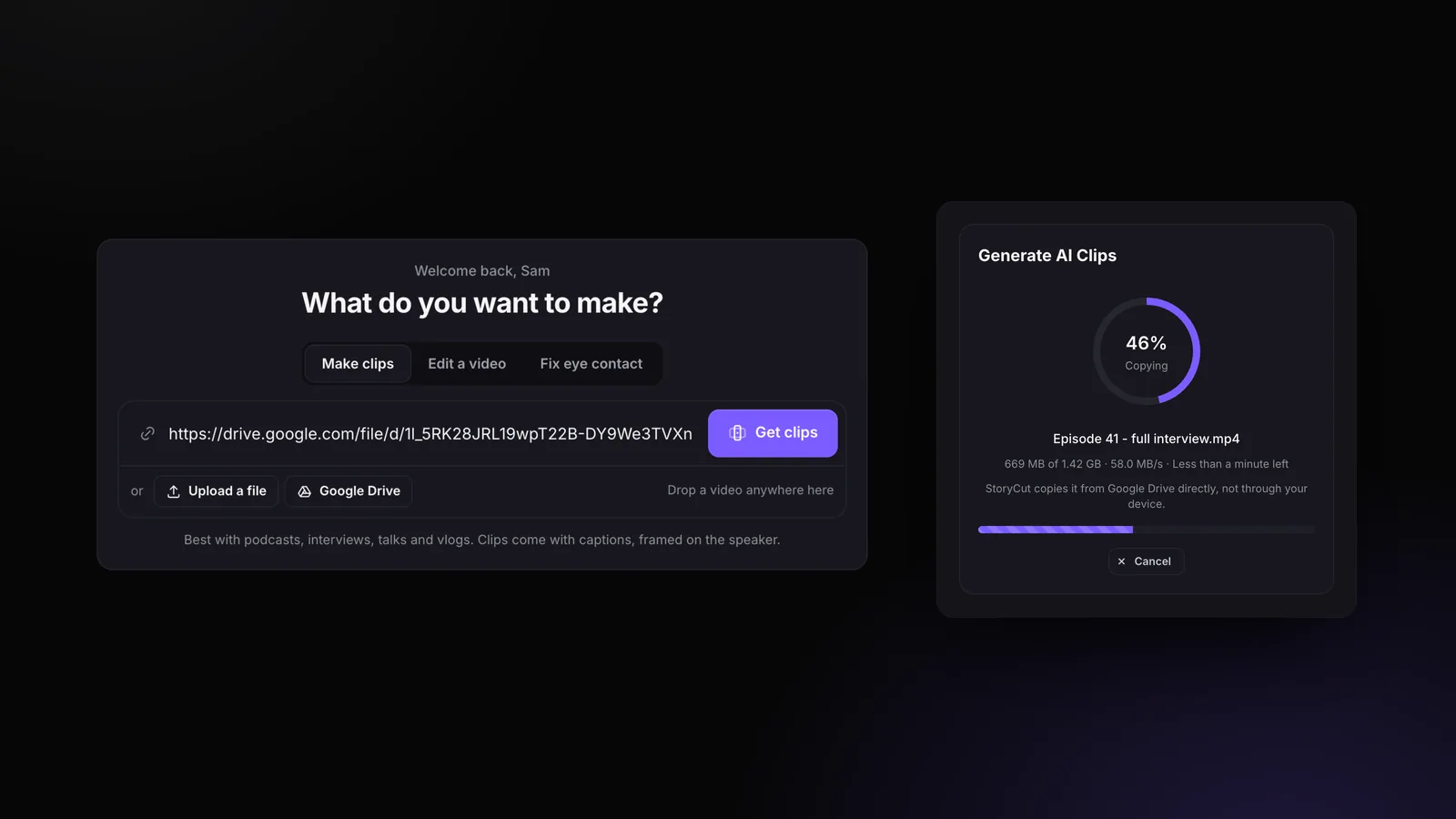
Make clips: paste it in the box and press Get clips; the AI Clips window opens with it, where you choose clip length and caption style. Edit a video or Fix eye contact: press Google Drive or Dropbox under the box, paste, then Import video.
Let it copy
The window shows Copying with the size and progress: StoryCut copies it from Google Drive directly, not through your device. Cancel stops it.
Carry on as with any upload
Captions start by themselves in the editor; AI Clips starts its run. Then edit, export and post. Publishing to YouTube and TikTok: coming soon.
Import From Google Drive or Dropbox
On Edit a video and Fix eye contact, the Google Drive and Dropbox buttons open a link field with the sharing tip under it. On Make clips, the link goes straight in the main box. The copy then shows its progress in the window that opens.
What Each Message Means
| What StoryCut says | What it means | What to do |
|---|---|---|
| This Google Drive video isn’t shared with everyone. | The file is private or shared with named people only | Share → General access → Anyone with the link, then paste the link again |
| That’s a folder link. | Folders can’t be imported | Open the video itself and copy its own link |
| That file isn’t a video. / That link opened a web page, not a video file. | The link points to a document, an image, a zip or a page | Share the video file: MP4, MOV, MKV or WebM |
| This video is … GB. The limit here is … GB. | Bigger than the window’s size limit | See the limits below, or trim the video before sharing it |
| Google Drive is limiting downloads of this file right now. | Drive’s own limit on files downloaded many times | Try again later, or download it and upload the file |
| We couldn’t find this file on Google Drive. | Wrong link, or the file was moved or deleted | Copy the link again from the file |
| The copy stopped before the end. Try again. | The connection dropped during the copy | Try again |
How Big and Long the Video Can Be
The same limits as a video you upload from your device. AI clips also count toward your plan’s AI Clips allowance.
| Plan | Edit a video (file size, length) | Make clips (length) |
|---|---|---|
| Free | 2 GB, 4 min | 2 min to 150 min, any 30 min you pick |
| Starter | 2 GB, 7 min | 2 min to 150 min |
| Pro | 5 GB, 10 min | 2 min to 150 min |
| Business | 10 GB, 30 min | 2 min to 150 min |
Sources: StoryCut pricing
What Works, and What Doesn’t Yet
- Works: links to one video in Google Drive, and Dropbox share links, old and new. Pasted with text around them is fine.
- Not yet: Drive folders, Google Photos, OneDrive, iCloud and WeTransfer links. For those, download the video and upload the file.
- YouTube links go to Make clips: paste them on that tab.
- For now, StoryCut imports share links, so the file has to be shared with Anyone with the link while it copies.
Is “Anyone With the Link” Safe?
Anyone with the link can view the file, but only people you give the link to have it: it isn’t listed or searchable. StoryCut uses the link once. It reads the file’s id from it and downloads from Google’s or Dropbox’s own servers only, never from another address hidden in the link, then keeps its own copy for your project.
Once the copy is done, you can set the file back to Restricted in Drive: StoryCut doesn’t need the link again.
Frequently Asked Questions
Can I edit a Google Drive video on my phone?
Do I have to download the video first?
Why does it say the video isn’t shared?
Can I make AI clips from a Google Drive video?
Can I import a whole folder?
Is it free?
Related Tools & Features