AI B-Roll for Talking Videos
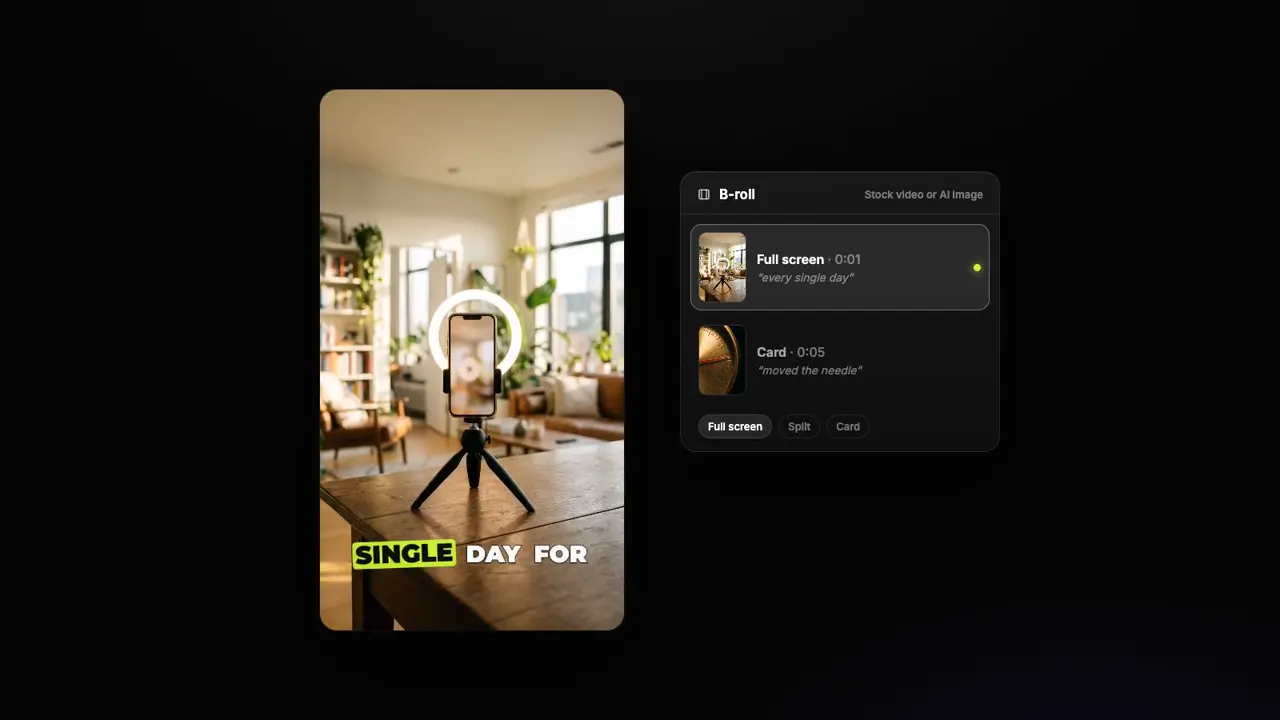
StoryCut reads your transcript, finds the moments a picture helps, and cuts away to a matching stock video clip, or an AI image when no clip fits. Each insert is full screen, a split or a card placed away from your face, and any of them can be swapped in one tap.
- Included in Pro (from $14/mo)
- Stock video from Pixabay
- Swap any clip in one tap



AI B-roll in StoryCut: key facts
- Short answer
- Upload a talking video and let the captions generate. Then click Generate B-Roll in the editor’s B-Roll tab, or run Auto Edit with an edit style that has B-roll. StoryCut picks the moments that need a picture, finds a stock video clip for each one, or makes an AI image when no clip fits, and cuts away to it while you keep talking.
- Where the footage comes from
- Stock video from Pixabay first. For each moment the AI writes 2 or 3 searches, looks at the candidates’ preview frames and keeps the best clip, or turns them all down. A moment with no good clip gets an AI image instead, made with no face and no text in it.
- Layouts
- Full screen (a cutaway; your captions stay on top), split (the B-roll in one half, you re-framed in the other, face centred) or card (a rounded card under your chin). A split or a card is only used where your face stays clear at that moment; otherwise the insert goes full screen.
- Timing
- Nothing in your first 3 seconds, each insert 1.2 to 3.2 seconds long, and at least 2 seconds of you between two inserts. How many depends on your edit style: about one a minute (few) or about three a minute (some).
- Changing one
- Each stock clip comes with 5 alternates, one tap away, and a search of Pixabay’s videos right in its card. You can also switch the layout, regenerate it or undo: the last 5 versions are kept.
- On AI clips
- When your edit style has B-roll, the 3 best clips of an AI Clips run get full-screen cutaways, during the run or afterwards with “Add to all clips”.
- Plan
- Pro ($14/mo billed yearly, $19/mo monthly) and Business, on videos up to 10 and 30 minutes. Not on Free or Starter, and not part of Auto Edit’s free previews.
What every insert gets right
Real footage first
A stock clip from Pixabay, sized for where it plays: 4K for a full vertical frame, 1080p for a split, 720p for a card. The same clip is never used twice in one video.
An AI image when nothing fits
When no stock clip is right, StoryCut makes an image for that moment from what you say. Every image is made with no face and no text, so a stranger never fills your screen.
Kept away from your face
StoryCut finds your face on frames of your video at each moment. A split or a card only goes where it stays clear; otherwise the insert is a full-screen cutaway. Nothing see-through over you.
Timed on your words
Inserts are placed on the words they illustrate, last 1.2 to 3.2 seconds, and leave at least 2 seconds of you before the next one.
Swap in one tap
Five alternates for every stock clip, a Pixabay search in the same card, a layout picker and Undo. Each clip shows its creator: “Video by … from Pixabay”.
As much as your style wants
Your edit style sets how often: off, about one a minute or about three a minute. Calm styles lean on cards and splits, energetic ones on full-screen cutaways.
When B-roll helps, and when to leave it out
B-roll earns its place when you talk about something the viewer can picture: a place, an object, a number going up, a routine. A short cut to it keeps the eye busy and gives the edit a rhythm, and coming back to your face after two or three seconds keeps the video personal. That is why StoryCut keeps the inserts short, spaces them out and never lays a see-through image over your face.
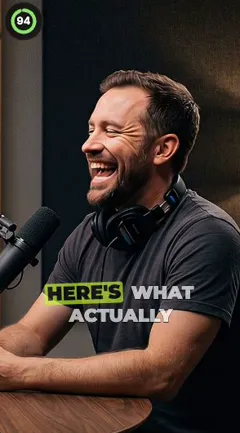
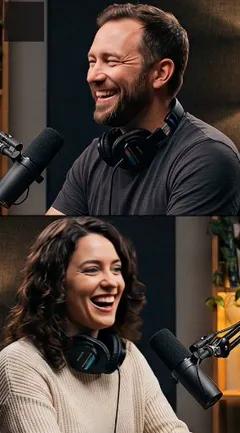
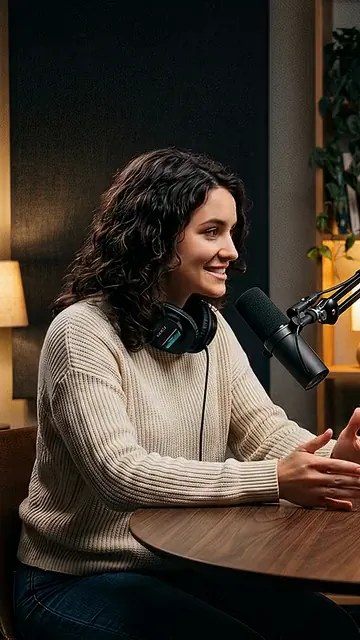
Leave it out when the video is about the people talking: a two-person podcast clip, an interview, a reaction. The Podcast Clip, Interview and Tutorial edit styles add none for that reason. On a screen recording, a tutorial or a demo, the screen already is the picture.
How to add B-roll to a video
Three steps in your browser.
- 1
Upload your video
MP4, MOV, WebM, AVI or MKV. Captions start on their own when the upload finishes; B-roll is placed on their word timings.
- 2
Generate the B-roll
Click Generate B-Roll in the editor’s B-Roll tab (it adds transitions at scene changes too), or run Auto Edit with an edit style that has B-roll, which adds the inserts only.
- 3
Swap, then export
Tap an alternate, search for another clip, change a layout or undo. Then export in 9:16, 4:5, 1:1 or 16:9.
AI B-roll in StoryCut, OpusClip, Submagic and Descript
| What it does | StoryCut | OpusClip | Submagic | Descript |
|---|---|---|---|---|
| Adds B-roll for you | Yes, on the moments the AI picks | Yes, it suggests spots for you to review | Yes, Magic B-rolls, with a slider for how often | Optional, with Quick Design or its AI assistant |
| Footage | Stock video from Pixabay, or an AI image when no clip fits | Stock video from Pexels, AI images, AI video (Pro) | Its stock library (Storyblocks on Pro), AI-made clips | Stock from GIPHY and Storyblocks, AI-made media |
| Layouts | Full screen, split or card, kept away from the face | Not stated beyond drag and reframe | 10, including splits and picture-in-picture | From scenes and layout packs |
| Replace one | Yes, 5 alternates, a stock search and undo | Yes, regenerate or search stock | Yes, change media or search | Yes, replace media |
| Your own footage as B-roll | No | Yes | Yes | Yes |
| Plan | Pro, $14/mo billed yearly | Starter ($15/mo): 3 clips a month; more on Pro | Every plan, 2 credits a video | Quick Design limited on Free; full stock search on Creator |




Checked on November 4, 2026 from each product’s public pages.Sources8
- OpusClip: AI B-rollhelp.opus.pro
- OpusClip AI B-roll pageopus.pro
- OpusClip pricingopus.pro
- Submagic B-rollsubmagic.co
- Submagic API: create project (layouts)docs.submagic.co
- Submagic pricingsubmagic.co
- Descript: Quick Designhelp.descript.com
- Descript pricingdescript.com
Frequently Asked Questions
What is AI B-roll?
Short cutaways to footage or images that show what you are talking about, added for you. StoryCut reads your transcript, picks the moments a picture helps, finds a matching stock video clip or makes an AI image, and cuts to it for a couple of seconds while your voice keeps going.
Where does the B-roll footage come from?
Stock video from Pixabay, searched for each moment and picked by the AI from the candidates’ preview frames. When no clip is good enough, StoryCut makes an AI image for that moment instead. Each stock clip’s card in the editor credits its creator.
Will the B-roll cover my face?
Only when it should: a full-screen cutaway replaces the picture for 1.2 to 3.2 seconds, then you are back. Splits and cards are only placed where your face stays clear at that moment, found on frames of your video. Nothing is laid see-through over you, and AI images are made with no faces in them.
Can I replace a B-roll clip I don’t like?
Yes. Every stock clip has 5 alternates one tap away and a search of Pixabay’s videos in the same card. You can also change its layout, regenerate it, delete it or undo; the last 5 versions are kept.
Can I use my own footage as B-roll?
Not yet. Every insert is a Pixabay stock clip or an AI image from StoryCut. You can swap it for another stock clip, search for one, regenerate the image or delete it.
How much B-roll will my video get?
What your edit style says: none, about one insert a minute, or about three a minute, never in the first 3 seconds and with at least 2 seconds of you between two. Pressing Generate B-Roll with B-roll off in your style adds about one a minute.
Does B-roll work on AI clips?
Yes, on Pro and up. When your edit style has B-roll, the 3 best clips of an AI Clips run get full-screen cutaways, added during the run or afterwards with “Add to all clips” on the clips page.
Is AI B-roll free?
No. It is part of Pro ($14/mo billed yearly, $19/mo monthly) and Business. Auto Edit’s 2 free previews on Free and Starter cut the silences and add zooms, sound effects and music, but not B-roll.
Show What You’re Talking About
Upload a talking video and let StoryCut cut away to footage that matches your words, then swap anything in one tap.
- Stock video from Pixabay
- AI images with no faces
- Pro from $14/mo
You Might Also Like
18 Edit Styles for Auto-Edited Videos
Pick one of 18 ready-made styles, from Calm to Energetic, or set your own amounts. Every video you auto-edit and every AI clip then gets the same zooms, sound effects, B-roll, music and pace, so your channel looks like one editor made it.
Auto-Edit Your Talking-Head Videos in One Click
For videos you filmed yourself. Pick one of 18 ready-made edit styles, or set your own, once. Then Auto Edit cuts the silences, zooms in on the key moments, places sound effects, adds B-roll and composes music in that style on every video, and you keep or remove each one.
Magic Zoom: Auto-Focus on What Matters
The AI reads your transcript, finds the key moments and adds timed zoom-ins. Punchlines hit harder and reveals feel bigger.

AI video editor for creators who want viral content without the editing grind.
Features
All FeaturesAI CaptionsHormozi CaptionsMrBeast CaptionsAdd Subtitles to VideoSubtitle GeneratorAI Video EditorAI Clip GeneratorYouTube to ShortsYouTube Auto ImportAI HeadlinesChatGPT & Claude ConnectorVideo Clipping APIEye Contact FixMagic ZoomTransitionsClean AudioAI MusicSound EffectsAI Auto EditEdit StylesAI B-RollGTA 6 Clip MakerTwitch & Kick Clip MakerRemove SilenceRemove Filler WordsAI ThumbnailsBrand KitsCommunity StylesAI Video TranslatorFree Tools
Video Hook GeneratorTikTok CaptionsInstagram CaptionsYouTube TitlesTikTok HashtagsVideo Script GeneratorAI Video IdeasContent CalendarTikTok TranscriptVideo to TextFree SRT GeneratorSubtitle TranslatorFree TeleprompterWords to MinutesSRT to VTT ConverterTikTok Safe ZoneFree Sound EffectsAll 40 Tools →Use Cases
TikTok CreatorsYouTube ShortsInstagram ReelsPodcastersClippersGTA RP ClipsGTA 6 Shorts with AIAgencies & TeamsLinkedIn VideosTeleprompter Eye ContactPremiere Pro Eye ContactDaVinci Resolve Eye ContactFinal Cut Pro Eye ContactLoom Eye Contact