Remove Silences From Your Video Automatically
StoryCut finds every pause longer than half a second between your words, cuts it out of the video and moves your captions to match. One click, and you can switch back to the original at any time.
- Included in Pro (from $14/mo)
- Free preview through Auto Edit on videos up to 90 s
Silence removal in StoryCut: key facts
- Short answer
- Upload your video and let the captions generate, then click Remove Silence in the AI tools (the Boost tab on desktop). Every gap of more than 0.5 seconds between two words is cut from the video, and the captions are re-timed to match. Switch it off to get the original back.
- What counts as a silence
- A gap longer than 0.5 s between two spoken words, measured on the word timings of your transcript, plus any dead air before your first word. StoryCut keeps 0.05 s before and after each word so the cuts don’t clip your speech.
- What it doesn’t remove
- Filler words (“um”, “uh”, “like”), repeated sentences and bad takes stay in. The 0.5 s threshold is fixed, you can’t keep individual pauses, and silence after your last word is left as it is.
- Plan
- Pro ($14/mo billed yearly, $19/mo monthly) and Business. On Free and Starter, Auto Edit previews it on 2 videos of up to 90 seconds; exporting the result needs Pro.
- Video length
- Up to 10 minutes per video on Pro and 30 minutes on Business, in any aspect ratio.
- With eye contact
- Silence removal and eye contact correction work together: with both on, StoryCut cuts the same pauses out of the eye-corrected video, so the eye fix, the voice and the captions stay in sync.
How automatic silence removal works
StoryCut decides what to cut from your words, not from the volume of the audio. When your upload finishes, the captions are generated with a start and end time for every word. Remove Silence goes through those words in order, and wherever more than half a second passes between the end of one word and the start of the next, it cuts that gap from the video and the audio together, leaving a 0.05-second margin on each side. Dead air before your first word goes too.
The result is a new, tighter version of your video, rendered at high quality, with every caption moved to its new time. The original stays in your project: one switch takes you back to it, and another click reprocesses the video.
Because the cuts follow the transcript, anything that isn’t a spoken word counts as silence. A laugh, a sound effect in your recording, music between two sentences or a long look at the camera will be cut if it lasts more than 0.5 seconds. That is what you want for a talking-head take, and what you don’t want for a demo, a reaction shot or a pause you left on purpose.
What happens when you click Remove Silence
Measures every gap
Uses the word timings from your captions to find each pause longer than 0.5 s, plus the dead air at the start.
Cuts video and audio together
Picture and sound are trimmed at the same points, with 0.05 s kept around each word so nothing gets clipped.
Moves your captions
Every caption and every word is re-timed to the shorter video, so word-by-word highlights still land on the word.
One switch to undo
The editor shows how many silences were cut and how much shorter the video is. Switch it off to use the original.
How It Works
How to remove silence from a video with StoryCut
Three steps in your browser.
- 01
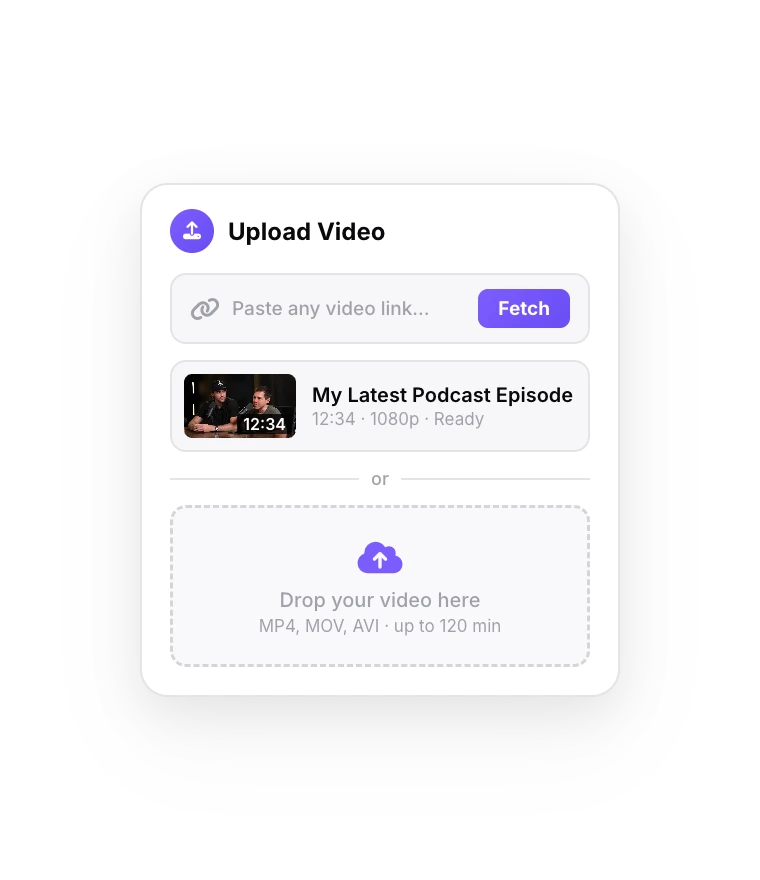
Upload your video
MP4, MOV, WebM, AVI or MKV. Captions start on their own when the upload finishes; silence removal works from their word timings.
- 02
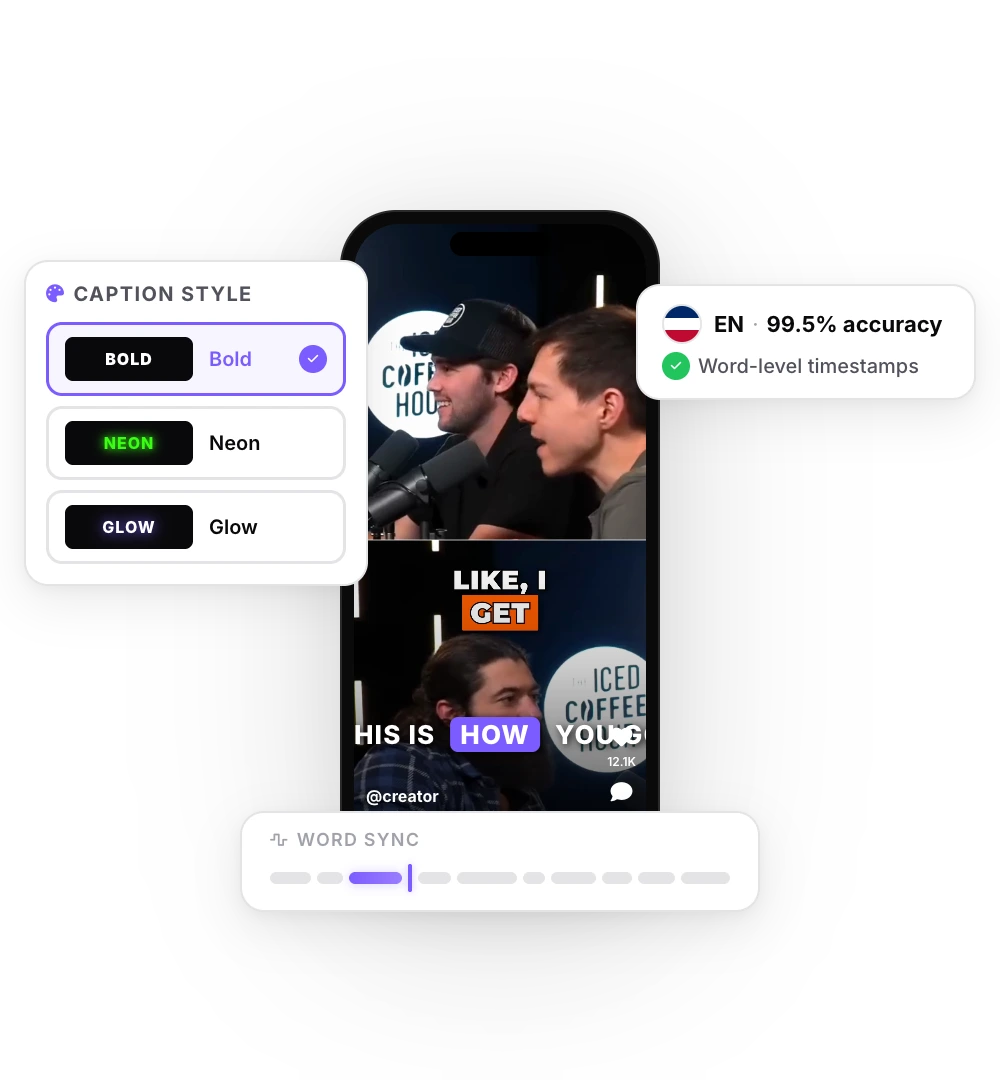
Click Remove Silence
In the AI tools (Boost tab on desktop). Or click Auto Edit to cut the silences and add sound effects, zooms and music in one go.
- 03
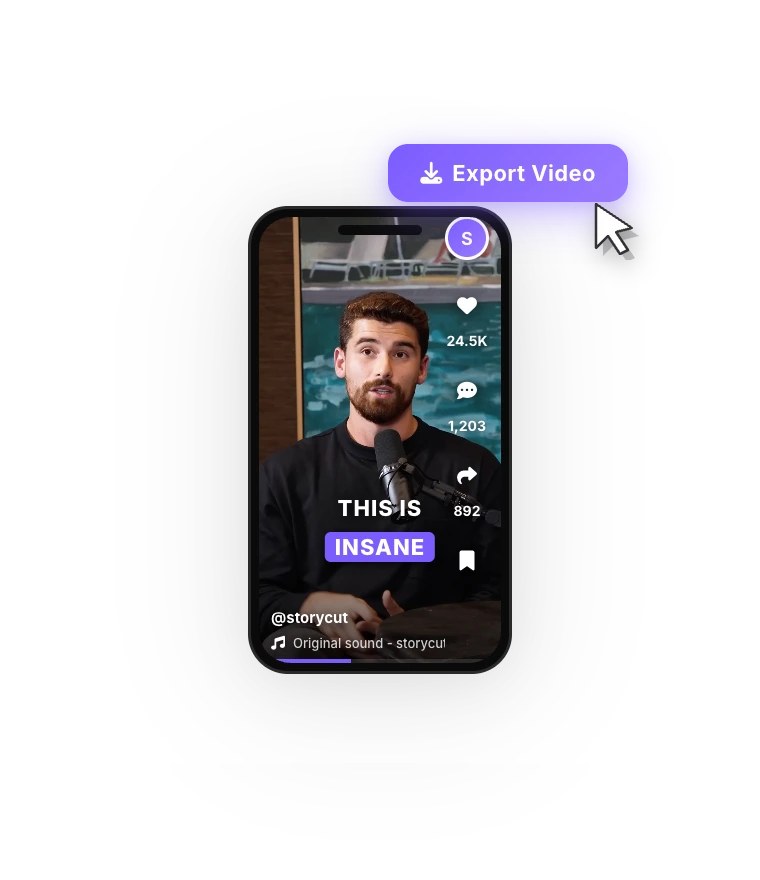
Check and export
Play it back. If a cut feels too tight, switch back to the original. Then export in 9:16, 4:5, 1:1 or 16:9.
Silence removal, jump cuts and filler-word removal: what’s the difference?
Silence removal cuts the gaps where nobody speaks. It is the automatic version of the jump cut that talking-head creators make by hand: one take, with the breaths and pauses between sentences taken out so the pace never drops.
Filler-word removal goes further and cuts sounds that are spoken but add nothing, such as “um”, “uh” or “you know”. Bad-take or retake removal cuts a sentence you said twice. Those need a different kind of detection, and StoryCut doesn’t do either: it removes silences only. If your takes are full of “ums”, Descript, Submagic Pro, Opus Clip, Premiere Pro and CapCut Pro have filler-word tools (see the table below).
A pause-length setting is the other difference. StoryCut always uses 0.5 seconds. Descript, Opus Clip and Premiere Pro let you choose the length, and Submagic offers three paces.
Automatic silence removal in other editors
| Tool | What it cuts | Pause length | Filler words | Cheapest plan with it |
|---|---|---|---|---|
| StoryCut | Gaps over 0.5 s between words, and dead air before the first word | Fixed at 0.5 s | No | Pro, $14/mo billed yearly ($19/mo monthly) |
| Submagic | Dead air, filler words and bad takes (Smart Trim) | Natural, Fast or Extra Fast | Yes | Pro, $23/mo billed yearly ($39 monthly) |
| Descript | Shortens the gaps between words to a length you set (Shorten word gaps) | You choose | Yes | Hobbyist, $16/mo billed yearly ($24 monthly), using AI credits; limited on Free |
| Opus Clip | Pauses and filler words (Speech cleanup); bad takes on Pro | 0.5 s by default, adjustable | Yes | Starter, $15/mo (monthly only) |
| Premiere Pro | Pauses found by text-based editing, deleted one by one or all at once | Adjustable | Yes | A Premiere Pro subscription |
| CapCut (desktop) | Pauses, repeated words and filler words (Remove filler words) | Not stated | Yes | Pro, $19.99/mo or $179.99/yr in the US |
Checked on October 9, 2026 from each product’s public pages. Sources: Submagic auto video editor (Smart Trim), Submagic pricing, Descript: Shorten word gaps, Descript pricing, Opus Clip: Speech cleanup, Opus Clip pricing, Adobe: detect and delete pauses in Premiere, CapCut: Remove filler words, CapCut Standard vs Pro.
Remove silences first, then add effects
Sound effects and zooms in StoryCut are timed on the words in your captions. Cutting the pauses moves every word earlier, so remove the silences before you add sound effects or magic zoom. Auto Edit does it in that order for you: it cuts the silences, then places the sound effects and zooms on the new timings, and composes music alongside.
Eye contact correction works alongside it. It makes its own corrected copy of your video, and with silence removal on, StoryCut cuts the same pauses out of that copy, so you keep both the eye fix and the shorter video.

FAQ
Frequently Asked Questions
Cut the Dead Air in One Click
Upload your video. Get back a scroll-stopper with viral captions, cinematic transitions, auto zoom, and clean audio. The same tools top creators use to explode views.
Upload a talking video, click Remove Silence, and your captions follow every cut. Or let Auto Edit add sound effects, zooms and music too.
- Join 10,000+ creators
- No credit card required
You Might Also Like
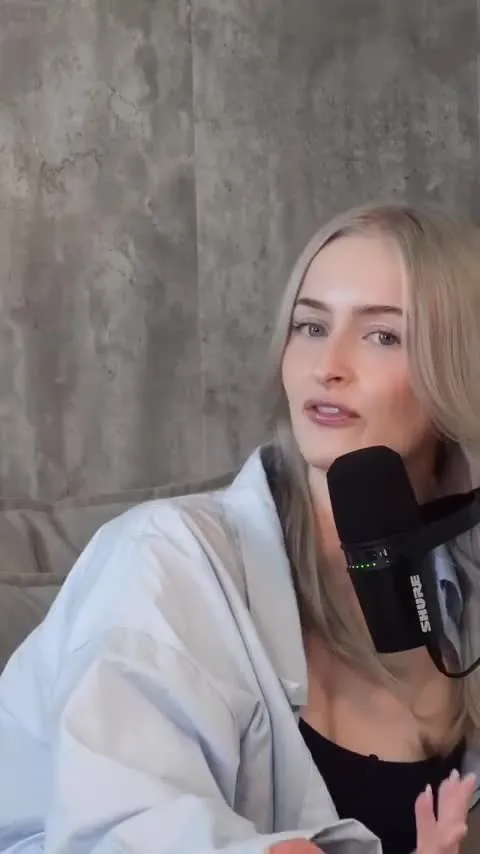
Auto-Edit Your Talking-Head Videos in One Click
For videos you filmed yourself. Once your captions are ready, Auto Edit cuts the silences, places sound effects on your key words, zooms in on the key moments and composes background music. Then you keep or remove each one.

Magic Zoom: Auto-Focus on What Matters
The AI reads your transcript, finds the key moments and adds timed zoom-ins. Punchlines hit harder and reveals feel bigger.
Auto SFX: Add Sound Effects to Your Video Automatically
StoryCut reads your transcript, picks the 4 to 8 words that deserve a sound and places a matching whoosh, pop or ding on each one, timed to the word. No library to dig through, no timeline to drag.

AI video editor for creators who want viral content without the editing grind.
Features
All FeaturesAI CaptionsHormozi CaptionsMrBeast CaptionsAdd Subtitles to VideoSubtitle GeneratorAI Video EditorAI Clip GeneratorYouTube to ShortsEye Contact FixMagic ZoomTransitionsClean AudioAI MusicSound EffectsAI Auto EditRemove SilenceAI ThumbnailsBrand KitsCommunity StylesAI Video TranslatorFree Tools
Video Hook GeneratorTikTok CaptionsInstagram CaptionsYouTube TitlesTikTok HashtagsVideo Script GeneratorAI Video IdeasContent CalendarTikTok TranscriptVideo to TextFree SRT GeneratorSubtitle TranslatorFree TeleprompterWords to MinutesSRT to VTT ConverterTikTok Safe ZoneFree Sound EffectsAll 40 Tools →Use Cases
TikTok CreatorsYouTube ShortsInstagram ReelsPodcastersClippersAgencies & TeamsLinkedIn VideosTeleprompter Eye ContactPremiere Pro Eye ContactDaVinci Resolve Eye ContactFinal Cut Pro Eye ContactLoom Eye Contact