Turn Every New YouTube Video Into Clips
Connect your channel once. When you publish a new video, StoryCut starts an AI Clips run by itself, with your clip length, caption style and edit style, and lets you know when the clips are ready.
- From Starter ($7/mo billed yearly)
- Starter 1 channel, Pro 3 channels, Business 10 channels



Auto import in StoryCut: key facts
- Short answer
- In Settings → Auto import, paste your channel’s link or @handle and turn it on. From then on, each new public video on that channel that is longer than your minimum (3 minutes by default) starts an AI Clips run with the settings you saved in the AI Clips window. You get the usual email, and a notification if you allow them, when the clips are ready.
- How fast it starts
- Usually within minutes of publishing: StoryCut subscribes to YouTube’s update feed for your channel (WebSub) and also checks it every 30 minutes, in case a notification is missed. The run then takes about 10 to 15 minutes for an hour of video.
- Which videos
- Videos published after you turn it on, on that channel, public and at least as long as your minimum: 1, 3, 5 or 10 minutes (never under AI Clips’ 2 minutes), so most Shorts are skipped. Each video is imported once.
- Premieres and live streams
- They wait until YouTube has finished processing them, checked every hour for up to 2 days. An upload YouTube is still processing is checked every 15 minutes.
- Settings it uses
- The defaults you saved in the AI Clips window: clip length, face tracking, language, the caption style new videos start with and, on Pro and up, your edit style on every clip.
- Plans and channels
- 1 YouTube channel on Starter, 3 on Pro and 10 on Business. Not on Free. Each imported video counts toward your plan’s AI Clips allowance for the month: Starter 3 hours (up to 10 videos), Pro 10 hours (up to 30 videos), Business 30 hours (up to 60 videos).
- When your month is used up
- The video is skipped and you get one notice (in the app, by push and by email) with a Make clips button, so you can run it later. Auto import never spends a video you bought on its own.
How to clip your channel automatically
Set it up once, in a minute.
- 1
Connect your channel
Open Settings → Auto import, paste your channel link or @handle, then Find and Turn on. Pick the shortest video to import (3 minutes by default).
- 2
Save your clip settings
In the AI Clips window, choose the clip length, caption style and whether your edit style goes on every clip, then tick “Save these settings as my default”.
- 3
Publish on YouTube
Your next video starts a run by itself. It shows on your dashboard with an “Auto import” tag, and you are told when the clips are ready.
Auto import and AI clips on each plan
| What you get | Free | Starter | Pro | Business |
|---|---|---|---|---|
| Price | $0, no credit card | $9/mo, or $7/mo billed yearly | $19/mo, or $14/mo billed yearly | $49/mo, or $39/mo billed yearly |
| Video a month | 1 long video | 3 hours (up to 10 videos) | 10 hours (up to 30 videos) | 30 hours (up to 60 videos) |
| Part of each video used | First 30 min | The whole video | The whole video | The whole video |
| Export | 720p, watermark | 1080p, no watermark | 2K, no watermark | 4K 60fps, no watermark |
| Score, captions, speaker framing, headline | Yes | Yes | Yes | Yes |
| Auto import from YouTube channels | No | 1 channel | 3 channels | 10 channels |
| Edit style on every clip: zooms, sound effects, music | No | No | Yes | Yes |
| B-roll on the best clips | No | No | Yes | Yes |
| Eye contact correction | One free 20 s preview | One free 20 s preview | 10 videos a month | Unlimited |
| API and webhooks | No | Yes | Yes | Yes |
What auto import takes care of
Watches your channel
YouTube tells StoryCut about each new upload, and a check every 30 minutes catches anything missed. No links to paste.
Uses your settings
Clip length, captions, language, face tracking and your edit style: the same defaults as the AI Clips window, on every run.
Skips what isn’t a long video
Videos under your minimum are skipped. Premieres and live streams wait until YouTube has processed them, for up to 2 days.
One at a time, nothing lost
Publish three videos in a day and they queue, then start one after the other. Every new video is noted, so a restart loses nothing.
Counts like any run
An imported video counts toward your plan’s AI Clips hours for the month, by its minutes. When they are used up you are told, never charged.
More than one channel
1 YouTube channel on Starter, 3 on Pro and 10 on Business, each with its own minimum length. Pause or remove one at any time.
Auto import in StoryCut and OpusClip
| What it does | StoryCut | OpusClip |
|---|---|---|
| How often it looks | Within minutes (YouTube’s update feed), plus a check every 30 minutes | Every hour |
| Videos it takes | New public videos over your minimum (1 to 10 min, 3 by default); premieres and lives once YouTube has processed them | New public videos over 3 min; no Shorts or livestreams |
| Channels | Starter 1, Pro 3, Business 10 | Not stated |
| What a video uses | Its minutes, from your plan’s hours of video a month | Credits for the full video length |
| Settings for the clips | Your saved AI Clips defaults and, on Pro and up, your edit style | Clip length and presets chosen beforehand |
| Cheapest plan | Starter, $7/mo billed yearly ($9/mo monthly) | Starter, $15/mo (monthly only) |


Checked on November 4, 2026 from each product’s public pages.Sources2
- OpusClip: Auto Importhelp.opus.pro
- OpusClip pricingopus.pro
Pro adds your edit style, B-roll and 10 hours of video a month
The rest of the autopilot
Frequently Asked Questions
Can StoryCut clip my new YouTube videos automatically?
Yes, on paid plans. Connect your channel in Settings → Auto import. Each new public video longer than your minimum (3 minutes by default) starts an AI Clips run by itself, with the clip length, caption style and edit style you saved, and you are told when the clips are ready.
How quickly does it start after I publish?
Usually within minutes. StoryCut subscribes to YouTube’s update feed for your channel and also checks it every 30 minutes. The run itself takes about 10 to 15 minutes for an hour of video.
Which videos are skipped?
Videos shorter than your minimum (1, 3, 5 or 10 minutes, never under 2), videos that aren’t public, videos from another channel, and anything published before you turned auto import on. Premieres and live streams wait until YouTube has processed them, for up to 2 days. The Auto import page lists what was skipped and why.
Does it use my AI Clips allowance?
Yes. Each imported video counts toward your plan’s AI Clips allowance for the month (Starter 3 hours (up to 10 videos), Pro 10 hours (up to 30 videos), Business 30 hours (up to 60 videos)). When the month is used up, the video is skipped and you get one notice with a Make clips button. Auto import never spends a video you bought by itself.
Which settings does it use?
The defaults you saved in the AI Clips window with “Save these settings as my default”: clip length, face tracking, language and the caption style new videos start with. On Pro and up, your edit style (zooms, sound effects, music and B-roll on the best clips) can go on every clip too.
How many channels can I connect?
1 YouTube channel on Starter, 3 on Pro and 10 on Business. Each channel has its own minimum length and can be paused or removed at any time.
Can I auto import someone else’s channel?
Auto import watches the channel you paste. Use it for your own channel, or a channel whose videos you have permission to clip: reposting someone else’s content without permission can infringe their copyright.
Do other clip makers have auto import?
OpusClip does: it checks your channel every hour and takes new public videos over 3 minutes, using credits for the full length. Submagic’s and Descript’s documentation offer no channel import; they point to automation tools instead (Zapier, Make or n8n for Submagic; Zapier, its API or MCP for Descript). Checked on November 4, 2026.
Is auto import on the free plan?
No. It starts on Starter ($7/mo billed yearly, $9/mo monthly). On Free you paste a link in the AI Clips window yourself: 1 long video a month, its first 30 minutes.
Publish Once. Get Clips Every Time.
Connect your YouTube channel and let every new video turn into captioned, vertical clips in your style.
- Starter 1 channel, Pro 3 channels, Business 10 channels
- Cancel anytime
You Might Also Like
AI Clip Generator: Turn Long Videos Into Shorts
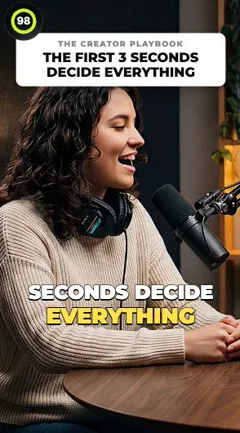
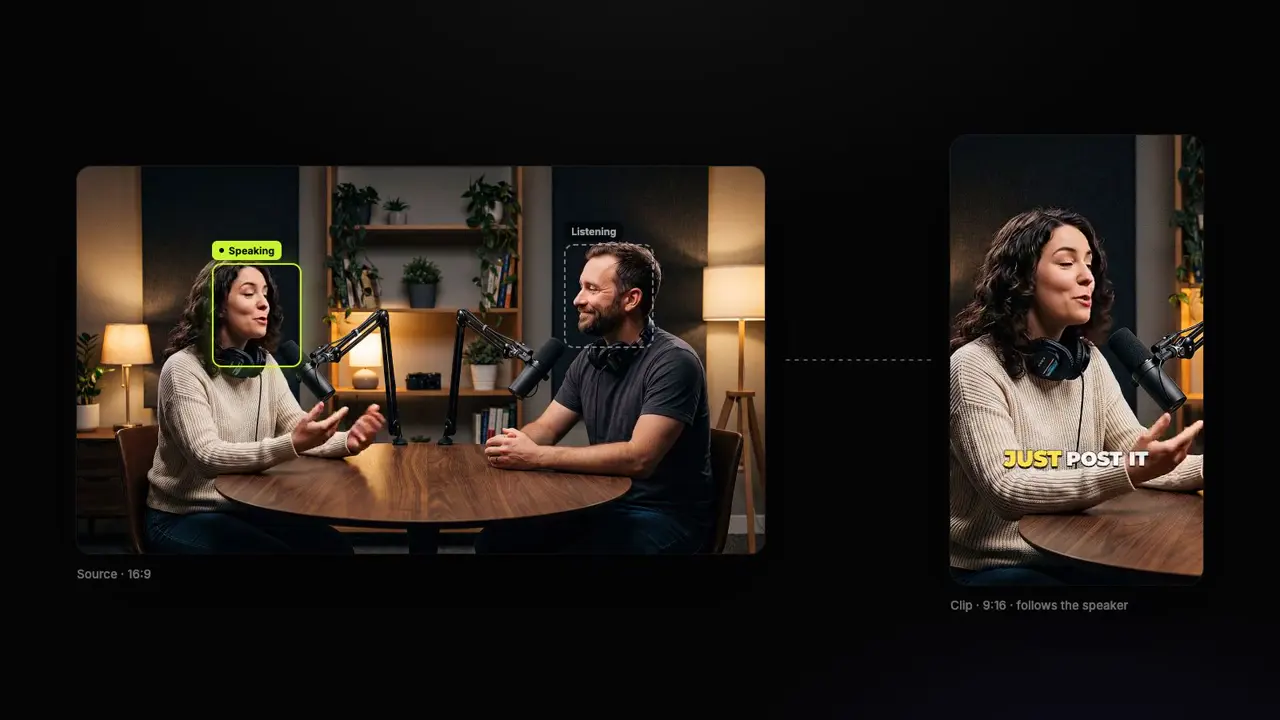
Upload a podcast, webinar or interview, or paste a YouTube link. The AI reads the whole transcript, picks the 3 to 12 moments that stand on their own, scores each from 0 to 100, frames the person speaking and adds captions and a headline. Tell it what to look for, or let it choose.
Turn YouTube Videos Into Shorts with AI
Paste a YouTube link and get 3 to 12 vertical Shorts back, cut from the video’s strongest moments, framed on the person speaking, with captions and a headline on each. On paid plans, connect your channel and every new upload becomes Shorts by itself.



18 Edit Styles for Auto-Edited Videos
Pick one of 18 ready-made styles, from Calm to Energetic, or set your own amounts. Every video you auto-edit and every AI clip then gets the same zooms, sound effects, B-roll, music and pace, so your channel looks like one editor made it.

AI video editor for creators who want viral content without the editing grind.
Features
All FeaturesAI CaptionsHormozi CaptionsMrBeast CaptionsAdd Subtitles to VideoSubtitle GeneratorAI Video EditorAI Clip GeneratorYouTube to ShortsYouTube Auto ImportAI HeadlinesChatGPT & Claude ConnectorVideo Clipping APIEye Contact FixMagic ZoomTransitionsClean AudioAI MusicSound EffectsAI Auto EditEdit StylesAI B-RollGTA 6 Clip MakerTwitch & Kick Clip MakerRemove SilenceRemove Filler WordsAI ThumbnailsBrand KitsCommunity StylesAI Video TranslatorFree Tools
Video Hook GeneratorTikTok CaptionsInstagram CaptionsYouTube TitlesTikTok HashtagsVideo Script GeneratorAI Video IdeasContent CalendarTikTok TranscriptVideo to TextFree SRT GeneratorSubtitle TranslatorFree TeleprompterWords to MinutesSRT to VTT ConverterTikTok Safe ZoneFree Sound EffectsAll 40 Tools →Use Cases
TikTok CreatorsYouTube ShortsInstagram ReelsPodcastersClippersGTA RP ClipsGTA 6 Shorts with AIAgencies & TeamsLinkedIn VideosTeleprompter Eye ContactPremiere Pro Eye ContactDaVinci Resolve Eye ContactFinal Cut Pro Eye ContactLoom Eye Contact