18 Edit Styles for Auto-Edited Videos
Pick one of 18 ready-made styles, from Calm to Energetic, or set your own amounts. Every video you auto-edit and every AI clip then gets the same zooms, sound effects, B-roll, music and pace, so your channel looks like one editor made it.
- 18 styles, each with an example video
- 2 free Auto Edit previews
- Exporting the effects needs Pro (from $14/mo)
Edit styles in StoryCut: key facts
- Short answer
- An edit style is one setting for your whole workspace that says how much Auto Edit and the AI tools add to a video. Choose it in Settings → Edit style: one of 18 ready-made styles at Subtle, Balanced or Bold, or your own amounts. Every video you auto-edit, every Generate button and, on Pro and up, every AI clip follows it.
- The 18 styles
- Talk to camera: Commentary, Calm, Clean, Standard, Punchy Shorts, Energetic. Conversations: Podcast Clip, Interview. Teach & explain: Tutorial, Explainer. Business & ads: LinkedIn Pro, Product Demo / Ad, Finance & Real Estate. Story & inspiration: Vlog, Motivational, Sermon & Faith. Faceless & hype: Faceless / Voiceover, Reaction & Gaming.
- What a style sets
- Zooms: how many (off, 1 to 2, about 3 or about 6 a minute), how strong (subtle 4–8%, medium 8–15%, strong 12–25%) and how they move. Sound effects: how many, which kinds or one sound you pick, and how loud. B-roll: off, about 1 or about 3 a minute. Music: on or off, and its level under your voice. Pauses: cut from 0.8, 0.5 or 0.35 s. And the caption style new videos start with.
- Intensity
- Subtle, Balanced or Bold moves every amount of a ready-made style one step down or up. What a style leaves off stays off, so Tutorial and Podcast Clip stay clean even on Bold.
- Where it applies
- Auto Edit (the start screen shows the style and a switch per step), the Zoom, Sound effects and B-roll Generate buttons, AI clips (“Add my edit style to every clip”, or “Add to all clips” after a run) and, on Pro and up, Auto Edit running by itself on every new video.
- How the amounts were set
- From example edits published by other auto-edit tools, measured frame by frame: calm styles zoom 1 to 3 times a minute by 4 to 15% and hold each zoom 2 to 5 seconds, energetic ones about 6 times a minute by 12 to 25%; sound effects sit 12 to 15 dB under the voice; music sits 20 to 26 dB under the voice while someone speaks.
- Plan
- Choosing and saving a style works on every plan. The effects it adds (zooms, sound effects, B-roll, music, silence cuts) are Pro features: Free and Starter get 2 Auto Edit previews on videos up to 90 seconds to watch them, and export with Pro ($14/mo billed yearly) or without the effects.
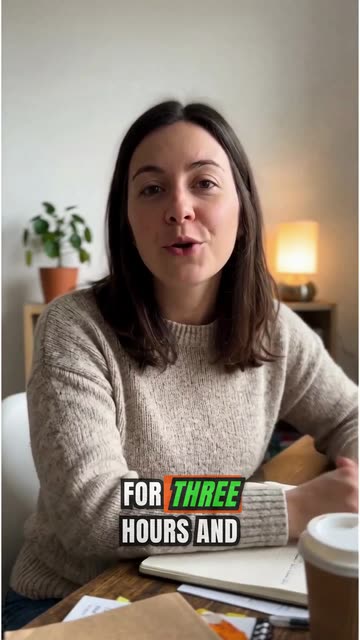
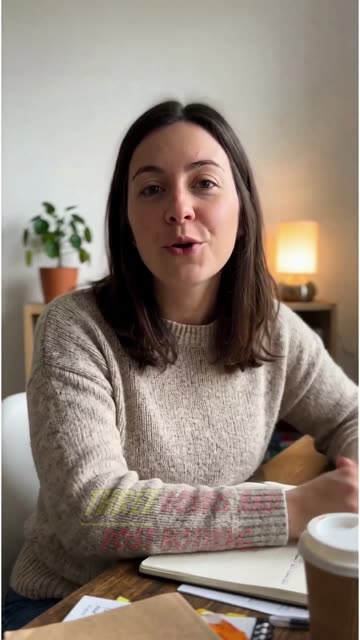
The 18 edit styles and what each adds
| Style | Zooms | Sound effects | B-roll | Music | Pauses | Good for |
|---|---|---|---|---|---|---|
| Commentary (Talk to camera) | 1 to 2 a minute, subtle (4–8%) | No | No | No | Cut over 0.5 s | Commentary, opinion, news reaction |
| Calm (Talk to camera) | 1 to 2 a minute, subtle (4–8%) | No | No | Whisper (very low) | Cut over 0.8 s | Reflective talks, storytelling, long videos |
| Clean (Talk to camera) | 1 to 2 a minute, subtle (4–8%) | Key click, about 1 a minute | No | Background (low) | Cut over 0.5 s | Tips, coaching, creator Shorts |
| Standard (Talk to camera) | About 3 a minute, medium (8–15%) | About 2 a minute | No | Background (low) | Cut over 0.5 s | Any talking-head Short |
| Punchy Shorts (Talk to camera) | About 6 a minute, strong (12–25%) | No | No | Background (low) | Cut over 0.35 s | Business and education Shorts |
| Energetic (Talk to camera) | About 6 a minute, strong (12–25%) | About 4 a minute | About 3 a minute | Balanced | Cut over 0.35 s | Hype Shorts |
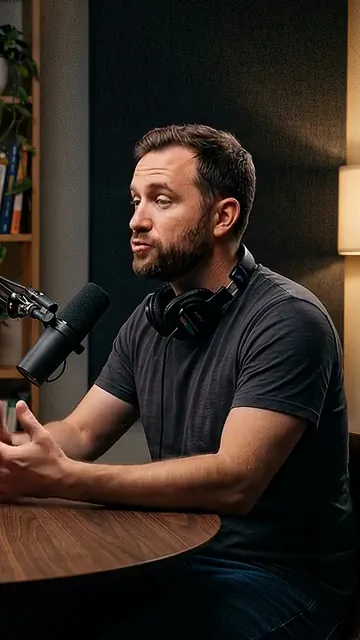
| Podcast Clip (Conversations) | No | No | No | No | Cut over 0.5 s | Video podcast clips, 2 or more people |
| Interview (Conversations) | 1 to 2 a minute, subtle (4–8%) | No | No | No | Cut over 0.8 s | Sit-down interviews, long form |
| Tutorial (Teach & explain) | No | No | No | No | Cut over 0.5 s | Screen recordings, how-tos, lessons |
| Explainer (Teach & explain) | About 3 a minute, medium (8–15%) | Soft pop, about 1 a minute | About 3 a minute | Whisper (very low) | Cut over 0.5 s | Educator Shorts, facts, lists |
| LinkedIn Pro (Business & ads) | 1 to 2 a minute, subtle (4–8%) | No | About 1 a minute | Whisper (very low) | Cut over 0.5 s | Founders, B2B, thought leadership |
| Product Demo / Ad (Business & ads) | About 3 a minute, medium (8–15%) | About 2 a minute | About 3 a minute | Balanced | Cut over 0.35 s | UGC ads, product demos |
| Finance & Real Estate (Business & ads) | 1 to 2 a minute, medium (8–15%) | No | About 1 a minute | Background (low) | Cut over 0.5 s | Advisers, realtors, property tours |
| Vlog (Story & inspiration) | 1 to 2 a minute, medium (8–15%) | About 1 a minute | No | Balanced | Cut over 0.5 s | Day in the life, travel, lifestyle |
| Motivational (Story & inspiration) | About 3 a minute, medium (8–15%) | About 1 a minute | About 1 a minute | Balanced | Cut over 0.8 s | Coaching, quotes, inspiration |
| Sermon & Faith (Story & inspiration) | 1 to 2 a minute, subtle (4–8%) | No | No | Whisper (very low) | Cut over 0.8 s | Church and faith clips |
| Faceless / Voiceover (Faceless & hype) | No | About 1 a minute | About 3 a minute | Background (low) | Cut over 0.35 s | Narration over images |
| Reaction & Gaming (Faceless & hype) | About 6 a minute, strong (12–25%) | About 4 a minute | No | No | Cut over 0.35 s | Gaming, streams, reactions |
What a style decides for you
Zooms
Off, or 1 to 2 to about 6 a minute on the key moments, from a subtle 4–8% push-in to a strong 12–25% punch, slow or snapped in. Never two too close together.
Sound effects
Off, or about 1, 2 or 4 a minute, chosen by the AI from the kinds you allow, or the same soft click or pop every time. By default about 10 dB under your voice.
B-roll
Off, about one insert a minute or about three: stock video or an AI image, full screen, split or card, kept away from your face.
Music
An original instrumental track at Whisper, Background, Balanced or Prominent, lowered while you speak, or no music at all.
Pace
Pauses cut from 0.8 s (natural), 0.5 s (normal) or 0.35 s (tight), or kept.
Captions
The caption style new videos start with, chosen to stay readable on any background: every ready-made style comes with one.
Why “less” is the default
An overdone automatic edit is easy to spot: a zoom on every sentence, a sound on every word, music as loud as the voice. It looks busy in a demo and overproduced on a real channel. The edit styles start from how finished edits are actually cut: a calm talking-head video zooms once or twice a minute and holds each zoom for a few seconds, sound effects sit well under the voice, and music almost disappears while someone speaks.
The styles are named for the job they do, not after a creator: Commentary keeps your voice first, Podcast Clip adds nothing but clean captions, Product Demo / Ad moves fast. Every one has an example video, a real export of the same recording, so you can see the difference before you choose. And the amounts are enforced by StoryCut, not only suggested to the AI, so a 3-minute video gets the number of zooms your style says.
How to set your edit style
Once, for every video after it.
- 1
Open Edit style
In Settings → Edit style, or with Change on the Auto Edit start screen. Filter the 18 styles by group and play each example video.
- 2
Pick a style and an intensity
Choose Subtle, Balanced or Bold, or open Customize and set each amount yourself. Saving it also sets the caption style new videos start with.
- 3
Edit as usual
Auto Edit, the Generate buttons and AI clips now follow it. On Pro and up, switch on auto-run and every new video is edited as soon as its captions are ready.
Edit presets in StoryCut, OpusClip, Submagic and Descript
| What it does | StoryCut | OpusClip | Submagic | Descript |
|---|---|---|---|---|
| Ready-made presets | 18 edit styles in 6 groups, each with an example video | 8 built-in Recipes (clipping, clean-up, auto-edit, captions, reframe, social edits, B-roll, translate) | 3 AI Auto Edit templates (Kelly, Karl, Ella) | No, preset for automatic edits; layout packs for the look |
| Intensity | Subtle, Balanced or Bold, or every amount by hand | Not documented | A slider for how often B-roll appears | Edit for Clarity: Low, Medium or Heavy |
| What it controls | Zooms, sound effects, B-roll, music level, pace of the cuts, caption style | Which edits run and their options, plus a Brand Kit | Captions, B-roll, transitions, zooms and pacing | The layout of each scene |
| On every AI clip at once | Yes, during the run or in one tap after it (Pro) | A Recipe applies to a run’s clips | Magic Clips are edited one by one | Each clip is its own composition |




Checked on November 4, 2026 from each product’s public pages.Sources6
- OpusClip: how to use Recipeshelp.opus.pro
- OpusClip: Brand Kithelp.opus.pro
- Submagic: AI Auto Editcare.submagic.co
- Submagic API: create projectdocs.submagic.co
- Descript: Edit for Clarityhelp.descript.com
- Descript: create clipshelp.descript.com
Frequently Asked Questions
What is an edit style?
One setting for your workspace that decides how StoryCut edits your videos: how many zooms and how strong, how many sound effects and how loud, how much B-roll, the music level, how tightly pauses are cut and the caption style new videos start with. Auto Edit, the AI tools and AI clips all follow it.
Which edit styles are there?
18, in 6 groups. Talk to camera: Commentary, Calm, Clean, Standard, Punchy Shorts, Energetic. Conversations: Podcast Clip, Interview. Teach & explain: Tutorial, Explainer. Business & ads: LinkedIn Pro, Product Demo / Ad, Finance & Real Estate. Story & inspiration: Vlog, Motivational, Sermon & Faith. Faceless & hype: Faceless / Voiceover, Reaction & Gaming. Each has an example video and a Subtle, Balanced or Bold intensity, or you can set every amount yourself (Custom).
What do Subtle and Bold change?
Each amount moves one step: fewer or more zooms and sound effects, gentler or stronger zooms, less or more B-roll, quieter or louder music, looser or tighter cuts. An effect a style leaves off stays off, and Bold music stops at Balanced.
Does my edit style apply to AI clips?
Yes, on Pro and up. Switch on “Add my edit style to every clip” when you start a run, or click “Add to all clips” on the clips page afterwards: every clip gets zooms and sound effects at your style’s amounts, one AI music track shared by the whole video, and B-roll on the 3 best clips if your style has it.
Can Auto Edit run by itself on every new video?
Yes, on Pro and up. Turn on auto-run in your edit style: each new video is edited in your style as soon as its first captions are ready, and the editor opens Auto Edit to show what it added.
Can my team share one style?
Yes. The style belongs to the workspace, so everyone in a team edits with it. Owners, admins and editors can change it.
Is it free?
Choosing a style is free on every plan. The effects it adds need Pro ($14/mo billed yearly) to export; Free and Starter get 2 Auto Edit previews on videos up to 90 seconds to see them first.
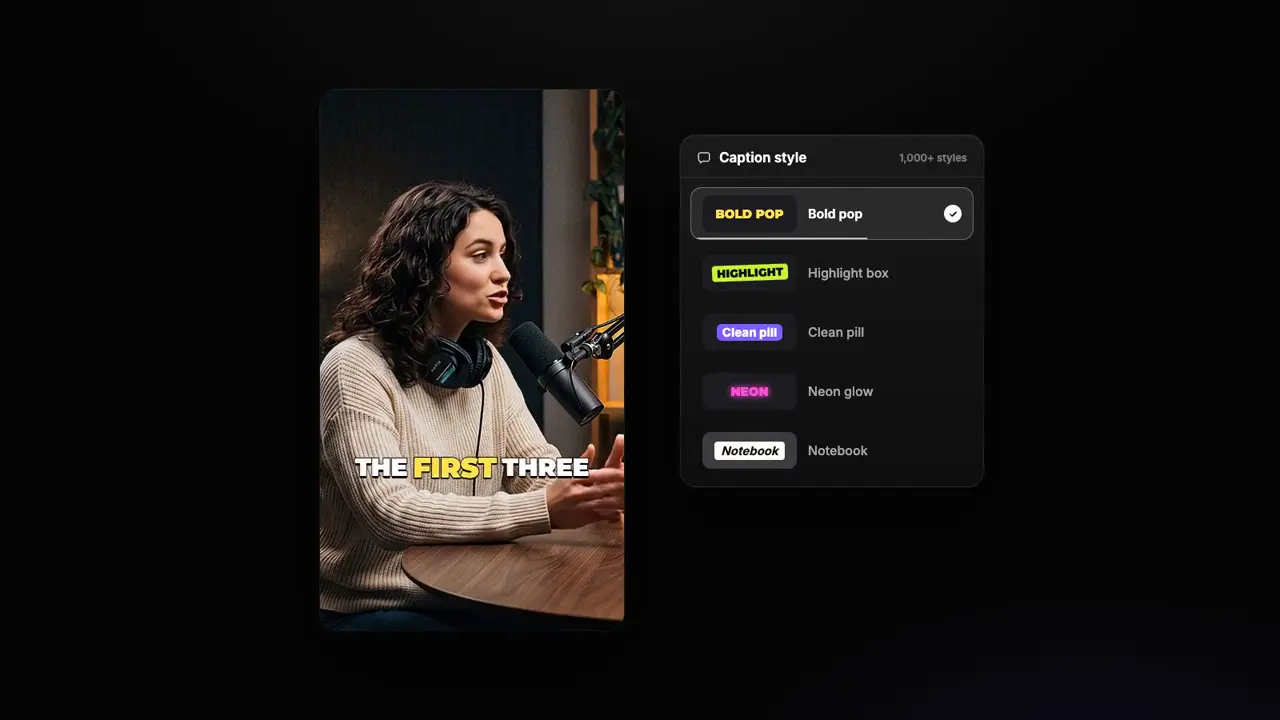
Your Style, on Every Video
Pick one of 18 edit styles, watch its example, and let Auto Edit and AI clips edit every video the same way.
- 2 free Auto Edit previews
- No credit card to try
You Might Also Like
Auto-Edit Your Talking-Head Videos in One Click
For videos you filmed yourself. Pick one of 18 ready-made edit styles, or set your own, once. Then Auto Edit cuts the silences, zooms in on the key moments, places sound effects, adds B-roll and composes music in that style on every video, and you keep or remove each one.


AI B-Roll for Talking Videos
StoryCut reads your transcript, finds the moments a picture helps, and cuts away to a matching stock video clip, or an AI image when no clip fits. Each insert is full screen, a split or a card placed away from your face, and any of them can be swapped in one tap.
AI Clip Generator: Turn Long Videos Into Shorts
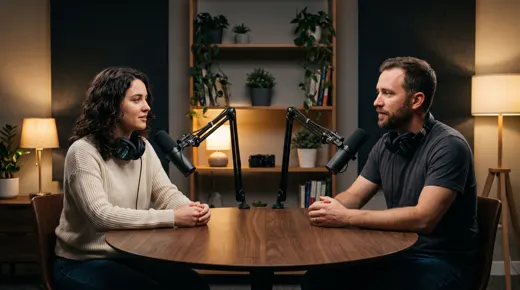
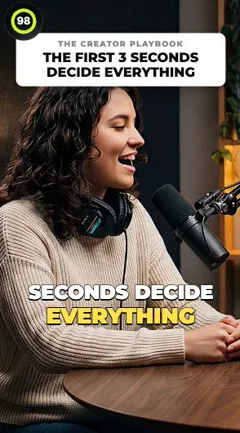
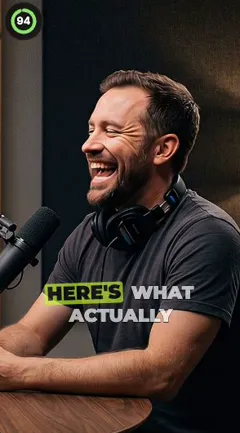
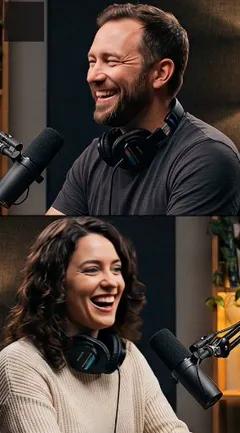
Upload a podcast, webinar or interview, or paste a YouTube link. The AI reads the whole transcript, picks the 3 to 12 moments that stand on their own, scores each from 0 to 100, frames the person speaking and adds captions and a headline. Tell it what to look for, or let it choose.

AI video editor for creators who want viral content without the editing grind.
Features
All FeaturesAI CaptionsHormozi CaptionsMrBeast CaptionsAdd Subtitles to VideoSubtitle GeneratorAI Video EditorAI Clip GeneratorYouTube to ShortsYouTube Auto ImportAI HeadlinesChatGPT & Claude ConnectorVideo Clipping APIEye Contact FixMagic ZoomTransitionsClean AudioAI MusicSound EffectsAI Auto EditEdit StylesAI B-RollGTA 6 Clip MakerTwitch & Kick Clip MakerRemove SilenceRemove Filler WordsAI ThumbnailsBrand KitsCommunity StylesAI Video TranslatorFree Tools
Video Hook GeneratorTikTok CaptionsInstagram CaptionsYouTube TitlesTikTok HashtagsVideo Script GeneratorAI Video IdeasContent CalendarTikTok TranscriptVideo to TextFree SRT GeneratorSubtitle TranslatorFree TeleprompterWords to MinutesSRT to VTT ConverterTikTok Safe ZoneFree Sound EffectsAll 40 Tools →Use Cases
TikTok CreatorsYouTube ShortsInstagram ReelsPodcastersClippersGTA RP ClipsGTA 6 Shorts with AIAgencies & TeamsLinkedIn VideosTeleprompter Eye ContactPremiere Pro Eye ContactDaVinci Resolve Eye ContactFinal Cut Pro Eye ContactLoom Eye Contact