How to Automatically Turn Every New YouTube Video Into Shorts
Connect your channel once, publish as usual, and find the clips waiting for you. Here is how to set it up in about five minutes, which settings matter, and what it won’t do.
Auto import released November 2, 2026
On this page
The Short Answer
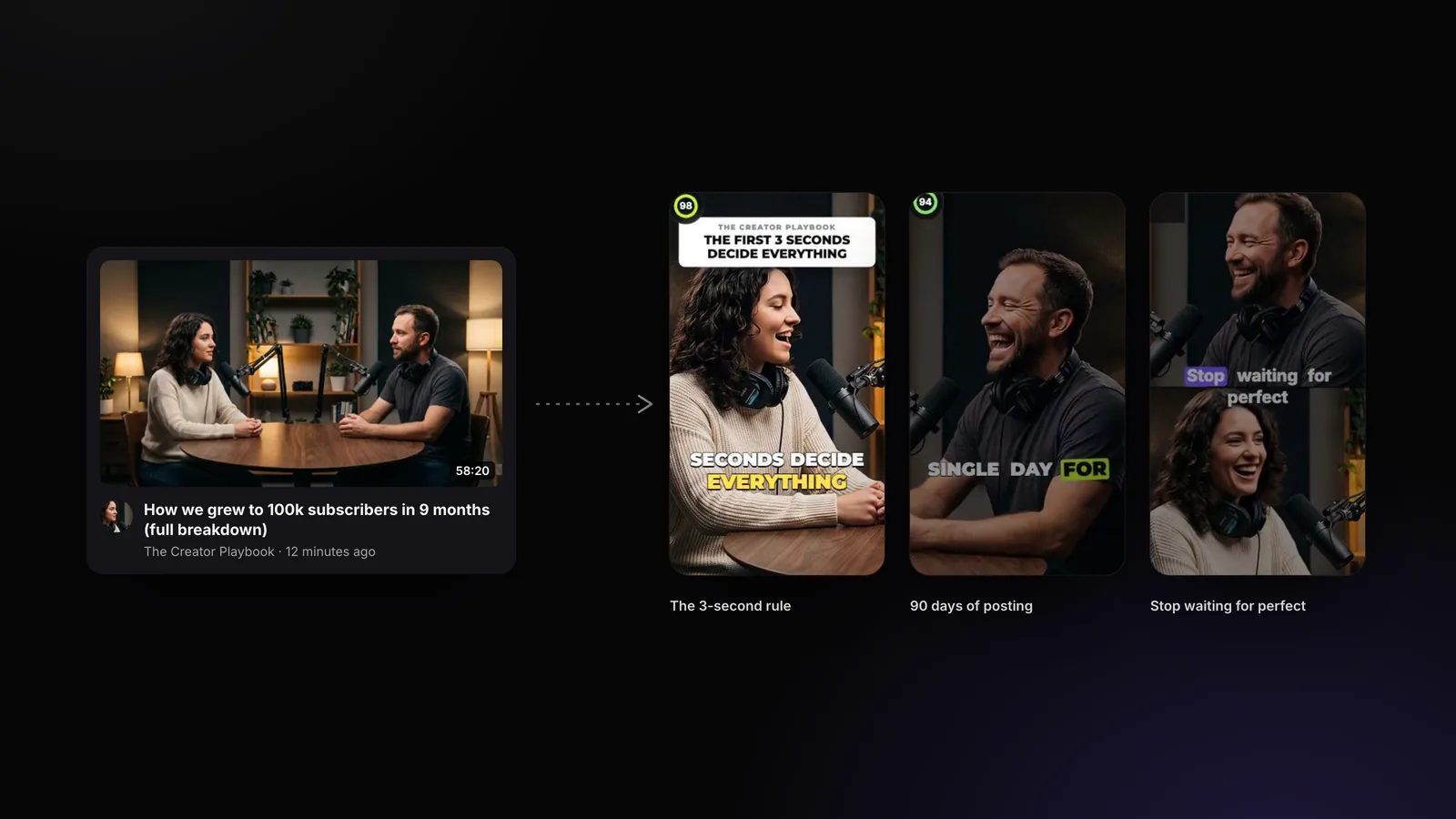
Use a clipping tool that watches your channel. In StoryCut, open Settings → Auto import, paste your channel link or @handle, and turn it on. From then on, each new video longer than the minimum you pick becomes vertical clips by itself, with captions, a headline and the edit style you chose. You review the clips, export the ones you like and post them.
Auto import is on every paid plan (Starter 1 channel, Pro 3 channels, Business 10 channels). Each new video counts toward your plan’s AI Clips allowance, the same as a link you paste yourself.
Disclosure: StoryCut publishes this guide and makes the tool it describes.
How to Set It Up, Step by Step
Make one run and save your settings
Paste one of your videos in the AI Clips window and choose what every run should use: clip length, face tracking, language and, on Pro and up, Add my edit style to every clip. Open More options and turn on Save these settings as my default. Auto import uses exactly these defaults.
Pick your edit style
In Settings → Edit style, choose how your clips are edited: Podcast Clip for conversations, Commentary or Calm for talking to camera, Energetic for hype Shorts. The style decides the caption look new videos start with, and how many zooms, sound effects and B-roll inserts each clip gets. See the 18 edit styles
Connect your channel
Open Settings → Auto import, paste your channel link (youtube.com/@yourname) or just the @handle, press Find, check it’s your channel, then press Turn on auto import.
Choose the shortest video to import
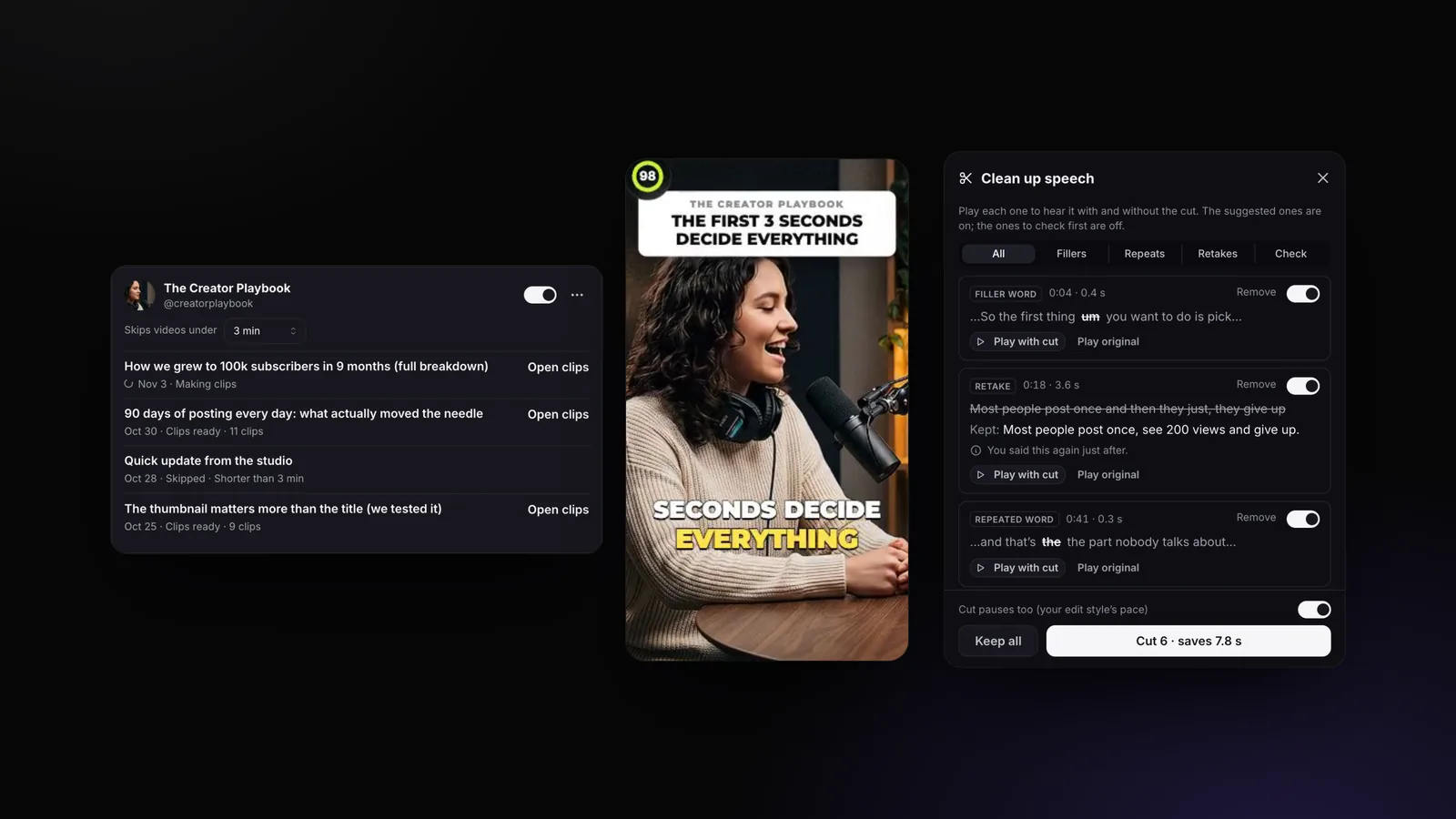
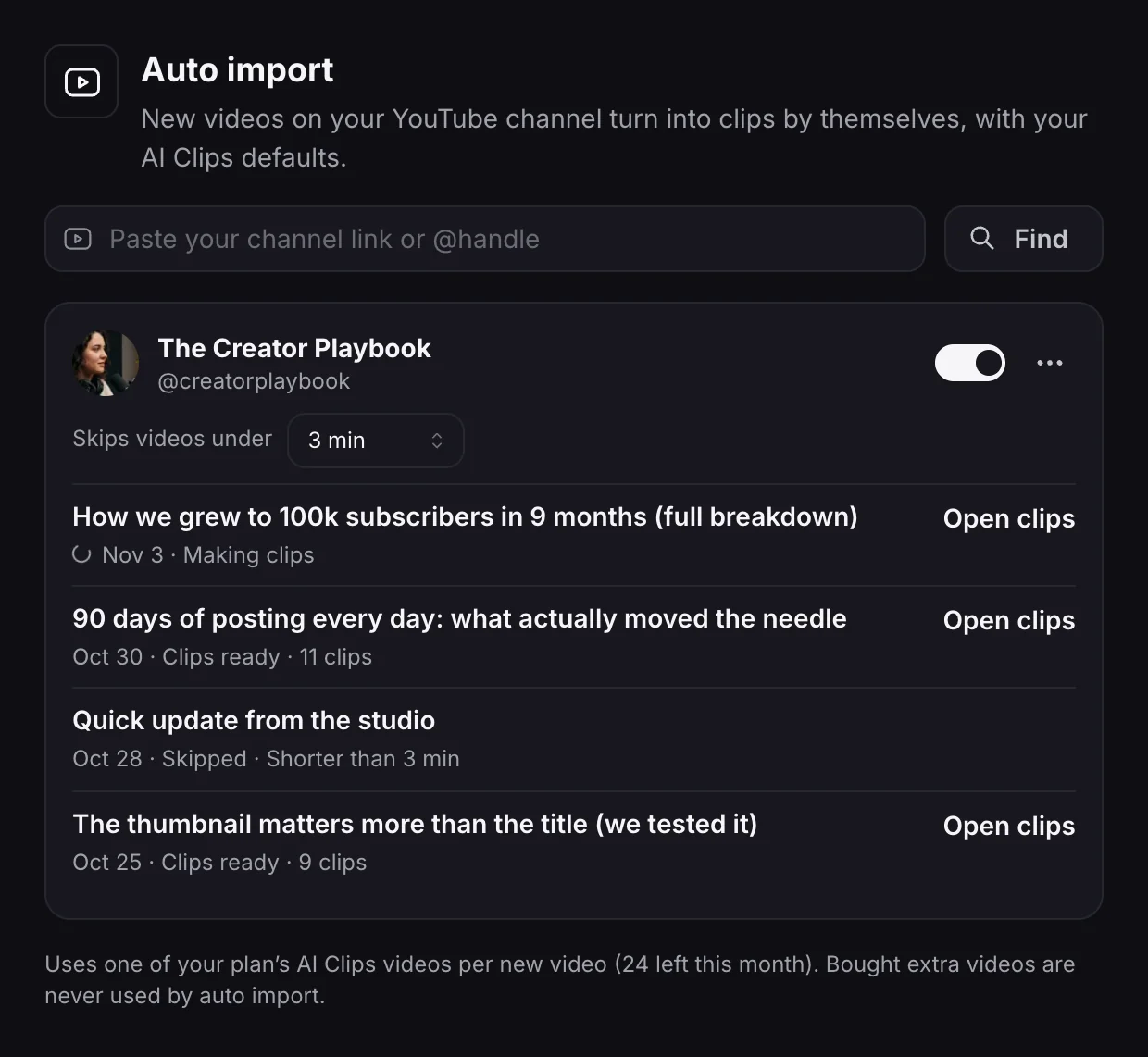
Under the channel, Skips videos under is 3 minutes unless you change it (1, 3, 5 or 10). Raise it if you also post Shorts or short updates on the same channel: they won’t use your allowance.
Publish as usual
When your next video is live, StoryCut starts the run by itself. You get an email, and a browser notification if you allow it, when the clips are ready, usually 10 to 15 minutes later. Review them, export the ones you like and post.
What You See in Settings → Auto Import
Each connected channel shows its switch, the shortest video it imports, and its latest videos with what happened to each one: Making clips, Clips ready with the number of clips, or the reason it was skipped. Open clips takes you to that video’s clips.
What Happens When You Publish a New Video?
StoryCut checks your channel for new uploads: YouTube notifies us when a video is published, and we also look every 30 minutes in case a notification is missed. Then each new video goes through a few checks before its run starts:
- Is it public and finished? A premiere waits until it has aired, and a live stream waits until YouTube has processed the recording (up to 2 days). A video YouTube is still processing is checked again every 15 minutes. Private and members-only videos are skipped.
- Is it long enough? Videos under your minimum are skipped, so your Shorts never become clips of clips.
- Was it published after you turned auto import on? Older videos aren’t imported. Paste them in the AI Clips window if you want clips from your back catalog.
- Is there allowance left? If your plan’s AI Clips videos or hours for the month are used up, the video is skipped and you get one notice with a Make clips button for later. Extra videos you bought are never spent by auto import.
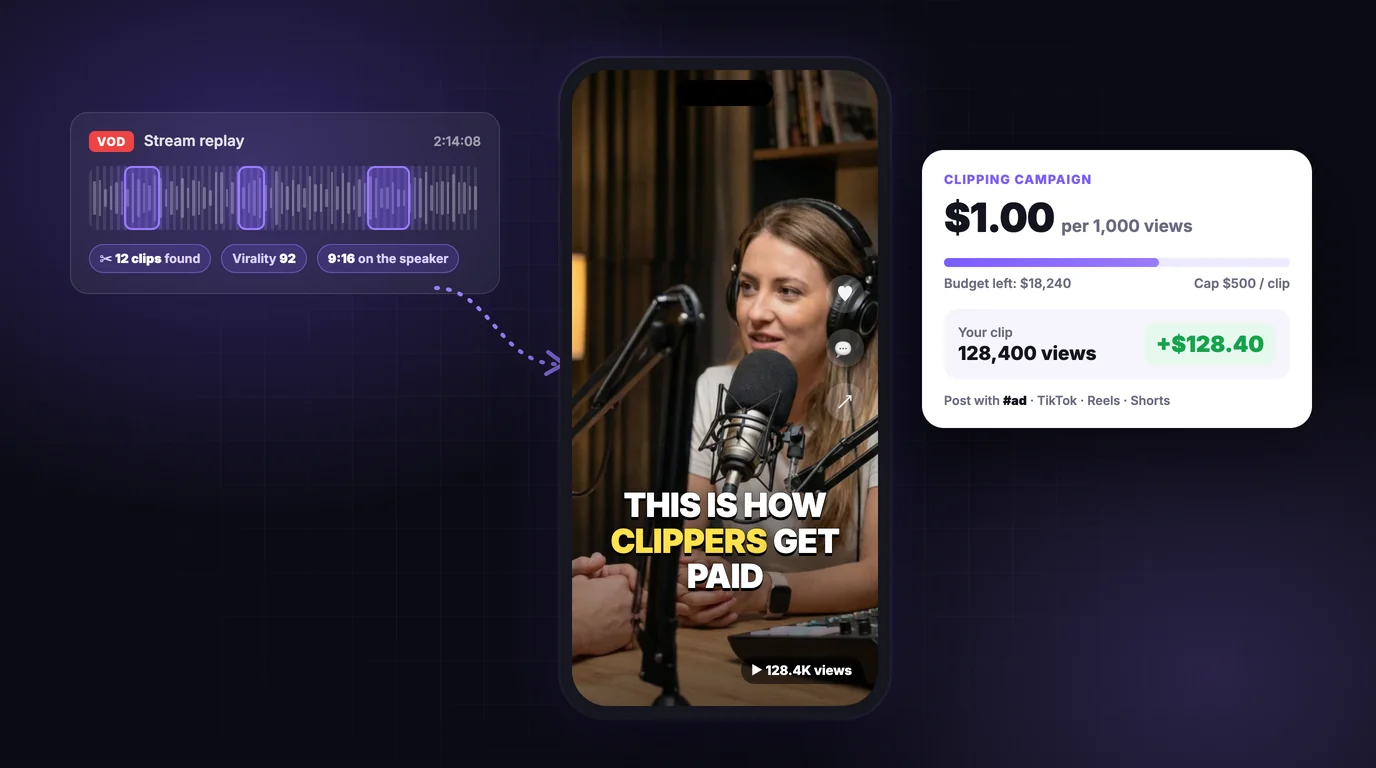
Each video is imported once, ever, even if you edit its title or description later. The run is the same as one you start yourself: the AI watches the whole video, scores the moments, frames each clip on the speaker, adds captions and a headline, and, with your edit style on, zooms, sound effects and music.
Which Settings Matter Most?
- Clip length. Auto lets the AI pick each clip’s natural length. Choose a range only if you post to one platform with a strict format.
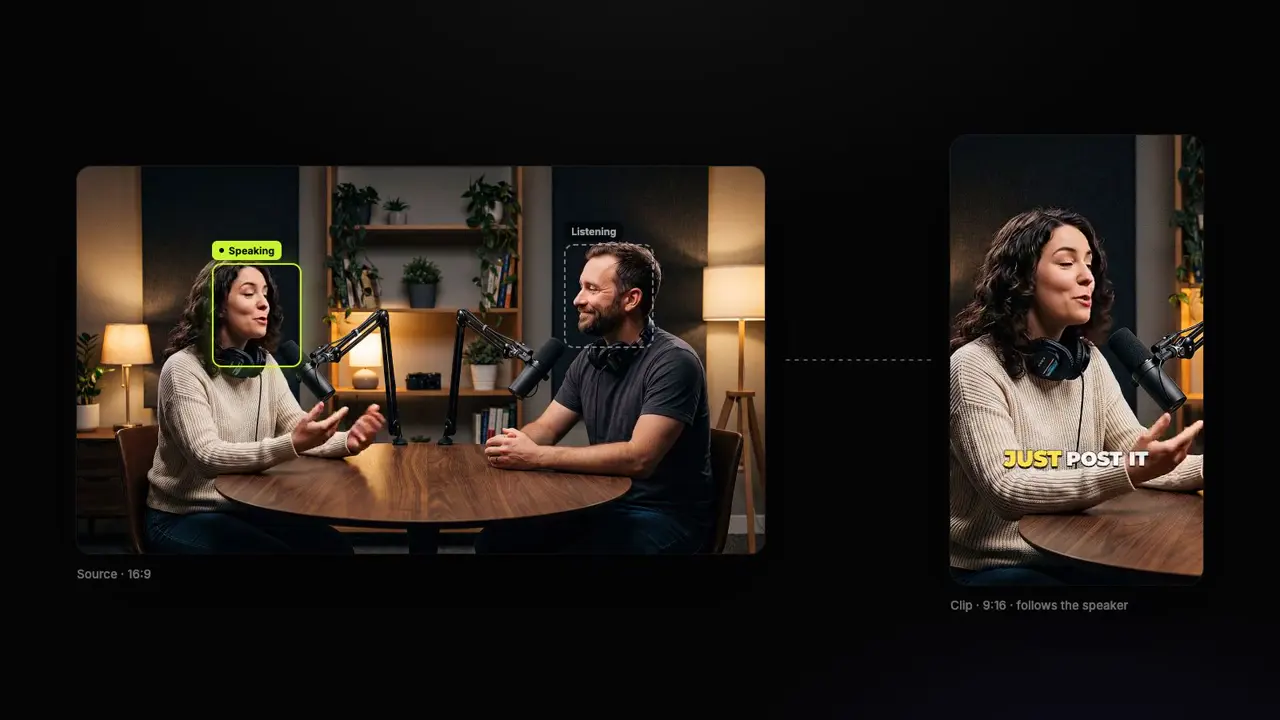
- Face tracking. Leave it on for podcasts and interviews: the vertical frame follows whoever is speaking, and switches to a split screen when two people matter.
- Caption style. Pick one with an outline, a box or a bar: plain white words disappear on a light wall or a white shirt.
- Edit style. Conversations look best with few or no effects (Podcast Clip, Interview). Talking-head Shorts can take more (Standard, Punchy Shorts). If you’re not sure, start with the style for your format and lower its Intensity to Subtle.
- Headline. Every clip opens with a short headline written from what is said. Choose its look, or turn it off, in your edit style.
- Specific moments. If your videos always cover several topics, tell the AI what to look for in Include specific moments before you save your defaults.
How Many Channels and Videos Each Plan Includes
Auto import is on every paid plan. Each new video counts toward the plan’s AI Clips allowance.
| Plan | Price | Channels watched | AI Clips a month | Export |
|---|---|---|---|---|
| Free | $0 | Not included | 1 long video, first 30 min | 720p, watermark |
| Starter | $9/mo ($7/mo yearly) | 1 channel | 3 hours (up to 10 videos) | 1080p, no watermark |
| Pro | $19/mo ($14/mo yearly) | 3 channels | 10 hours (up to 30 videos) | 2K, no watermark |
| Business | $49/mo ($39/mo yearly) | 10 channels | 30 hours (up to 60 videos) | 4K 60fps, no watermark |
Sources: StoryCut pricing
What Auto Import Doesn’t Do
- It doesn’t post for you. The clips wait in StoryCut until you review and export them. Most creators skip a few clips from every video, and a quick look before posting is worth it.
- It only watches YouTube. TikTok and Instagram can’t be watched. For a video that isn’t on YouTube, upload the file in the AI Clips window.
- It doesn’t import your old videos. Only videos published after you turn it on count. Paste older links yourself.
- It doesn’t go past your plan. At the allowance it stops and tells you, and it never spends extra videos you bought.
Without Auto Import: The Manual Way
On the free plan, the steps are the same without the watching: when a video is live, copy its link, paste it in the AI Clips window on your dashboard, and press Generate. The free plan gives 1 long video a month and uses its first 30 minutes, with exports in 720p and a watermark.
If you prefer to work from an AI assistant, the StoryCut connector for Claude and ChatGPT lets you ask "make clips from my latest video" with a link, on any plan. Developers can start runs from their own code with the StoryCut API and get a webhook when the clips are ready.
More on what changed recently in What’s new in StoryCut, and more on AI clips in YouTube to Shorts.