What’s New in StoryCut: Auto Import, Edit Styles, Stock B-Roll and Cleaner Speech
Connect your channel once and every new video turns into clips, edited the way you edit. Here is everything we shipped over the last few weeks, what each feature does, and which plan has it.
On this page
The Short Version
- Auto import (Starter and up): connect your YouTube channel once, and every new long video becomes clips by itself. How auto import works
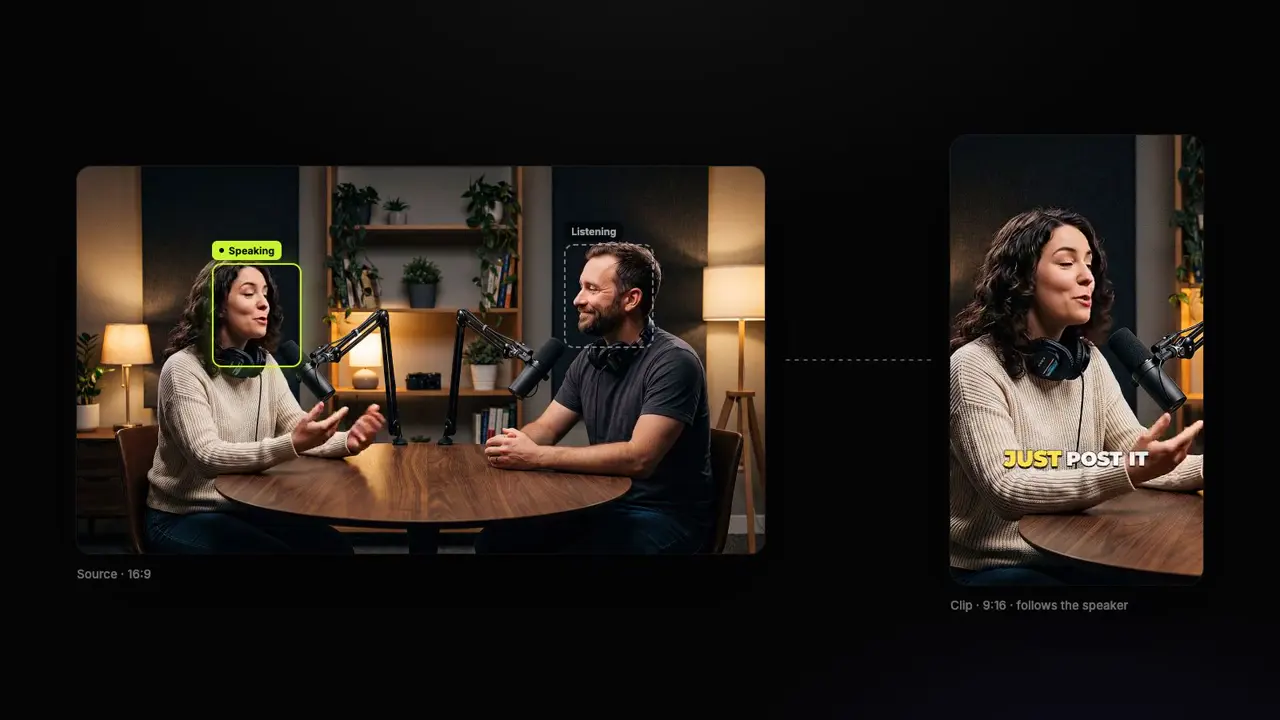
- Edit styles: 18 ready-made ways to edit (Commentary, Podcast Clip, Tutorial, Energetic and more), set once for every video. See the edit styles
- Your style on every AI clip (Pro and up): zooms, sound effects and music added to all the clips of a run, during the run or afterwards in one tap. AI clips
- B-roll that covers the frame (Pro and up): real stock video first, an AI image when nothing fits, in three layouts, and any insert can be swapped. AI B-roll
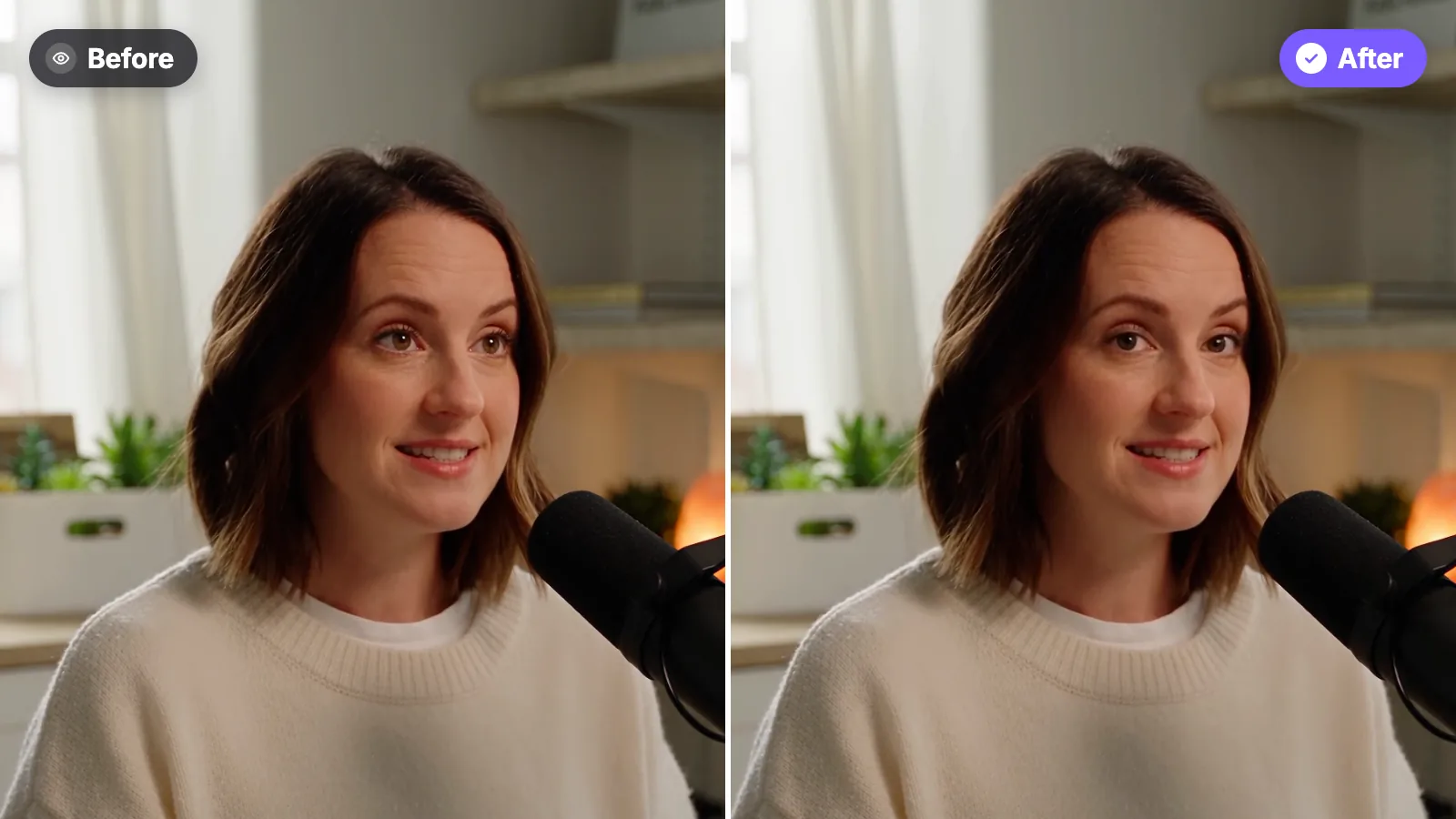
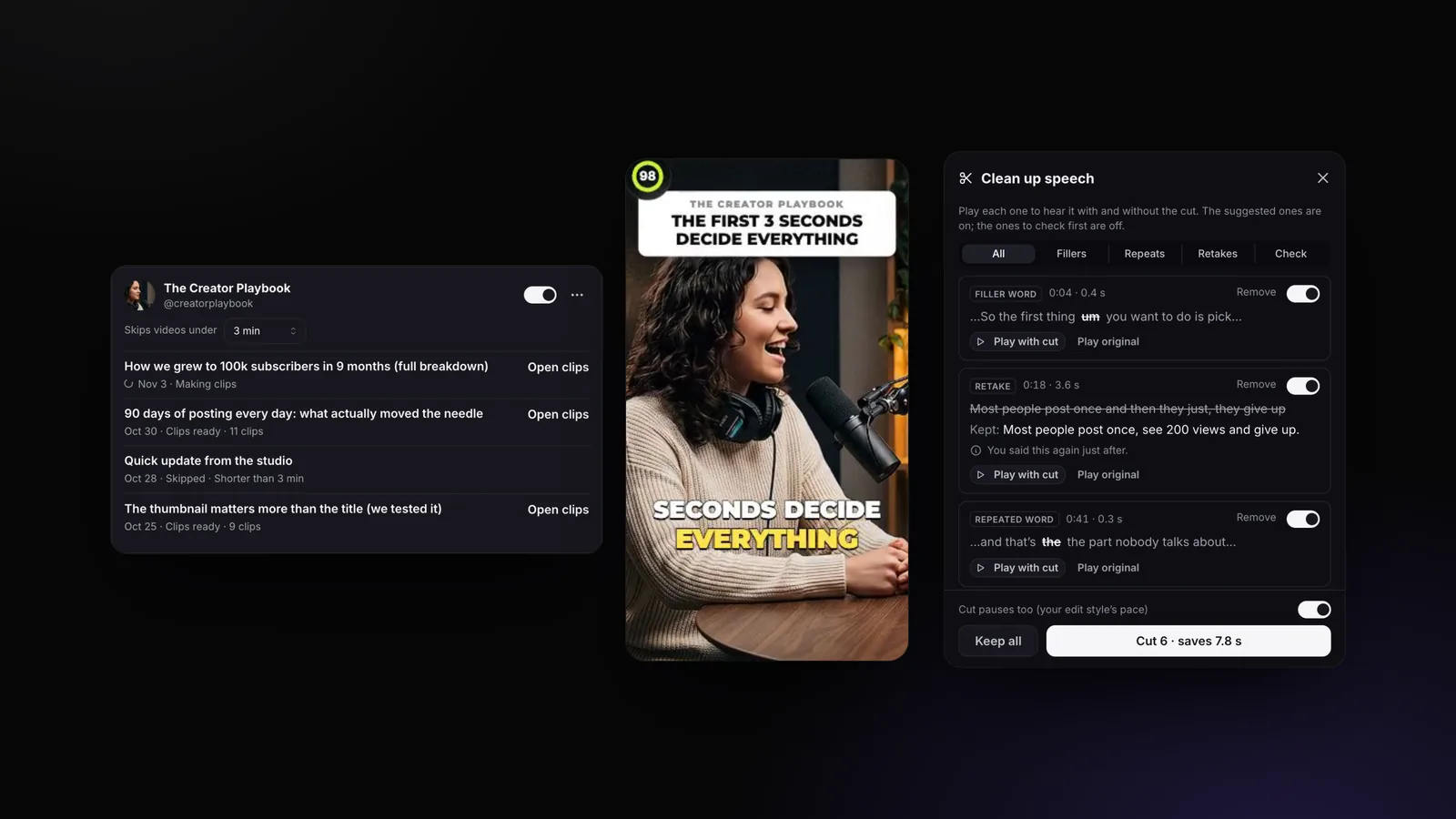
- Clean up speech (Pro and up): finds filler words, repeated words, retakes and false starts, and cuts only the ones you keep. Remove filler words
- Headlines: 11 looks, placed below the apps’ own buttons and never over the speaker’s eyes. AI headlines
Why This Update
Most people who use StoryCut don’t make one video. They publish every week: a podcast episode, a sermon, a coaching call, a YouTube video. Until now, every one of those meant the same routine: paste the link, wait for the clips, open each clip, add the zooms and sounds you like, then cut the "um"s by hand.
This update takes that routine away, one step at a time. Auto import starts the clips when you publish. Your edit style decides how much gets added, so you set it once instead of on every clip. B-roll and speech cleanup handle the two edits that used to take the longest. And everything new shows you what it will do before it does it: the clip previews play the edit exactly as it will export, and Clean up speech lists every cut before anything is removed.
Auto Import: Every New YouTube Video Becomes Clips
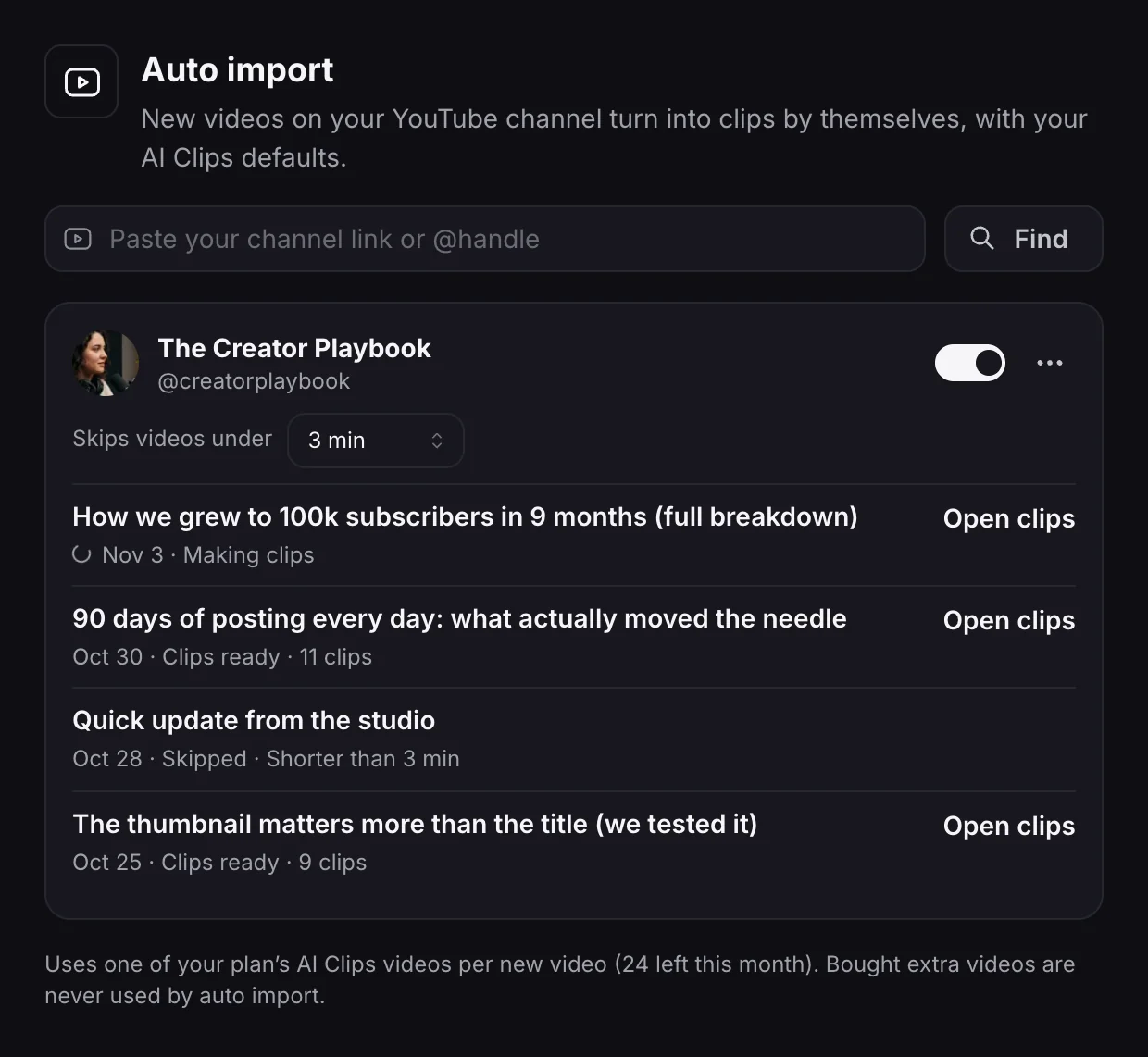
Paste your channel link or @handle in Settings → Auto import, and turn it on. From then on, each video you publish that is longer than the minimum you pick (3 minutes unless you change it) goes through AI Clips by itself, with the clip length, language and face tracking you saved in the AI Clips window, and your edit style’s caption look and effects. You get an email, and a browser notification if you allow it, when the clips are ready.
Premieres and live streams wait until YouTube has processed them, and anything private or members-only is skipped. Each status is listed under the channel, so you always know why a video did or didn’t become clips.
Who it’s for: podcasters, coaches, churches and anyone who publishes long videos on a schedule. Plans: Starter 1 channel, Pro 3 channels, Business 10 channels. Each new video counts toward your plan’s AI Clips allowance. Step-by-step setup guide
Edit Styles: Decide How Your Videos Are Edited, Once
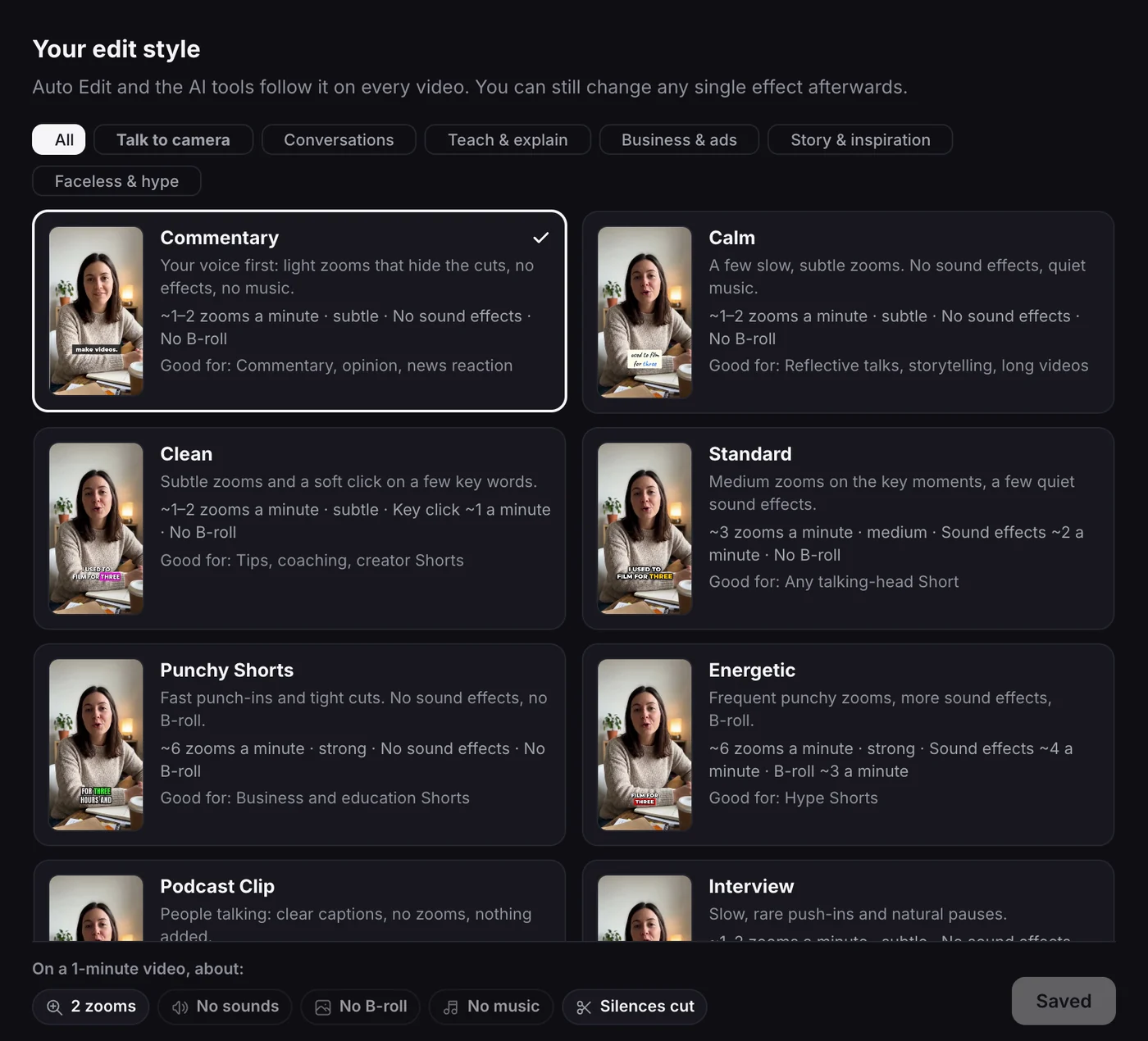
Auto Edit used to add a lot: about 10 zooms a minute on average, with sound effects not far under the voice. That suits a hype Short, not a calm commentary or a sermon. So we measured real edits frame by frame. In the calm ones, the picture zooms one to three times a minute by 4 to 15%, and sound effects sit 12 to 15 dB under the voice. Those numbers became 18 ready-made styles in six groups: talking to camera, conversations, teaching, business, storytelling and faceless videos.
Pick a style in Settings → Edit style and every tool follows it: Auto Edit, the zoom, sound effect and B-roll buttons, and Remove Silence’s pace. Each style has an example video, an Intensity control (Subtle, Balanced, Bold), and every amount can be changed under Customize. On Pro and up, Auto Edit can also run by itself on every new video.
Who it’s for: anyone who found automatic edits too busy, or too plain. Plans: any account can choose a style; the effects Auto Edit adds (zooms, sound effects, music, B-roll) export on Pro and up, and free accounts can preview them. See the 18 edit styles
Your Edit Style on Every AI Clip
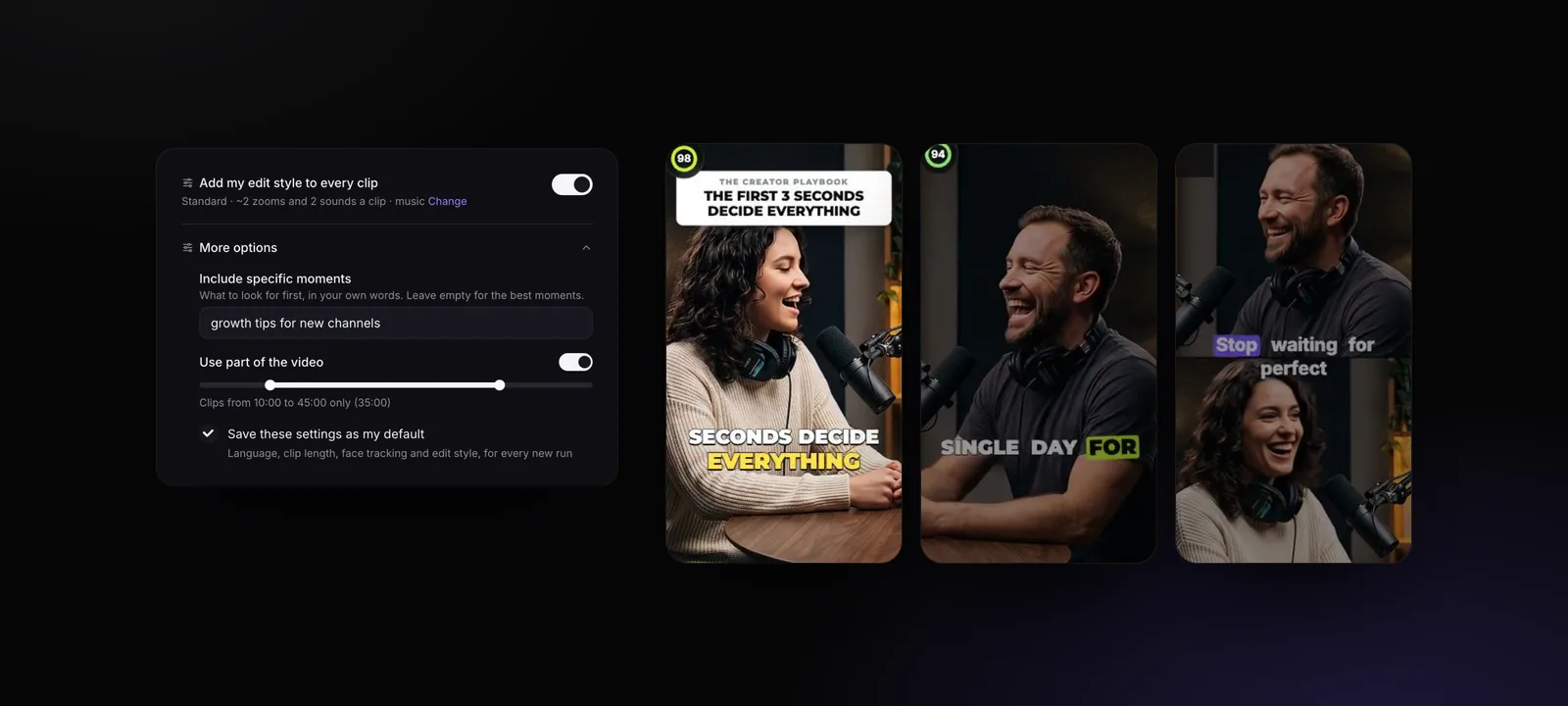
Turn on Add my edit style to every clip when you start AI Clips, and every clip of the run gets zooms and sound effects at your style’s amounts. The run composes one AI music track from your video and gives each clip its own part of it. When your style has B-roll, the three best clips get it too. Already made the clips? Add to all clips on the clips page does the same afterwards, and Remove style takes it all off again.
The clip previews play the effects and the music exactly as the export will sound. The AI Clips window also gained three options: Include specific moments (tell the AI what to look for), Use part of the video (only the part you choose), and Save these settings as my default, which auto import uses too.
Plans: the edit style on clips is on Pro and up. The setup options work on every plan.
B-Roll That Covers the Frame, From Real Stock Footage
B-roll used to be a see-through image over the top half of the frame, with the speaker’s face showing through. Now every insert is a real cutaway. StoryCut plans the moments from what you say, searches free stock video for each one, and has the AI pick the clip that fits best. When no clip fits, it makes an AI image instead, and those images never show a face or text.
Inserts come in three layouts: full screen, split (the B-roll in one half, you in the other) and card (a rounded card under your chin). Your edit style picks the mix, and a split or a card is only used where your face stays clear. Not happy with one? The swap panel offers five other clips, a stock search and Undo.
Who it’s for: talking-head videos that need something to look at between sentences. Plans: Pro and up. How to add B-roll to a talking-head video
Clean Up Speech: Filler Words, Repeats and Retakes
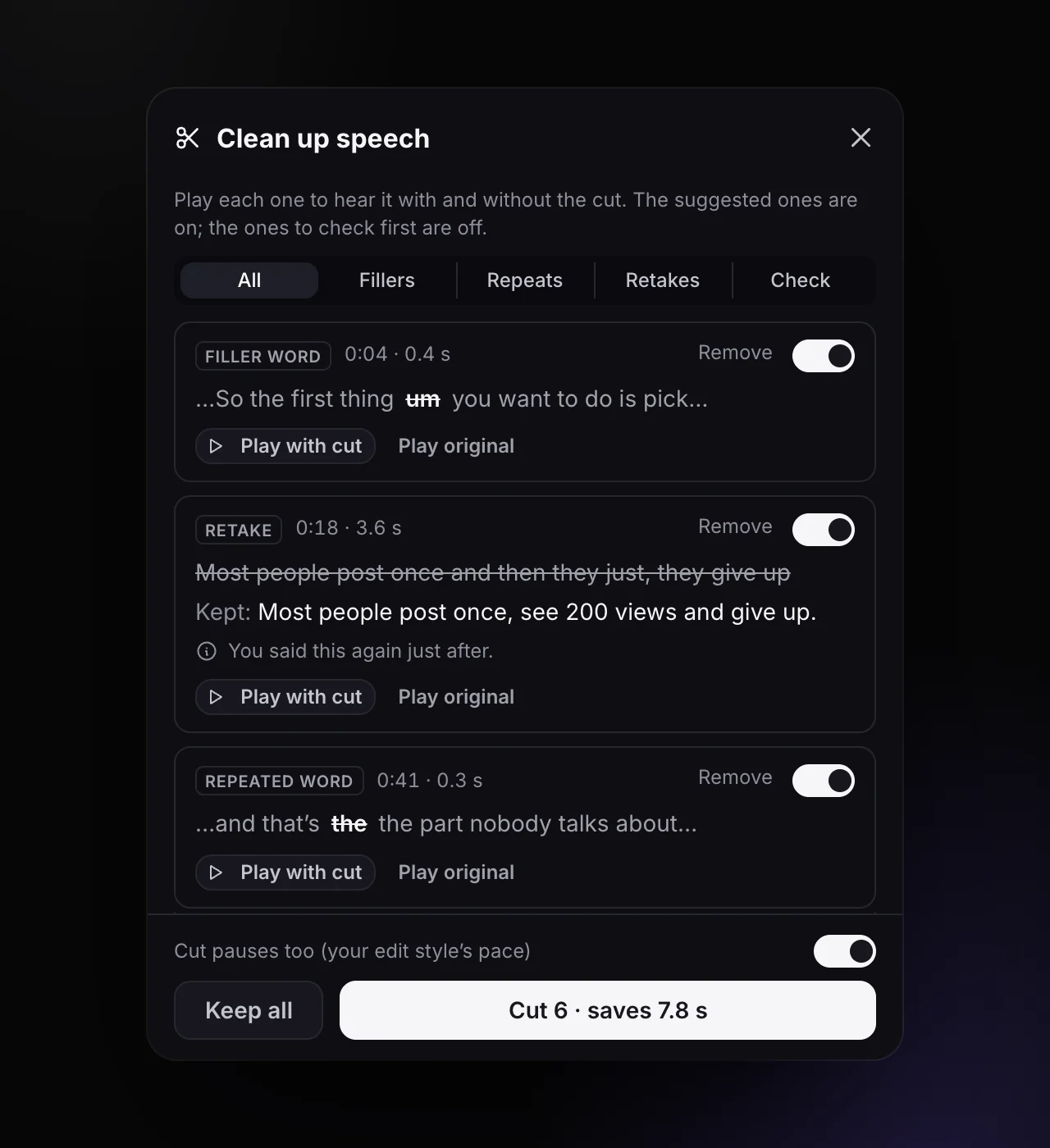
In the Remove Silence card, Clean up speech listens for filler words (um, uh, and phrases like "you know" when they carry no meaning), repeated words ("the the"), retakes (a sentence you said again) and false starts ("sorry, let me start again"). It takes about a minute, then opens a review list beside your video.
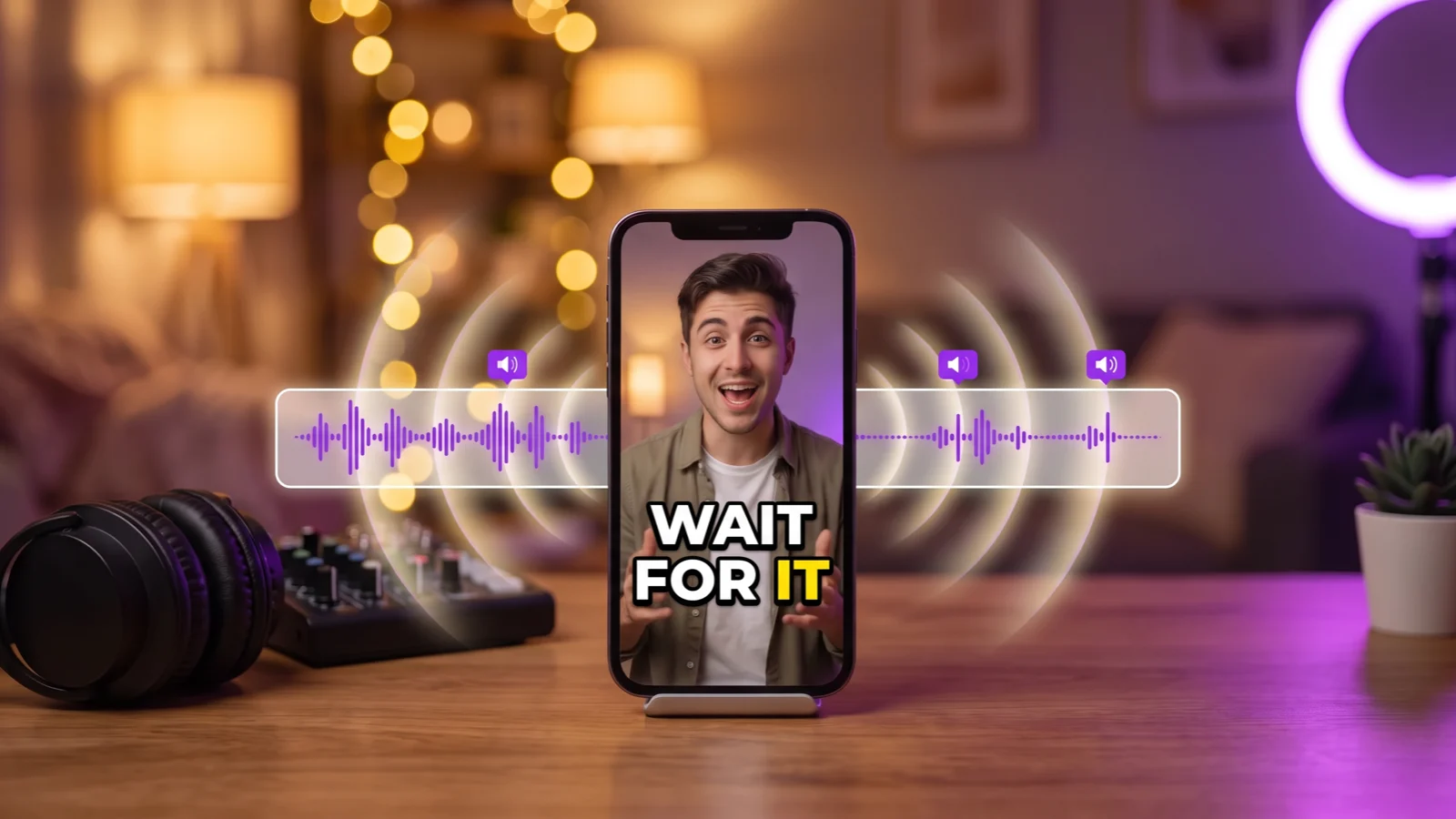
Nothing is cut until you choose. Each item has Play with cut and Play original, and the ones the AI isn’t sure about start switched off. When you press Cut, the fillers, the takes and, if you want, the pauses are removed in one pass, and your captions follow. Cut edges are placed in the silence the sound itself shows, with a short fade, so words don’t get clipped.
Who it’s for: anyone who talks to camera without a script. Filler words are detected in English. Plans: Pro and up, on the videos you upload to edit (not on AI clips). How to remove filler words and bad takes
Headlines: 11 Looks, Placed Where the Apps Don’t Cover Them
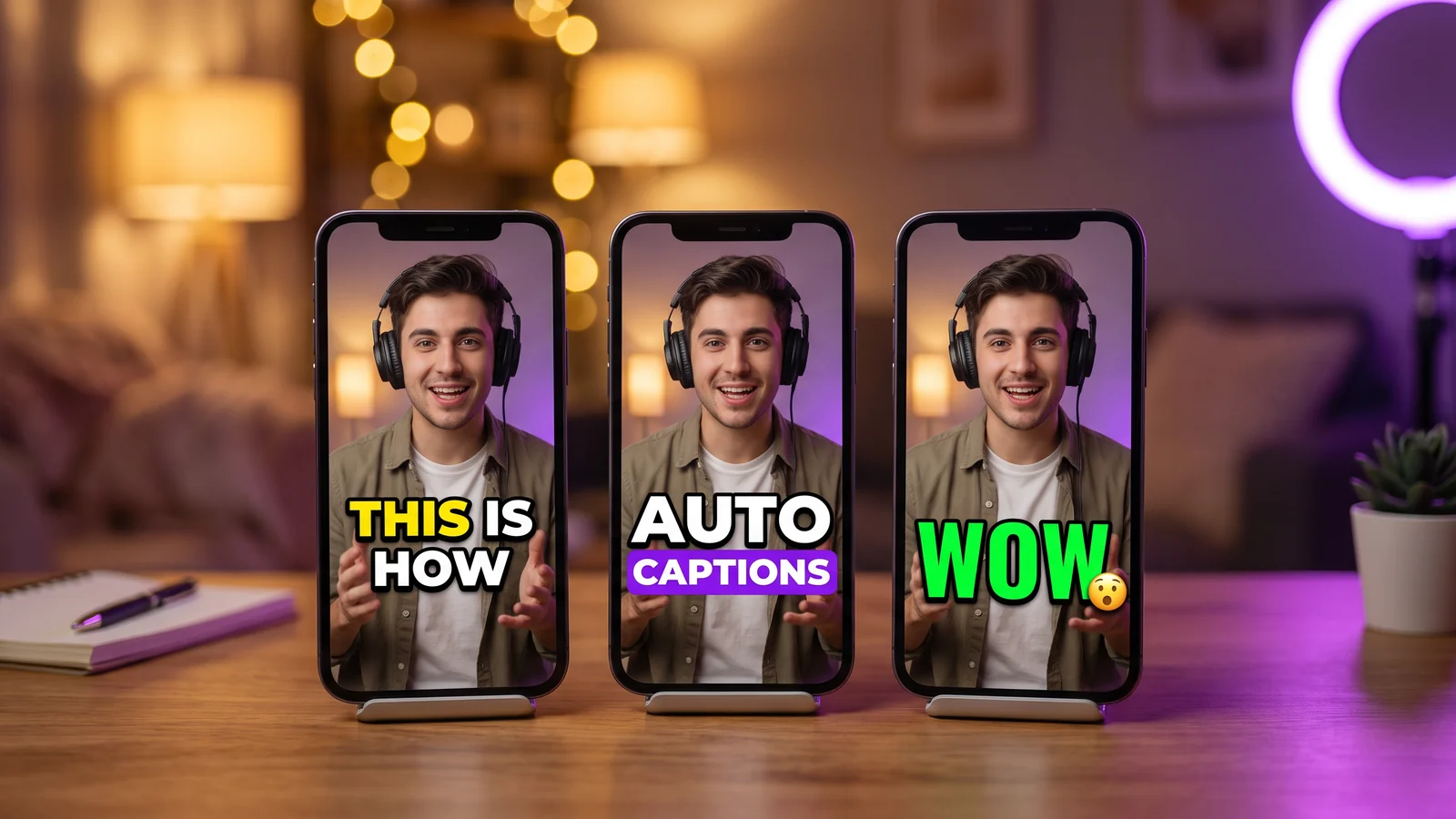
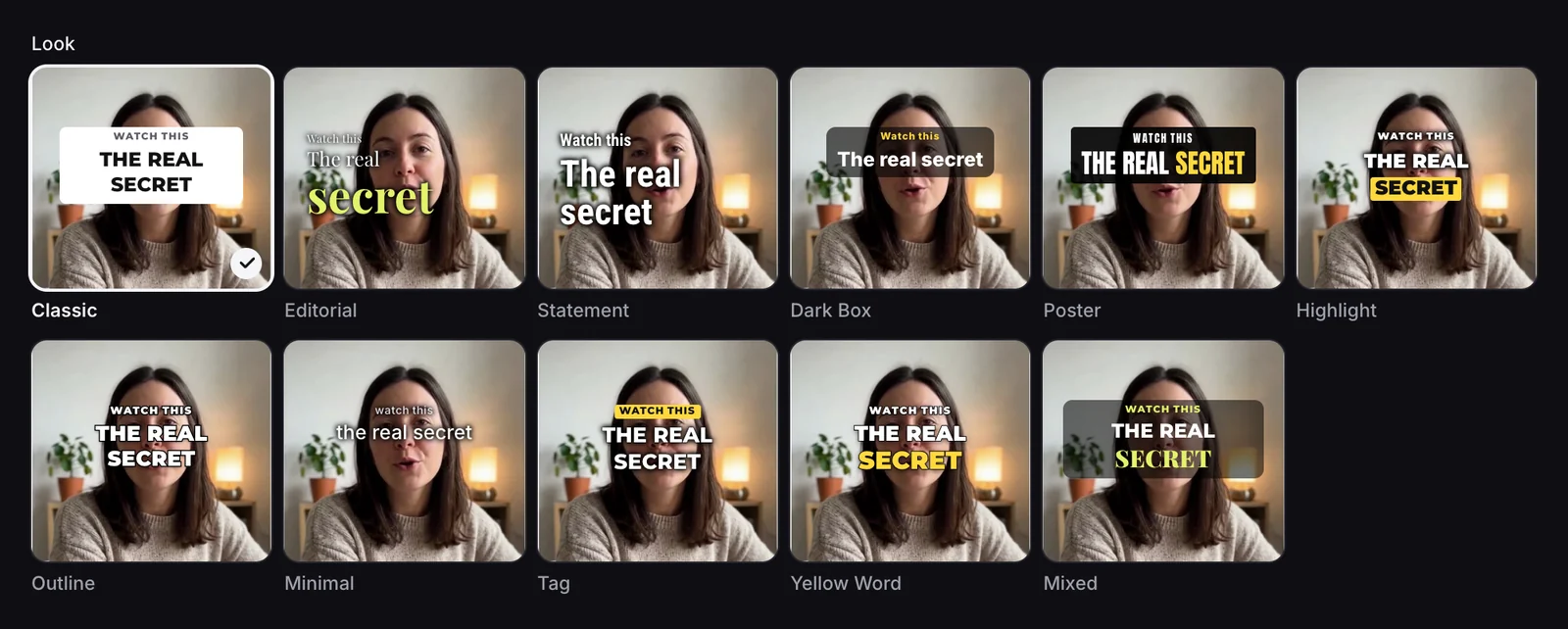
Every AI clip opens with a short headline written from what is said, in the video’s language. There are now 11 looks, from Classic (black capitals on a white box) to Editorial, Statement, Poster, Highlight and Minimal. Looks that highlight key words get the AI’s pick of one to three words, and you can tap a word to change it.
The headline’s top edge sits at 14% of the frame, below the buttons TikTok, Reels and Shorts draw at the top of the screen. If it would cover the speaker’s eyes, it gets smaller or moves under the chin. It stays for its reading time, 3 to 4 seconds, instead of a fixed 5.
Plans: the automatic headline is on every plan, in the look you pick in your edit style (Highlight unless you change it). In the editor, the Hook Title panel has the same 11 looks, with the AI’s key words on Pro and up.
For Developers and AI Assistants
REST API and webhooks (Starter and up): start AI Clips runs from your own code with a YouTube link, a video URL or a file upload, get the clips best first, export them, and receive a signed webhook when a run or an export finishes. Volume users can prepay credits instead of a plan: 1 credit is 1 minute of video processed, from $50 for 1,000 credits. The StoryCut API
MCP connector (every plan): add StoryCut to Claude or ChatGPT and ask for clips in plain words. The assistant starts the run, follows it, and tells you how many videos you have left, with the same plan rules as the website. Connect StoryCut to Claude or ChatGPT
Which Plan Has What
Where to find each new feature, and the plan that includes it. Prices and limits come from our pricing page.
| Feature | Plan | Where to find it |
|---|---|---|
| Auto import | Starter 1 channel, Pro 3 channels, Business 10 channels | Settings → Auto import |
| Edit styles | Every plan picks one; Auto Edit’s effects export on Pro and up | Settings → Edit style, Auto Edit |
| Edit style on every AI clip | Pro and up | AI Clips window, clips page |
| AI Clips setup options | Every plan | AI Clips window → More options |
| B-roll | Pro and up | Editor → B-roll card, Auto Edit |
| Clean up speech | Pro and up | Editor → Remove Silence card |
| Headline on AI clips | Every plan | Settings → Edit style |
| Hook Title looks with AI key words | Pro and up | Editor → Captions → Hook Title |
| API and webhooks | Starter and up | API & Integrations |
| MCP connector | Every plan | API & Integrations → AI assistants |
Sources: StoryCut pricing
Smaller Improvements
- Exports at the loudness the apps play. Every export’s sound now ends at -14 LUFS, the level TikTok, Reels, Shorts and YouTube play at, with one gain and a limiter so the balance between voice, music and effects stays as you set it.
- Highlighted words never touch. When a caption style makes the spoken word bigger or puts it on a box, the words next to it now step aside instead of running into it.
- AI clips open fast in the editor. Each clip of a long video now has its own file, so a phone no longer loads the whole source to play one minute of it.
- Music only between sentences. Set the music’s duck level to Silent and it plays only where nobody talks, with smooth fades.
- Safe zone guide. On vertical videos, the preview can shade the parts TikTok, Reels or Shorts cover with their own buttons.
- Eye contact on AI clips corrects only the clip. A clip of a long video no longer counts as the whole video, so it fits your plan’s video length. Any account can watch a free 20-second preview on its own video, and unlock it for $3.99. AI eye contact
- AI Clips counts hours of video. Paid plans now include hours of video a month: 3 hours (up to 10 videos) on Starter, 10 hours (up to 30 videos) on Pro and 30 hours (up to 60 videos) on Business. The AI Clips window shows what a video will use before you start, and can use just part of a long video. Current subscribers keep their terms for at least 30 days and get an email with their date. The free plan keeps 1 long video a month, its first 30 minutes.
- Bought videos work at the video limit. Extra eye contact and AI Clips videos you bought can be used even when your plan’s video slots are full.
- Passwords for Google and Apple accounts. Settings → Security can now email you a link to set one, which you need to connect an AI assistant.
- A clearer failed payment. If your bank declines a first payment, we email you once with the reason and the simplest way to finish, for example UPI in India.
- A new homepage. Paste a YouTube link on storycut.com and go straight to your clips.
Frequently Asked Questions
Is auto import free?
Does auto import use my AI Clips allowance?
Can StoryCut remove filler words automatically?
Where does the B-roll footage come from?
Do I have to set my edit style again for every video?
Will the headline cover my face?
Related Tools & Features