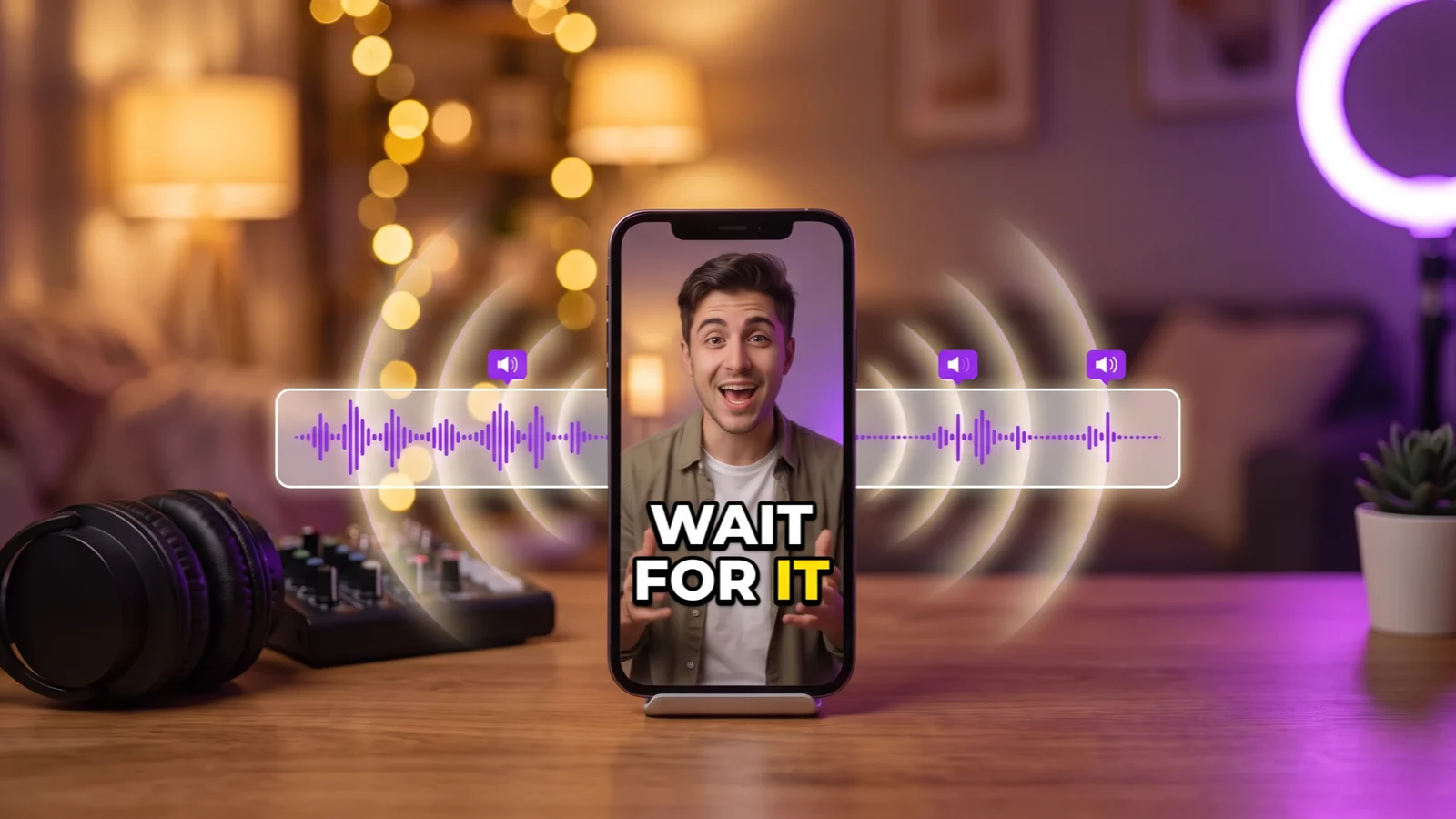
How to Add Sound Effects to TikTok, Reels and Shor...
Tutorials
12 min read
How to Add Sound Effects to TikTok, Reels and Shorts (Which Sounds, Where, How Loud)
Three ways to add sound effects, step by step in each app, a cheat sheet of which sound goes on which moment, timing and volume rules, and which sounds are safe to use.
StoryCut Team
October 3, 2026
What Are the 3 Ways to Add Sound Effects to TikTok, Reels and Shorts?
There are three ways, and most creators end up using more than one: • In the app. TikTok and Instagram have sound effect libraries built into their editors. It is the fastest option for one or two sounds, but the timing is rough and the choice is limited. • In an editor such as CapCut. You place each sound on a timeline, frame by frame, stack several, and set each one’s volume. Best for exact timing. • Automatically, with AI. Some tools place sounds for you. Transcript-based tools such as StoryCut read what you say and put a sound on key words; visual-based tools such as CapCut’s AI sound effects look at motion and scene changes.
Whichever you use, the craft is the same: the right sound on the right moment, timed to the word, and quieter than your voice. The cheat sheet, timing and volume rules below work in any app. For more on growing on TikTok, see our guide for TikTok creators.
How Do You Add Sound Effects in the TikTok App?
1
Record or upload your video
Tap + to record, or upload a clip, then tap the checkmark or Next to reach the editing screen.
2
Open the sound effects
From the editing screen, tap Sound, then Sound effect. TikTok renames these menus from time to time, so look for Sound or Audio if the labels differ.
3
Preview and pick a sound
Tap any sound to hear it. Tap the favorites icon to save the ones you use often.
4
Tap Use, then place it
Drag the sound along the timeline so it starts on the right word or cut, and trim it so it ends cleanly.
5
Add more and set the volume
Repeat for each sound effect, then open the volume control and keep the effects below your voice.
Can You Use Your Own Sounds on TikTok? What About Business Accounts?
TikTok’s built-in library is the simplest option. If you want to use your own sound files, the reliable route is to mix them into the video in an editor first, then upload the finished file to TikTok.
Business accounts have a narrower choice. In the app, they can only use TikTok’s Commercial Music Library, which is cleared for commercial use on TikTok, and many popular songs and trending sounds aren’t in it. Those sounds are licensed for TikTok, so don’t reuse them in videos you post elsewhere.
How Do You Add Sound Effects to Instagram Reels and YouTube Shorts?
Instagram Reels. In the Reels editor, tap the audio (music note) icon, then Sound effects. Play the video and tap an effect at the moment you want it; repeat for more, and a timeline shows where each one sits. Meta’s separate Edits app has its own sound effect library, lets you save sounds you like and can import audio files from your phone.
YouTube Shorts. The Shorts editor is built around one added sound, either a track from YouTube’s audio library or a sound from another Short, plus a voiceover. We couldn’t confirm a separate sound effect picker in the Shorts editor, so for several sound effects, edit the video first and upload the finished file. YouTube Studio’s Audio Library has a sound effects tab you can download from for free.
Where the built-in options fall short: small libraries, timing you set by tapping during playback, little control over each sound’s volume, and sounds that may only be licensed for that one platform. If you post the same video to TikTok, Reels and Shorts, add the sounds once in an editor. More platform tips: Instagram Reels and YouTube Shorts.
How Do You Add Sound Effects in CapCut?
1
Import your video
Start a new project in CapCut on your phone or computer and add your clip.
2
Open the sound effects library
On mobile, tap Audio, then Sound FX (called Sound effects in some versions). On desktop, open the Audio tab and choose Sound effects.
3
Search and add a sound
Search for what you need ("whoosh", "pop", "ding") and add it to the timeline.
4
Line it up to the frame
Zoom into the timeline and drag the sound so it starts on the first syllable of the word, or so a whoosh peaks on the cut.
5
Stack and balance
Put each sound on its own audio track, set each one’s volume under your voice, and preview on your phone speaker.
6
Export and post
Export in 9:16 and upload the same file to TikTok, Reels and Shorts. Before you use CapCut’s sounds in brand or monetized videos, read the licence section below.
Can AI Add Sound Effects Automatically? Transcript-Based vs Visual-Based
Yes. Two kinds of tools do it. Transcript-based tools read what you say and put sounds on key words, which suits talking-head videos. Visual-based tools look at what happens on screen (motion, cuts, scene changes), which suits B-roll, action and vlogs. Here is how the main options compare.
Checked October 3, 2026. Plans and features change often; check each tool’s page.
Tool
How it places sounds
Plan
Can you change them?
Where sounds come from
StoryCut
Reads your transcript, picks 4 to 8 key words and times a sound to each word
Pro ($14/mo billed yearly) and Business
Preview or switch off any sound; no library to browse or uploads yet
Public-domain (CC0) sounds from Freesound
Opus Clip
Auto SFX places sounds on your timeline automatically
Pro and Business
Yes, adjustable; you can also generate a sound from a prompt
Not stated
CapCut (mobile app)
AI sound effects analyzes motion, transitions and scenes in your clip
Not clearly stated (some AI tools need Pro)
Choose from several generated options per clip
Generated by CapCut
Captions
AI Sounds generates a sound from a text prompt; AI Edit adds sounds as part of its edit
If you talk to the camera, transcript-based placement puts the sound where the meaning is: on the number, the price, the punchline. That is how StoryCut’s auto sound effects work. The AI reads your script, picks 4 to 8 words that matter and places a matching sound on each, timed to the word, and you can preview each one and switch any of them off. It sits in the same editor as AI captions, Hormozi-style caption presets, magic zoom, transitions and AI music. The limits, honestly: you can’t browse a library or upload your own sounds yet, and it needs speech to work.
If your video is mostly footage without talking, a visual-based tool such as CapCut’s AI sound effects is the better fit. For side-by-side comparisons, see StoryCut vs Submagic and StoryCut vs Opus Clip.
Which Sound Effect Goes on Which Moment? (Cheat Sheet)
Use this as a starting point. Pick one or two signature sounds and reuse them, so your videos start to sound like you.
Common pairings used in short-form editing. They are conventions, not rules.
Moment
Sound
How to use it
A cut or scene change
Whoosh
Place it so the loudest point lands on the cut frame
A zoom-in
Short swoosh-up or riser
Start just before the zoom and end as it lands
A caption or emoji pops on screen
Pop or click
Keep it short and quiet
A tip number or call to action
Ding
One per section, not on every line
Money, prices, sales
Cash register
Only on the actual number
Right before a reveal
Riser
End the riser on the reveal word
Your main claim
One bass hit
Once per video, or it stops meaning anything
A still photo or screenshot
Camera shutter
Sync it to the frame where the still appears
Text being typed on screen
Keyboard typing
Match the length of the text animation
A joke or a mistake
Record scratch or a comic boing
Use sparingly: it changes the tone of the video
When Should a Sound Effect Start? Timing Rules
• Start on the first syllable. A sound that lands on the start of the word feels connected to it; a few frames late and it feels like an accident. • Peak whooshes on the cut. A whoosh builds up, so place it to hit its loudest point on the frame where the scene changes, which means it starts slightly before the cut. • Leave about a second between sounds. Effects closer together than that blur and compete with your words. • Use 3 to 8 sounds in a 30 to 60 second video. Fewer and the video can feel flat; more and nothing stands out. StoryCut’s AI picks 4 to 8 per video. • Protect the hook. One sound in the first seconds can help it land, but don’t bury your opening words under it.
These are rules of thumb from editing practice, not platform rules. Trust your ears on the final pass.
How Loud Should Sound Effects Be?
Never louder than your voice. As a starting point: • Accents (pops, clicks, dings, typing): about 6 to 12 dB under your voice. • Impacts (bass hits, whooshes, risers): about 3 to 6 dB under your voice. • Music: under both, and lower again while you speak.
Then test on a phone speaker and on earbuds, because that is how most people will hear it. If you notice the sound before the word it decorates, it is too loud. If you can’t hear it at all on a phone speaker, it is too quiet.
In StoryCut, automatic sound effects are placed at a set level and mixed through a limiter so nothing clips, and AI music ducks under your voice by default.
Are Sound Effects Copyright-Safe?
Sound effects can be copyrighted just like music, so what matters is the licence. The common ones: • CC0 (public domain): use anywhere, including commercial and sponsored videos, with no credit needed. • CC BY: free to use, even commercially, but you must credit the creator, usually in the description. • CC BY-NC: no commercial use. Avoid it for sponsored posts, brand content or anything you sell. • Pixabay Content License: free for commercial use without credit, with some restrictions, such as not reselling the sounds on their own.
Platform libraries have their own terms. Sounds in TikTok’s and Instagram’s editors are licensed for use on those platforms. CapCut’s terms say whether its sound effects can be used commercially depends on the CapCut product and is set out in its Materials License Agreement, and that the licence can be withdrawn, so read it before using CapCut sounds in monetized or brand videos. YouTube Studio’s Audio Library sound effects are free to download for your videos; check the licence shown with each one.
Meme sounds are the risky ones: clips from films, shows, games and songs are usually owned by someone, and being available on one platform doesn’t make them safe elsewhere.
StoryCut’s automatic sound effects use public-domain (CC0) sounds from Freesound only, so they are free to use commercially with no credit needed. This is general information, not legal advice.
6 Mistakes That Make Sound Effects Feel Cheap
A sound on every sentence
When everything gets a sound, nothing stands out. Save effects for the moments that matter.
Louder than your voice
If viewers notice the effect before the words, turn it down.
A few frames late
Late sounds feel like mistakes. Snap them to the first syllable or to the cut.
The same whoosh ten times
Repetition gets old fast. Vary the sound, or use fewer of them.
Meme sounds that fight the message
A comedy sound on a serious point undercuts you, and many meme sounds are copyrighted.
Never checking on a phone
Studio headphones hide problems. Listen on a phone speaker before you post.
Frequently Asked Questions
Open the video in an editor, find its sound effects or audio library, add the sound to the timeline and drag it to the moment you want, then set its volume below your voice. TikTok and Instagram have sound effects built into their editors, CapCut and most desktop editors let you place and stack sounds frame by frame, and tools such as StoryCut can place them automatically on your key words.
Inside TikTok, open the editing screen, tap Sound, then Sound effect, to browse its built-in library (menu names change between app versions). Outside TikTok, free sources include our free CC0 sound effects library (whoosh, pop, ding and more, MP3 download), Freesound (filter for CC0), Pixabay and YouTube Studio’s Audio Library, and CapCut has a large library inside its editor. Check each sound’s licence before you use it in sponsored content.
Add them one at a time: in the editor, open Sound effects, add the first sound and place it, then repeat for the next. For several sounds with exact timing, it is easier to edit in CapCut or another editor, where each sound gets its own track, and then upload the finished video to TikTok.
In the Reels editor, tap the audio (music note) icon, then Sound effects, and tap an effect at the moment you want it during playback; Meta’s Edits app also has a sound effects library. For YouTube Shorts, the built-in editor is centred on one added sound plus a voiceover, so add sound effects in an editor first and upload the finished video.
Most use a mix of free libraries (YouTube’s Audio Library, Freesound, Pixabay), paid subscription libraries and the built-in library of their editor. Short-form creators often reuse a small set of signature sounds: a whoosh for cuts, a pop for captions, a ding for tips. Whatever the source, the licence matters more than the name of the library.
Yes, CapCut can add sound effects: it has a large library, and its mobile app has an AI sound effects tool that suggests sounds from the motion and scenes in your clip. Whether you can use them on YouTube, especially in monetized or brand videos, depends on CapCut’s Materials License Agreement: its terms say commercial use varies by product and that the licence can be withdrawn. Read it, or use CC0 sounds when in doubt.
Strictly, only public-domain sounds come with no copyright restrictions: look for CC0 (Creative Commons Zero) on Freesound and similar sites. CC BY sounds are free but need a credit, and CC BY-NC sounds can’t be used commercially. Pixabay’s licence allows commercial use without credit, with some limits. StoryCut’s automatic sound effects use CC0 sounds only.
As a rule of thumb, 3 to 8 sounds in a 30 to 60 second video, about a second apart at least, and always quieter than your voice: accents such as pops and dings about 6 to 12 dB under the voice, impacts such as bass hits and whooshes about 3 to 6 dB under. Check on a phone speaker before you post.
Yes. StoryCut Pro ($14/mo billed yearly) reads your transcript and places a public-domain sound on 4 to 8 key words, timed to the word. Opus Clip’s Auto SFX (Pro and Business) places sounds on the timeline automatically, CapCut’s mobile app suggests AI sound effects from your footage, and Captions generates sounds from a prompt (Max). In Submagic, Descript, VEED, Kapwing and ZapCap you add them by hand. See how StoryCut’s auto sound effects work.
Let AI Place Your Sound Effects
Upload a talking-head video, turn on sound effects, and StoryCut puts a public-domain sound on 4 to 8 key words, timed to the word. Included in Pro ($14/mo billed yearly, $19/mo monthly).