How to Read a Script While Looking at the Camera (...
Tutorials
12 min read
How to Read a Script While Looking at the Camera (and Fix It When You Can’t)
Why viewers can tell you are reading, how close your text has to sit to the lens (with real angles), how to format and chunk a script, and what AI eye contact correction can and can’t fix after you record.
StoryCut Team
October 3, 2026
Why Can Viewers Tell You’re Reading a Script?
Viewers can tell you are reading because your eyes leave the lens. Two movements give it away: the small side-to-side scan of reading each line, and the steady look down or to the side when your text sits below or beside the camera. Your head may stay still, but your eyes tell the viewer you are not talking to them.
People are very sensitive to this. In a 2007 study, psychologists Matthias Gamer and Heiko Hecht measured the "cone of gaze": the range of directions in which we feel someone is looking at us. It was about 8 to 9 degrees wide, roughly 4 degrees either side of our eyes, and it stayed about the same at 1 meter and at 5 meters. Look a few degrees further away and viewers stop feeling looked at, even if they can’t say why.
That gives you a simple target: keep your eyes within about 4 degrees of the lens. This guide shows how to do that with a phone, a laptop or a teleprompter, how to write and deliver a script so your eyes barely move, and what AI eye contact correction can fix when you couldn’t.
The One Rule: How Far Your Text Sits From the Lens
Your gaze angle is arctan(the distance between your text and the lens ÷ your distance from the camera). Under about 4 degrees, viewers read it as eye contact; well beyond that, they see you looking away. Here are common setups, worked out.
Angles are arctan(offset ÷ distance), rounded. The roughly 4° threshold is half the 8–9° cone of gaze measured by Gamer and Hecht (2007).
There are only two levers: move the text closer to the lens, or move yourself farther from the camera. Halving the offset, or doubling the distance, roughly halves the angle.
That is why the classic teleprompter advice works. The glass puts your text directly in front of the lens, so the only movement left is the sweep across each line, and stepping back with a narrow column of text cuts that sweep from ±5.7° at 60 cm to ±2.3° at 1.5 m.
It is also why reading from a second monitor never works. At about 34 degrees, no amount of practice makes it look like eye contact, and, as you will see below, it is also beyond what AI correction will touch.
How Should You Set Up a Phone, Laptop or Teleprompter?
Phone (front camera). Put your text in a narrow column at the very top of the screen, right under the camera, and keep only a few words visible at a time. Mount the phone at eye level instead of holding it low, and place it as far away as you can still read: at 35 cm, text 5 cm under the lens is about 8° off; at 60 cm, about 5°. Raise the font size so you can read it from there.
Laptop (webcam). Raise the laptop so the webcam is at eye level, and put a small notes window directly under the webcam, as high on the screen as it goes. Keep it narrow, a few words per line, so your eyes don’t sweep. Sit back: notes 15 cm under the webcam are about 17° off at 50 cm and about 11° at 80 cm. Never read from a second monitor: 40 cm to the side at 60 cm away is about 34°.
Beam-splitter teleprompter. The glass reflects your script directly in front of the lens, so the only movement left is the reading sweep across each line. Sit or stand back (1 to 1.5 m works well), keep the text column narrow (about 12 cm or less) and the font large enough to read at that distance, then zoom the lens in to keep your framing. At 1.5 m, a 12 cm line keeps your eyes within ±2.3° of the lens.
How Do You Format a Script So Your Eyes Barely Move?
Format the script for your eyes, not for the page. A few rules make most of the difference: • 3 to 5 words per line. Short lines mean short sweeps. Break lines at natural phrases, never in the middle of one. • A big font. Large text lets you sit farther back, which shrinks every angle in the table above. • A reading line near the top. Keep the line you are reading close to the lens, at the top of the screen or the prompter, not halfway down. • Scroll at speaking pace. Most people speak at roughly 130 to 160 words per minute. Set the scroll speed there, or use an app that follows your voice, so you never hunt for your place. • Mark pauses and stress. A slash for a pause and bold for the word you lean on keep the read sounding like speech.
Before (one long line, so your eyes sweep the whole width): Most people think the hardest part of making videos is editing, but honestly the hardest part is looking natural when you read your script.
After (short lines, so your eyes stay near the lens): Most people think the hardest part is editing. / It’s not. / It’s looking natural while you read.
Need a first draft to practice with? Our free short video script generator writes one you can then break into short lines.
How Do You Chunk a Script? Glance, Look Up, Say It
1
Glance at the next phrase
Read 3 to 6 words silently while you finish the previous phrase or during a natural pause.
2
Look up at the lens
Bring your eyes back to the lens, not to the screen, before you speak. A beat of silence here looks like thinking, not reading.
3
Say it to one person
Deliver the phrase to the lens as if to one viewer, then glance down for the next chunk.
4
Record in sections
Record one idea at a time and cut between takes. Short takes are easier to deliver to the lens, and the cuts hide your glances.
5
Memorize the hook
Learn your first sentence or two by heart, so the opening seconds, when viewers decide to stay, are pure eye contact. Stuck for an opener? Try the free 3-second hook generator or read our guide to TikTok hooks.
Which Delivery Tricks Hide the Read?
Read one line ahead
While you say one line, let your eyes pick up the next. It takes practice, but it removes the stop-and-start look.
Keep your head still
Let your eyes make the small moves. A head that tracks across each line is easier to spot than eyes alone.
Blink at punctuation
Blinking at commas and full stops looks natural and gives you a moment to glance at the next words.
Talk to one person
Picture one viewer behind the lens. Your voice and face relax, and you stop sounding like you are reading aloud.
Rewrite it your way
If a line trips you up twice, rewrite it the way you would say it. Spoken sentences are shorter than written ones.
Do a 10-second test
Record 10 seconds, play it back with the sound off and watch only your eyes. If you can see the scan, move the text closer or step back.
How Do You Record While Reading a Script on iPhone, Laptop or Android?
iPhone. Use a teleprompter app that shows your script over the front-camera view, shrink its text window to a narrow strip at the top of the screen, right under the camera, and mount the phone at eye level. FaceTime’s Eye Contact setting only works during FaceTime calls, so it doesn’t help a recorded video.
Laptop. Record with the webcam and keep a small notes window directly under it (see the angles above). On Windows, Studio Effects and NVIDIA Broadcast can correct your gaze live while you record, if your PC supports them (see the next section).
Android. Teleprompter apps work the same way: overlay the script near the front camera, keep it narrow and at the top of the screen, and mount the phone instead of holding it.
On any device, record in short sections and keep the original file at full quality. If your gaze still drifts, you can fix it after recording. Filming Shorts? Our YouTube Shorts workflow covers captions and export settings too.
Live Tools vs Recorded Video: Which Eye Contact Fix Works When?
Most eye contact tools work on a live camera feed, for calls and streams. If you have already recorded the video, you need a tool that processes the file.
Checked October 3, 2026. Hardware support changes with software updates, so check each vendor’s page.
Tool
Live or recorded
What you need
Notes
NVIDIA Broadcast (Eye Contact)
Live webcam feed
A Windows PC with an NVIDIA RTX GPU
Works in apps that use its virtual camera
Windows Studio Effects, Standard
Live camera feed
A Windows PC with a supported NPU
Subtle correction, made for video calls
Windows Studio Effects, Teleprompter
Live camera feed
A Snapdragon Copilot+ PC
Stronger correction for reading across a screen
FaceTime Eye Contact
Live, in FaceTime calls only
iPhone XS or later
Doesn’t apply to recorded videos
StoryCut Eye Contact
Recorded video (you upload a file)
Any browser
NVIDIA Maxine model; 1 free video, then a $9 pack or Pro
Fixing Eye Contact After Recording With AI: What Can It Fix?
AI eye contact correction redraws your eyes, frame by frame, so they point at the lens. StoryCut runs NVIDIA’s Maxine Eye Contact model, and with the settings we use it behaves like this: • Up to about 20° off-camera: your gaze is fully redirected to the lens. • Between about 20° and 30°: the correction fades out gradually, so it doesn’t snap on and off. • Beyond about 30°: your eyes are left alone, because redirecting a gaze that far looks unnatural. • Head turns: as your head turns away (from about 15° up or down, or 25° to the side), the correction eases off, and bigger head turns are left as they are. • Blinks and closed eyes: left untouched.
Match that against the angle table. A teleprompter (2 to 6°), text under a phone camera (about 8°) and notes right under a laptop webcam (about 17°) are all in the range it fully corrects. A second monitor at about 34° is outside it, so fix that setup before you record.
What AI can’t fix: a turned head, a flat read-aloud voice, or a frame with several faces (it works best with one clear face). Clear glasses are fine; strong reflections or sunglasses that hide your eyes reduce the effect. It doesn’t touch your sound or framing either: the corrected video keeps its resolution, frame rate, length and original audio.
How Do You Fix Eye Contact in StoryCut, Step by Step?
1
Create a free account
Sign up on StoryCut with no credit card. Every account gets 1 free eye contact correction.
2
Upload your video
Drop in a talking-head video (MP4, MOV or WebM). It works best with one clearly visible face, and you don’t need captions.
3
Let the AI correct your gaze
NVIDIA Maxine redirects your eyes toward the lens in every frame. It takes about a minute per minute of 1080p video.
4
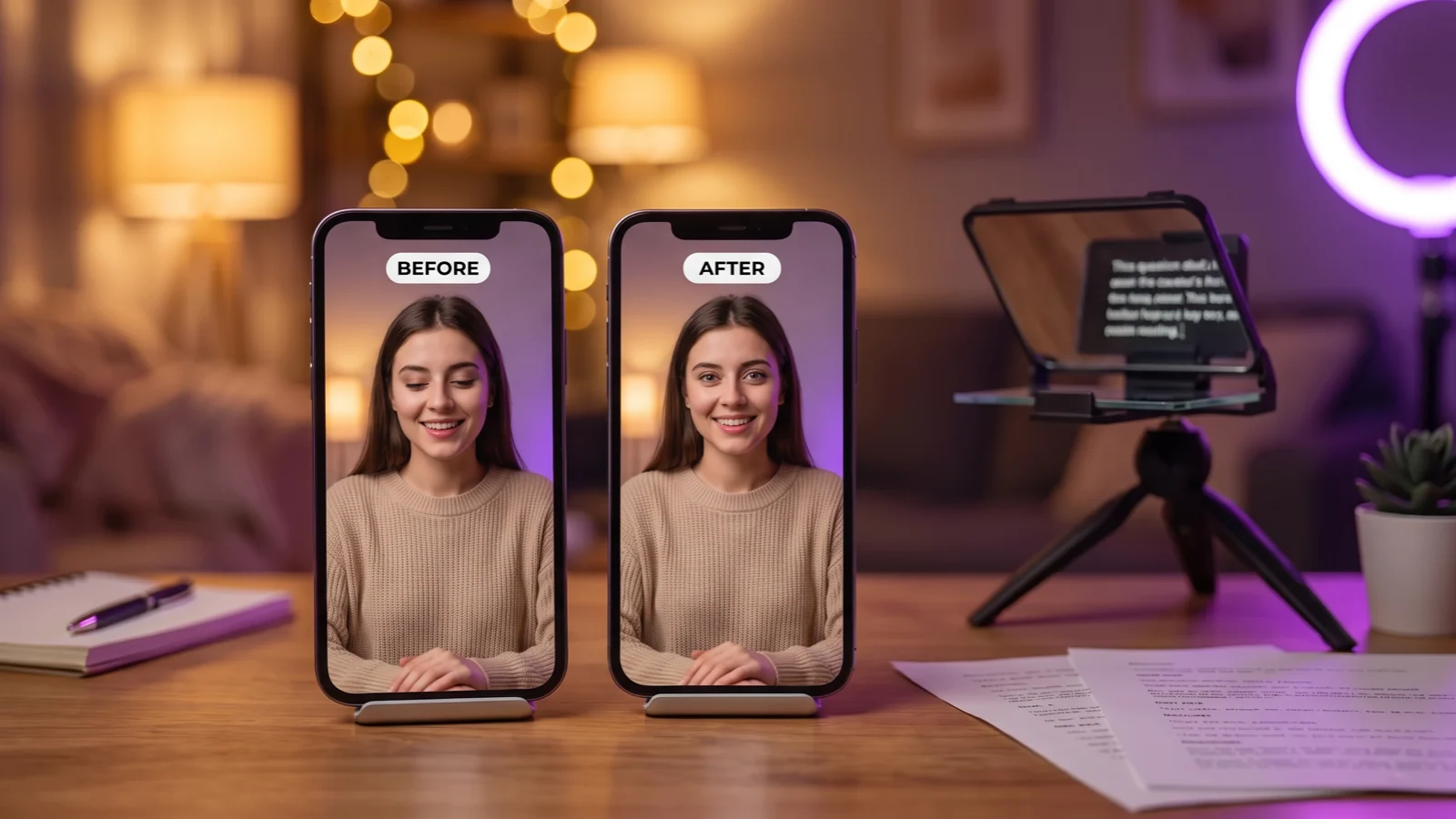
Compare before and after
Switch between the original and the corrected version to check the result.
5
Download, or keep editing
Download the corrected video, or add AI captions and magic zoom before you export. After the free try, 5 more videos cost $9 one-time (no subscription), or Pro includes 10 a month ($14/mo billed yearly, $19/mo monthly).
Frequently Asked Questions
Keep your text within a few degrees of the lens and your eyes as still as you can. Put the script right under the camera or on a teleprompter, use 3 to 5 words per line in a big font, sit back from the camera, read one line ahead and memorize your opening line. If your gaze still drifts, AI eye contact correction can redirect it after you record.
Read a short phrase, look through the glass at the lens and say it, keeping your head still and letting your eyes make the small moves. Set the scroll to your speaking pace (about 130 to 160 words per minute for most people) and keep the reading line near the top. On a phone, use a teleprompter app with the script in a narrow strip just under the front camera, and mount the phone at eye level, as far away as you can still read.
Use a teleprompter app that overlays your script on the front camera, shrink the text to a narrow strip at the top of the screen right under the lens, and mount the iPhone at eye level. Record in short sections. FaceTime’s Eye Contact setting doesn’t apply to recorded videos, so fix any drift afterwards with a tool such as StoryCut’s eye contact fix.
The glass sits directly in front of the lens, so the distance that matters is yours from the teleprompter. About 1 to 1.5 meters with a narrow column of text works well: at 1.5 m, a 12 cm line keeps your eyes within ±2.3° of the lens, while at 60 cm the same line sweeps ±5.7°, which viewers can notice. Make the font big enough to read at that distance.
You can’t avoid all eye movement, but you can make it too small to see. Narrow the text column, enlarge the font, step back from the prompter, keep your head still and read one line ahead. Within about 4 degrees of the lens, viewers still feel you are looking at them.
Many do, especially for scripted talking-head, educational and business videos, often with a beam-splitter teleprompter in front of the camera. Others work from bullet points, or memorize short sections and cut between takes. Both approaches aim for the same thing: eyes on the lens.
Yes. StoryCut runs NVIDIA’s Maxine Eye Contact model on videos you upload: it fully corrects gaze up to about 20° off-camera, keeps your resolution, frame rate and audio, and your first video is free with no card (then $9 for 5 videos, or Pro). Descript, Captions (iOS), Submagic (Pro), VEED, Kapwing and CapCut’s mobile app also correct eye contact on recorded video. See StoryCut vs Descript and StoryCut vs Captions.
For live video: Windows Studio Effects on supported Windows PCs (Teleprompter mode on Snapdragon Copilot+ PCs) and FaceTime’s Eye Contact on iPhone, inside FaceTime calls. For recorded video, which NVIDIA Broadcast doesn’t process, StoryCut runs NVIDIA’s Maxine Eye Contact model in the cloud, so it works from any browser without an RTX GPU or Windows. Editors such as Descript and Captions also offer it.
Yes, with clear glasses. Strong reflections on the lenses, or sunglasses that hide your eyes, reduce the effect because the model can’t see your eyes well. If you wear glasses, move your lights to the side or tilt the frames slightly to cut glare before you record.
Fix Your Eye Contact Free
Read your script, then let the AI turn your gaze back to the lens. Your first video is free, with no credit card and no captions needed.