How to Add a Title to YouTube Shorts and TikToks (and Where to Put It)
The line of text on the first seconds tells people why to keep watching. What to write, how long to leave it up, and the one place on a vertical video that no app covers.
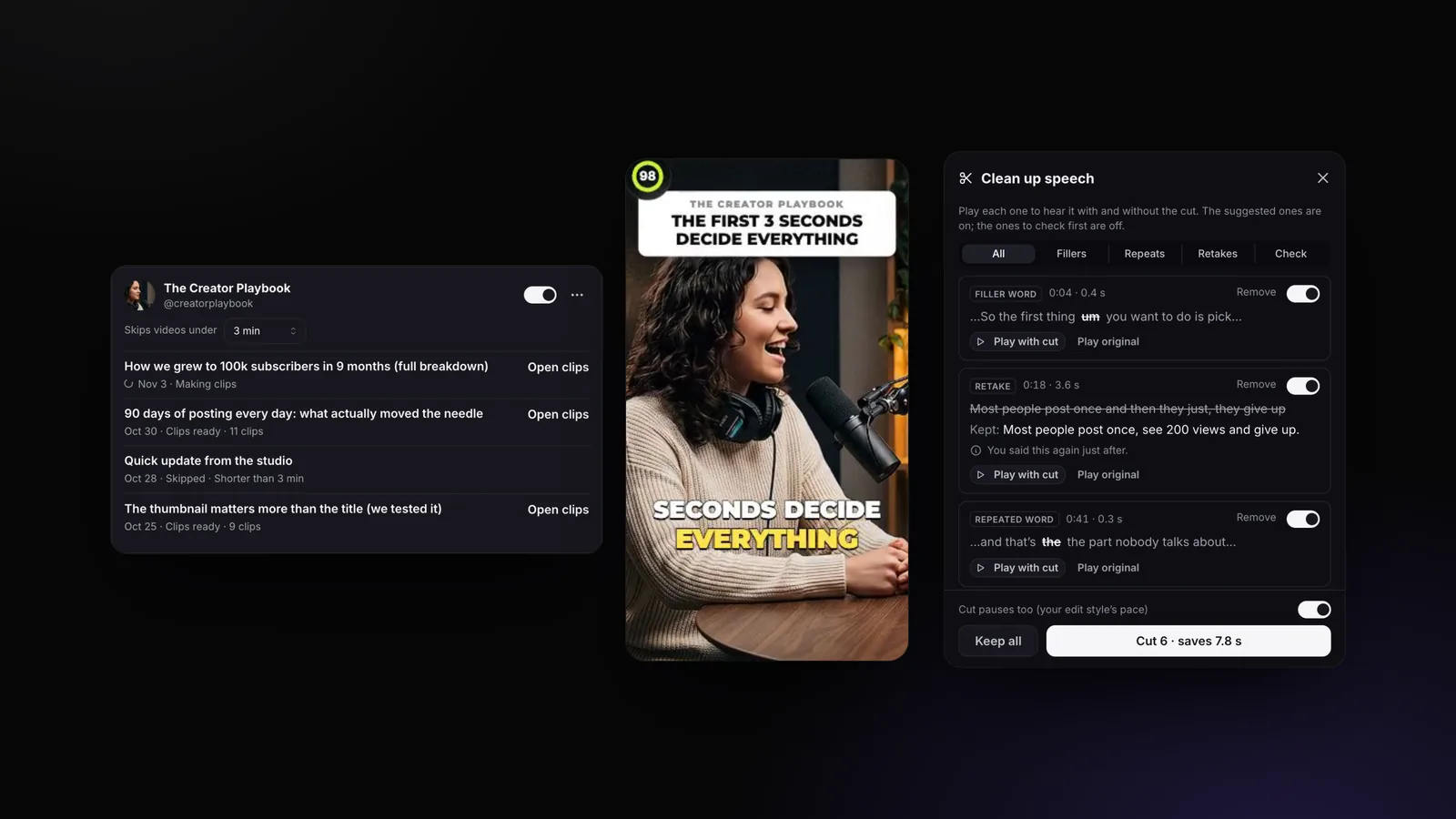
AI headlines on clips released November 2, 2026
On this page
The Short Answer
Put a short title on the first 3 to 4 seconds of the video, with its top edge about 14% down the frame, and keep it to one idea on two short lines. Every app’s own editor has a text tool: in TikTok, Instagram and YouTube Shorts, tap the text tool (Aa or Text), type the title, drag it just under the top bar and set how long it stays.
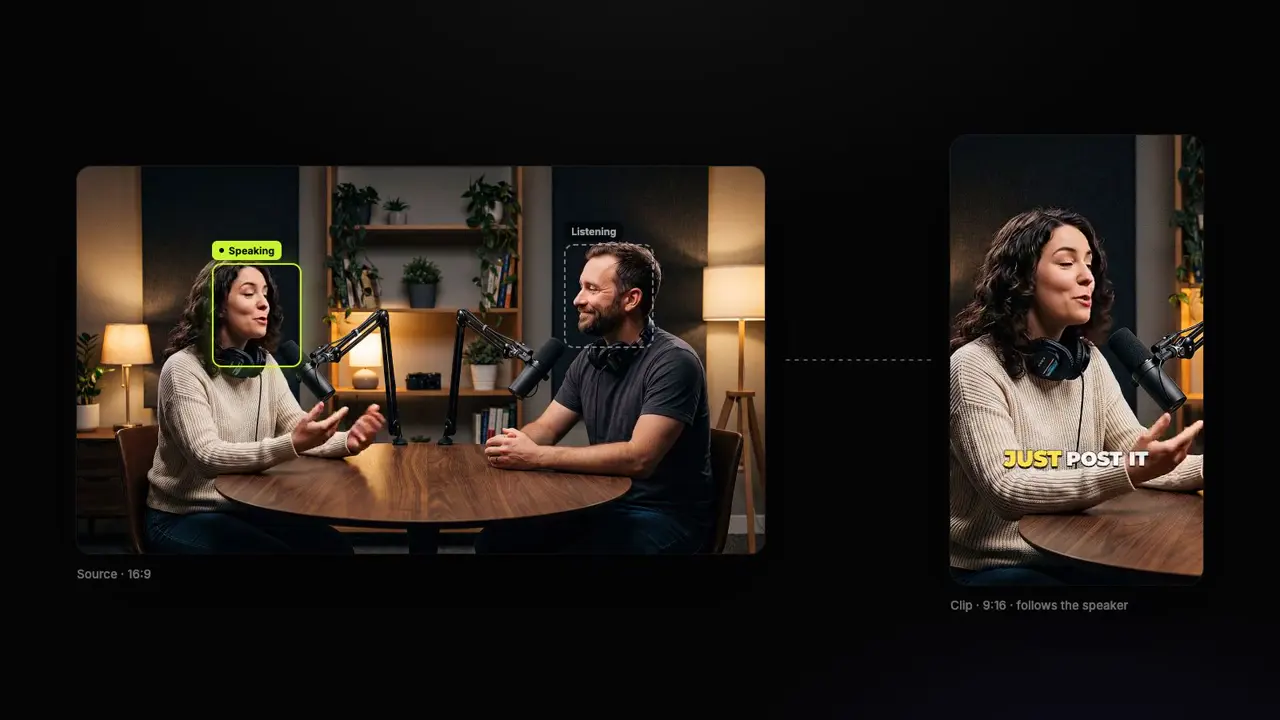
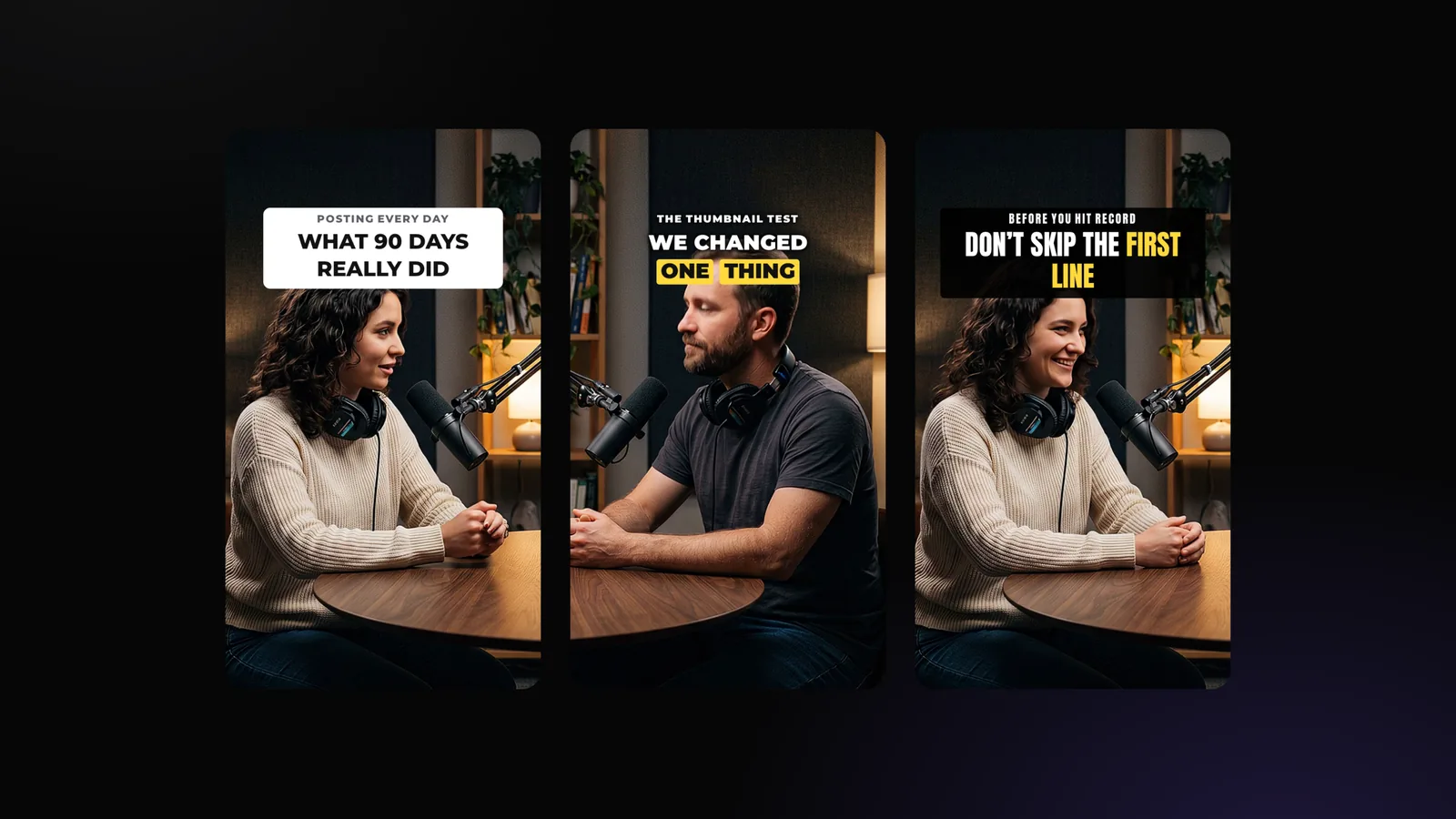
If you make clips from long videos, StoryCut writes the title for you: each AI clip opens with a headline written from what is said in it, placed below the apps’ buttons and never over the speaker’s eyes. It’s on every plan, Free included.
Looking for the title field instead, the one under the video and in search? That is a different job: see how to write YouTube Shorts titles.
Disclosure: StoryCut publishes this guide and makes the tool it describes.
Why Put a Title on the Video Itself?
Sound on or off, people decide whether to stay before the first sentence is over. A title on screen does in one glance what the first sentence does in five seconds: it says what the clip is about and why it is worth the next 40 seconds. It also helps the people who do watch muted, and it gives a clip cut from the middle of a long conversation the context it lost when it was cut.
A good on-screen title is different from your captions. Captions follow every word; the title stays still and says the point. That is why it should be short, at the top, and gone once the clip has started to deliver.
Where Do TikTok, Reels and Shorts Cover the Video?
Every app draws its own buttons and text over the video once it is posted. Editors don’t show them, so a title that looks fine while editing can end up under the tabs or the caption on a phone. Here is how much of a 1080×1920 frame each app covers, from each platform’s own published guidance.
| App | Top covered | Bottom covered | Sides | What sits there |
|---|---|---|---|---|
| TikTok | 12.5% | 34.4% | 11.1% each side, plus the button column on the right | Following / For You tabs, search; Username, caption, sound & ad button |
| Instagram Reels | 14% | 35% | 6% each side | Reels header & camera; Username, caption, audio & buttons |
| YouTube Shorts | 10% | 25% | 10% on the right | Search, camera & menu; Channel, title, Subscribe & sound |
Measured on 1080×1920 from each platform’s own safe zone guidance, checked 2026-10-03. The same numbers power StoryCut’s free safe zone checkers.
Sources: TikTok Business Help Center: In-Feed Standard safe zone file · Meta Ads Guide: Instagram Reels · Google: YouTube Shorts ads
The Spot No App Covers
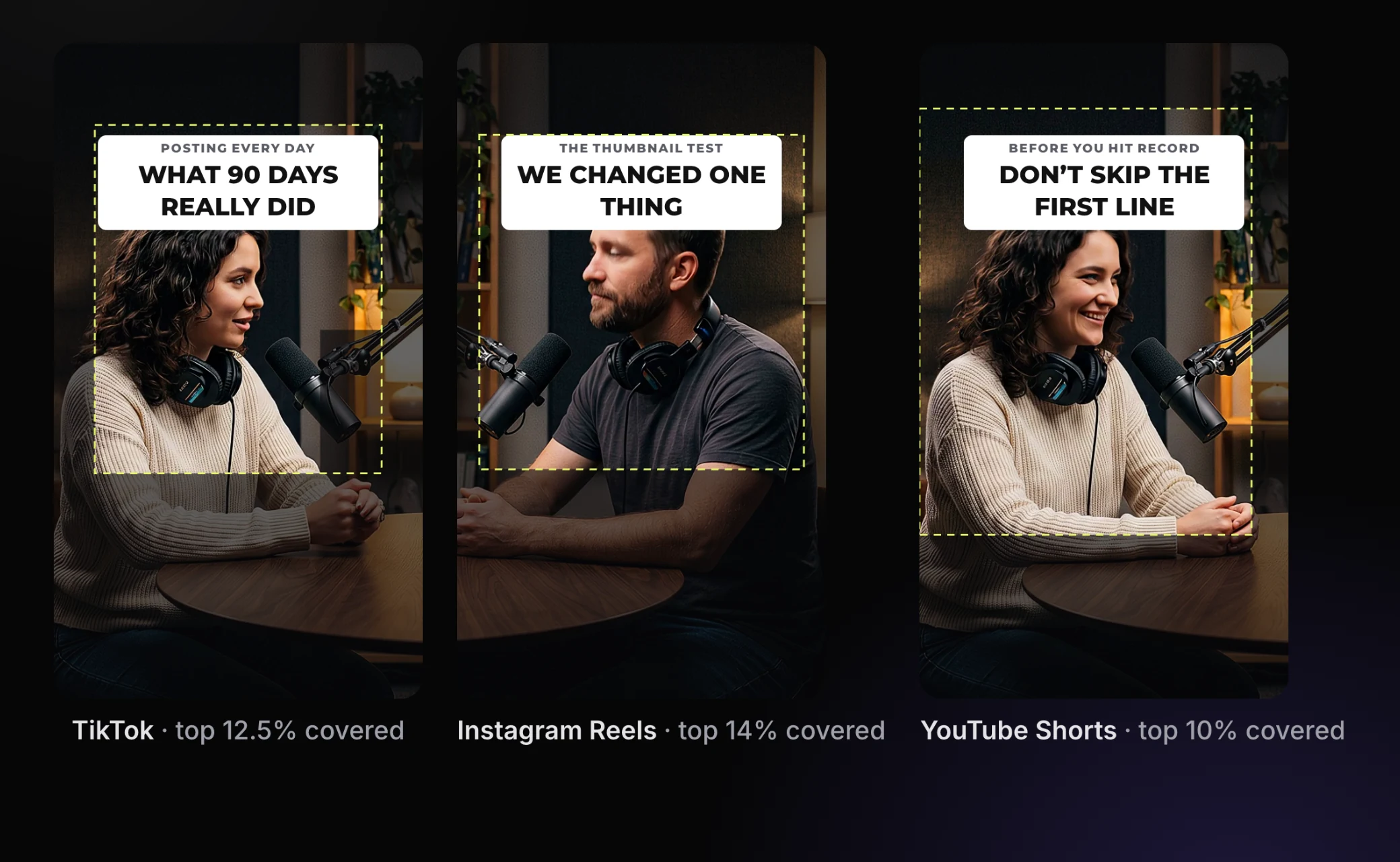
The shaded parts are what each app lays over the video, the dashed line is the safe area. A title whose top edge sits 14% down the frame clears TikTok’s tabs (12.5%), Reels’ header (14%) and Shorts’ search bar (10%) at once, so one export works on all three. Check your own frames with the free TikTok, Reels and Shorts safe zone checkers.
What Should the Title Say?
- One promise, not a topic. "What 90 days of posting really did" beats "Posting consistency". Say what the viewer gets.
- A small first line, then the main line. 2 to 4 words that set the scene (POSTING EVERY DAY), then 3 to 7 words that make people stay. This is how StoryCut writes every AI clip’s headline.
- Words from the clip. The title should be paid off within the clip. A promise the clip doesn’t keep costs you the next video’s view too.
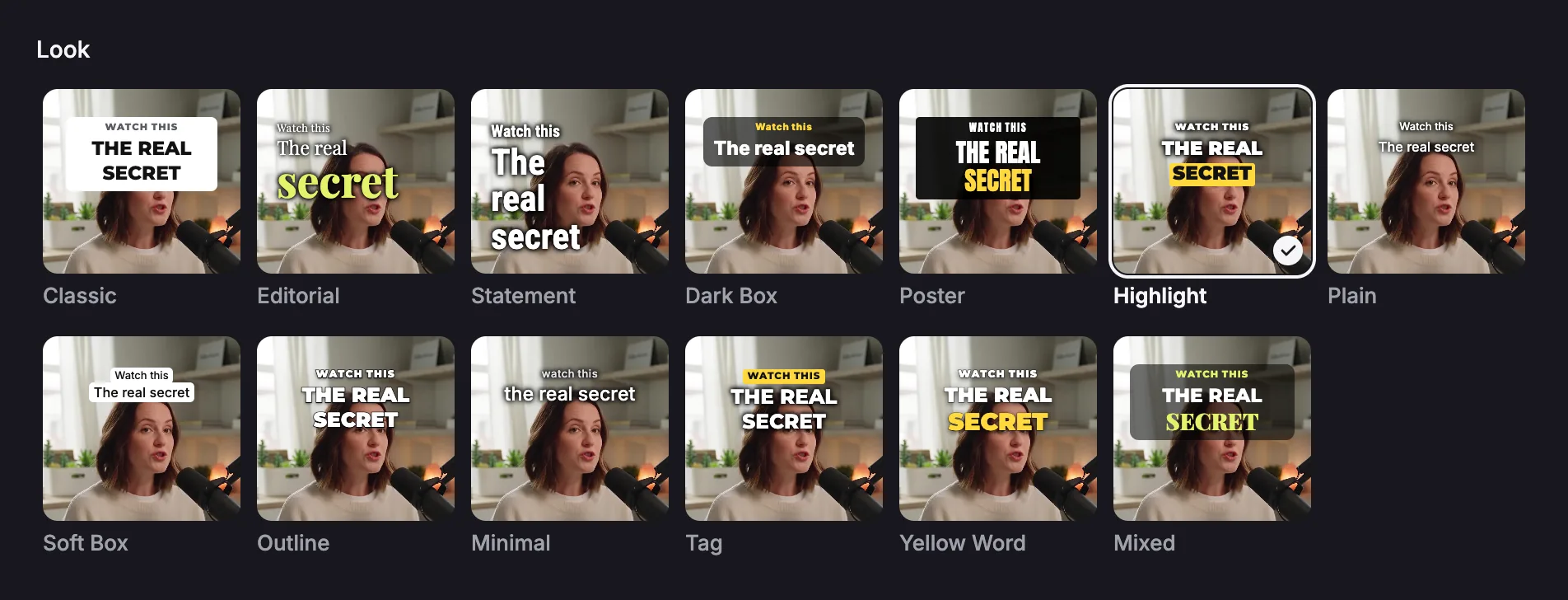
- One or two key words, set apart. A number or the surprising word, in colour or on a box. Of StoryCut’s 13 looks, Editorial, Poster, Highlight, Yellow Word and Mixed do this; the AI picks the 1 to 3 words.
- Not your captions again. If the title repeats the first sentence word for word, it adds nothing.
Stuck on the words? The free hook generator and the 150 TikTok hooks give you starting points.
How Long Should It Stay on Screen?
Long enough to read it once, no longer. StoryCut gives viewers 1.5 seconds to notice the headline plus 0.2 seconds a word to read it, between 3 and 4 seconds: a usual headline of 6 to 8 words stays 3 seconds, a 12-word one 4 seconds.
Why not leave it up for 5 seconds or the whole clip? Because it then sits over the speaker and next to the captions while the clip is already delivering. Short-video guides put a text hook at 3 seconds or more; past that, it gets in the way.
How to Add a Title in TikTok, Instagram or the YouTube Shorts Editor
Write it first
Two lines: a small first line of 2 to 4 words, a main line of 3 to 7. Read it out loud: if it takes more than 3 seconds, cut words.
Add it with the text tool
In the app’s editor, tap the text tool (Aa or Text), type the title and pick a style with a box or a thick outline, so it reads on light and dark backgrounds.
Place it under the top bar
Drag it so its top edge sits about a seventh of the way down the screen (14%), centred, away from the right edge where the like and share buttons are.
Set how long it shows
Open the text’s duration or timeline and keep it from the first frame to about 3 seconds in, 4 for a longer title.
Check it on a phone
Drop a frame into a safe zone checker, or watch the draft on your phone: nothing should hide the first word.
How StoryCut Adds the Title for You
Start AI Clips
Paste a YouTube link or upload a long video. While it picks the moments, the AI writes each clip’s headline from what is said, in the clip’s language, with its key words.
It is placed for you
StoryCut finds the speaker’s face at three moments of the clip’s first seconds. The headline’s top edge sits 14% down; if it would reach the eyes it is made smaller, down to 60%, or moved under the chin. On a two-person split it sits on the line between them.
Pick the look once
In Settings → Edit style, Headline on AI clips sets the look for every clip (Highlight unless you change it), or turns headlines off.
Change one clip if you like
In the editor’s Captions → Hook Title panel (Pro and up), change the text, switch between the 13 looks, tap a word to make it a key word, or press Generate for a new one. The same panel adds a title to any video you upload.
Export
The export draws the headline with the same renderer as the editor, at its reading time. Publishing to YouTube and TikTok: coming soon.
The 13 Headline Looks
Drawn by StoryCut’s own renderer on the same frame: Classic, Editorial, Statement, Dark Box, Poster, Highlight, Plain, Soft Box, Outline, Minimal, Tag, Yellow Word and Mixed. Looks without a box get a soft dark halo, so white words stay readable on a white wall.
Title Mistakes That Cost Views
Too high
At the very top it ends up under TikTok’s Following and For You tabs or Shorts’ search bar. Start 14% down.
Over the face
A title across the eyes hides the most watched part of the frame. Make it smaller, or move it under the chin.
Too long
Four lines can’t be read in 3 seconds. Two short lines; cut the rest.
Up for the whole clip
After 3 or 4 seconds it only competes with the captions. Let it go.
White on a bright wall
Plain white text vanishes on a light background. Use a box, a thick outline or a shadow.
Stacked on the captions
A title near the bottom overlaps the captions and the app’s own caption. Keep titles up top, captions lower.