How to Remove Filler Words and Bad Takes From a Video
Um, uh, "the the", a sentence you said twice: here is how to find them all in minutes, hear each cut before it happens, and keep the ones that were on purpose.
Clean up speech released November 2, 2026
On this page
The Short Answer
Edit from the transcript, not the waveform. A tool that transcribes every word, including the "um"s, can list each filler word, repeated word and retake with its exact time. You listen to each one, keep what was on purpose, and cut the rest in one go.
In StoryCut: upload your video, open the Remove Silence card, press Find next to Clean up speech, review the list, and press Cut. It takes a few minutes for a video of several minutes, and your captions follow the cuts. Clean up speech is on Pro and up.
Disclosure: StoryCut publishes this guide and makes the tool it describes.
What Counts as a Filler Word, a Repeat and a Retake?
- Filler words: sounds and words that carry no meaning: um, uh, mhmm. Phrases such as "you know", "like" or "basically" are fillers only some of the time: "it was like nothing worked" uses "like" as a filler, "I like this camera" doesn’t.
- Repeated words: a word said twice by accident, as in "and that’s the the part". Some doubles are correct English ("that that", "had had") and should stay.
- Retakes: a sentence you said again because the first try didn’t come out right. The usual rule is to keep the last take, which is the one you meant.
- False starts: a sentence you abandoned, often with a cue such as "sorry, let me start again".
Pauses are a fifth kind, and the oldest one: long silences between sentences. Remove Silence cuts them at the pace your edit style sets.
How to Remove Them With StoryCut
Upload your video
Start a new video from your dashboard and let the captions generate. Clean up speech works on the videos you upload to edit, not on AI clips.
Find what to clean up
In the editor, open the Remove Silence card and press Find next to Clean up speech. StoryCut transcribes your video again, this time keeping the fillers that normal captions leave out, and an AI decides which repeats and look-alike sentences are mistakes. It takes about a minute.
Review each cut
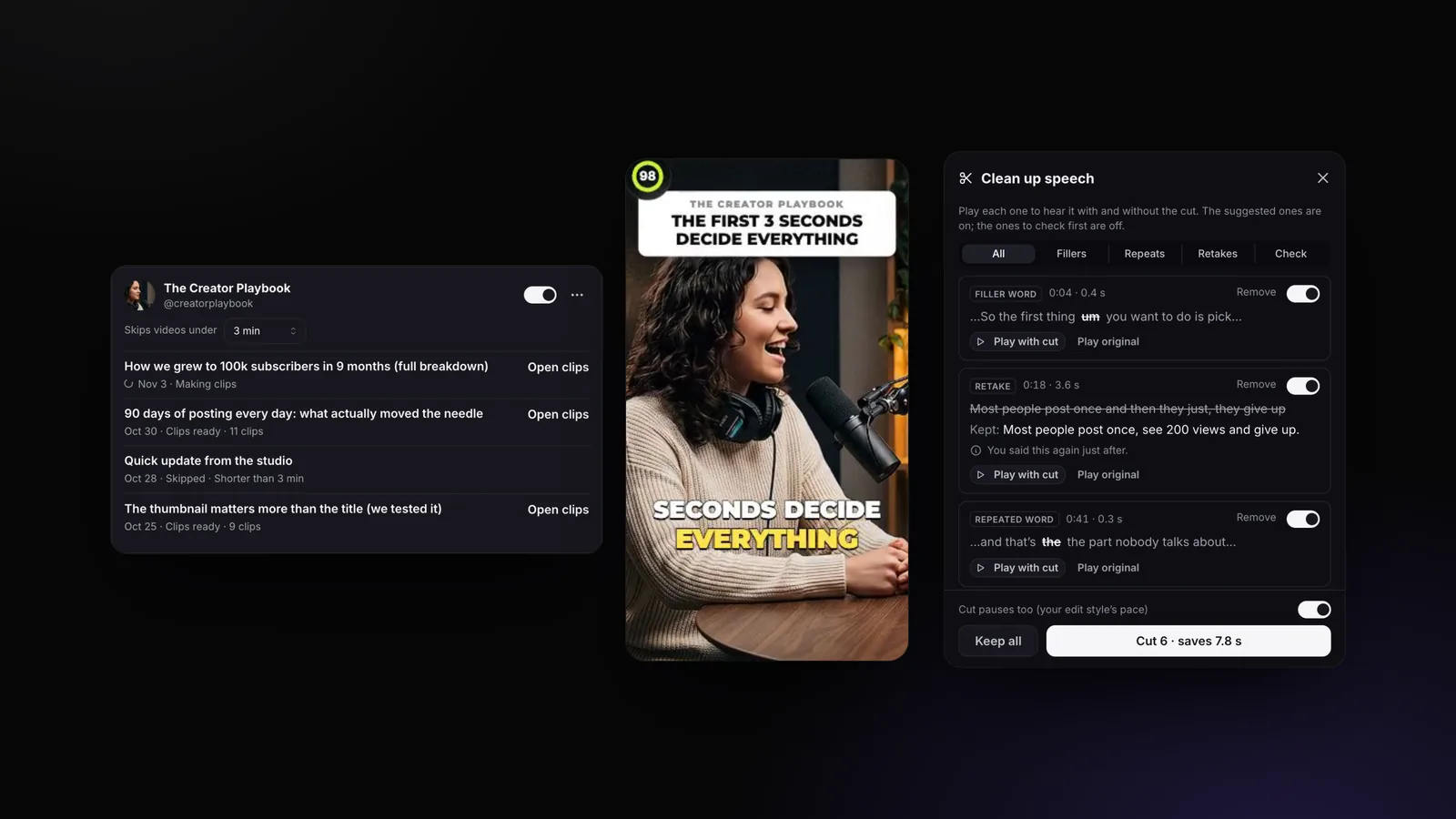
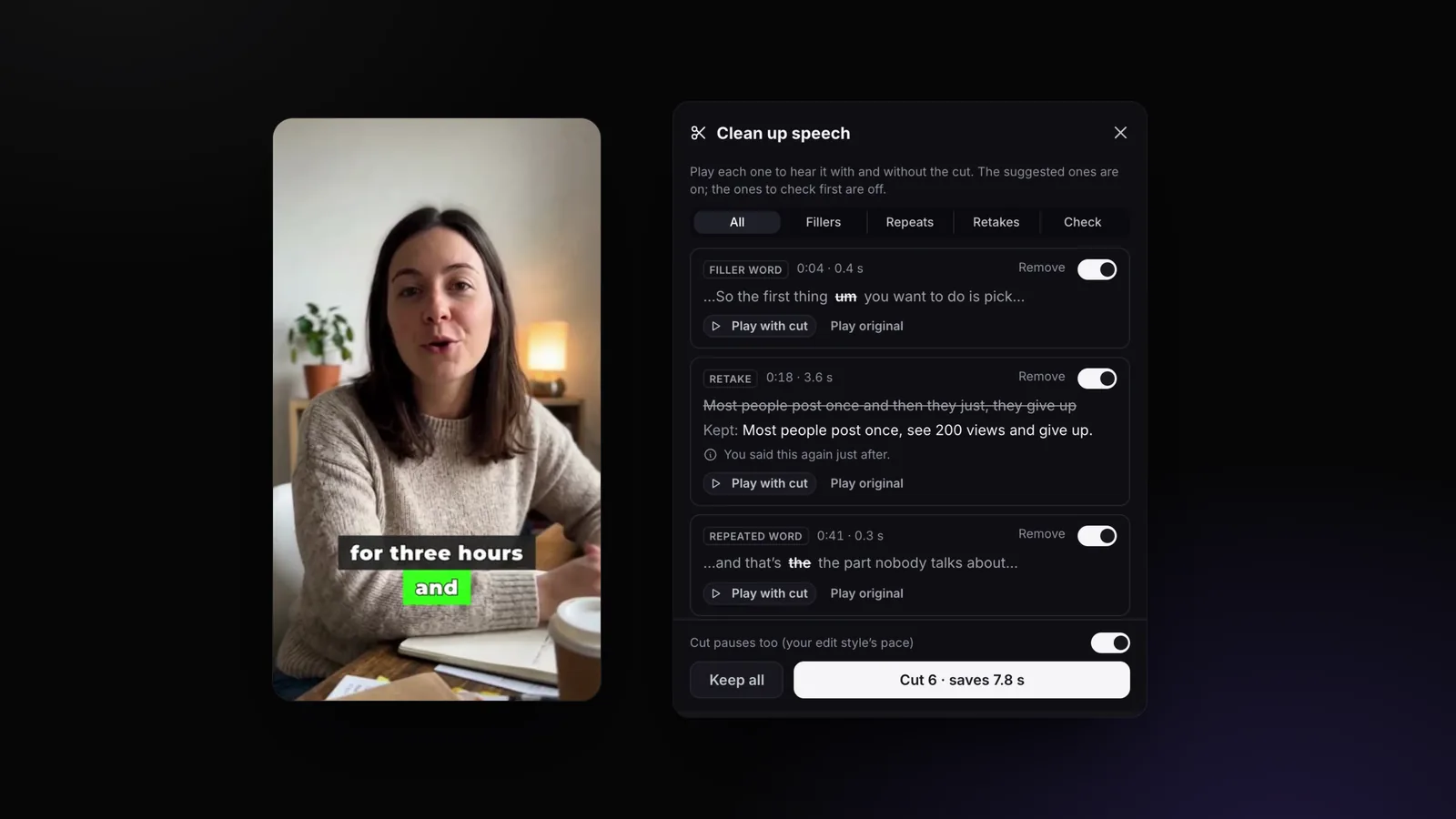
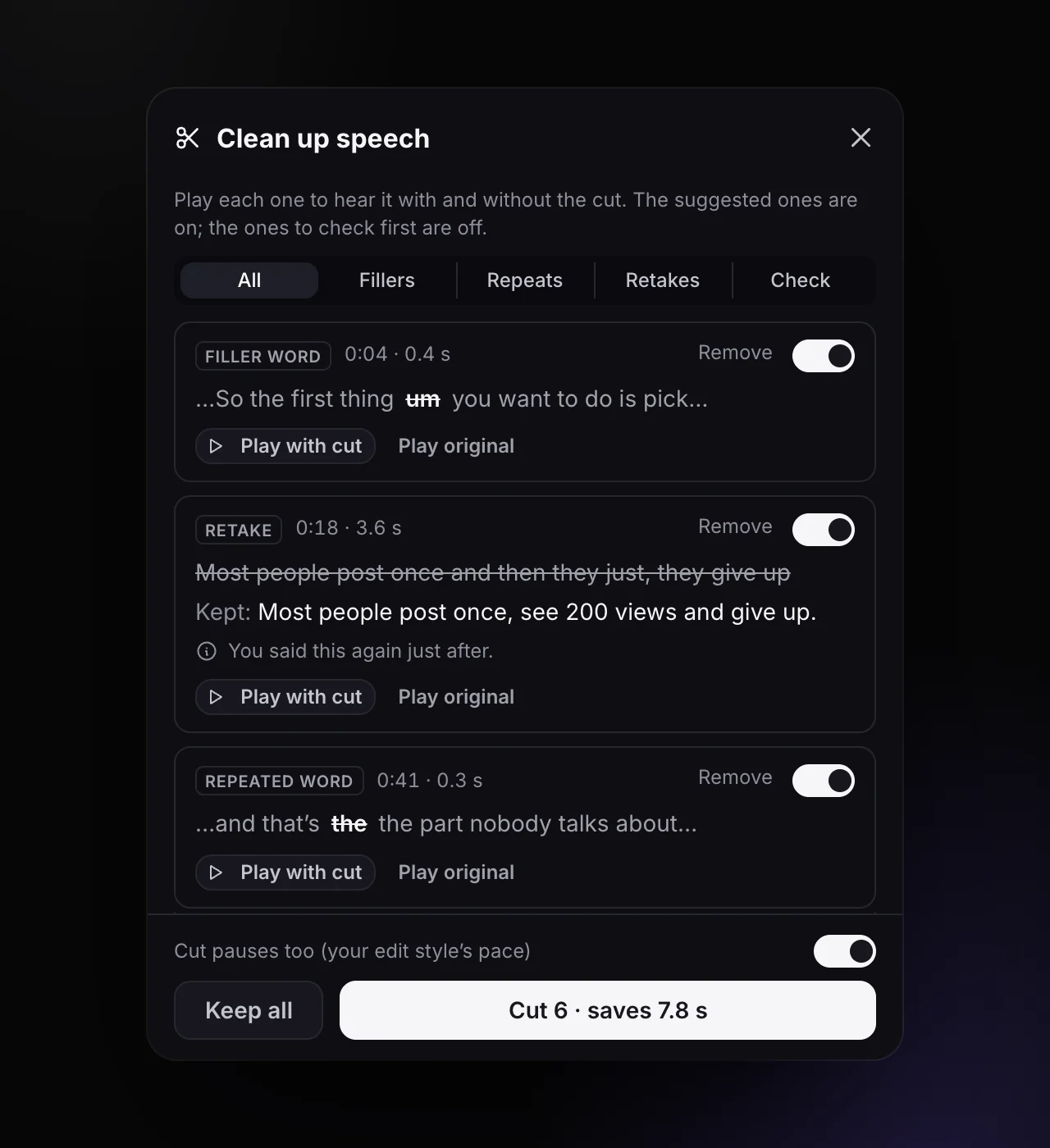
Press Review. A list opens beside your video, with filters for fillers, repeats, retakes and the ones to check. Play with cut plays two seconds around the cut without it, Play original with it. Turn off any you want to keep.
Decide about pauses
Cut pauses too also removes silences at your edit style’s pace, in the same pass. Leave it off if you only want the words cleaned.
Cut
Press Cut (it shows how many cuts and seconds you save). Everything is removed in one pass, and the captions, zooms and sound effects move with the cuts. Changed your mind? Turn Remove Silence off and the original comes back, captions included.
The Review List
Each item shows what was said around the cut, how long it is, and why it was found. For a retake, you see the line that goes and the line that stays.
Why Should Nothing Be Cut Until You Check It?
Because the mistakes an automatic cut makes are the ones viewers notice: a repetition you made on purpose for emphasis, a list ("faster, faster, faster"), the wrong take kept, a word clipped at its edge. That is why most tools that do this show the cuts before making them.
StoryCut is careful in a few specific ways:
- A retake is only proposed when what you cut is said again in the take you keep. If the AI isn’t sure, the item is listed but switched off.
- Repetitions the AI judges intentional, like lists and emphasis, aren’t listed at all.
- Retakes can never take away more than a fifth of your speech.
- Phrases like "you know" are only proposed where they mean nothing, and the unsure ones say "Not sure: listen first".
Why Do Some Cuts Sound Clipped?
Because transcripts aren’t precise enough for audio. In continuous speech, the timings a transcription gives for each word touch each other and can be up to 90 milliseconds late, so a cut placed on those timings can take the start of the next word with it.
StoryCut places every cut edge from the sound itself: it looks for the quietest moment of the pause nearest the removed word, and adds a 12-millisecond fade at each join so there is no click. When a filler sits in continuous speech with no quiet moment around it, the cut would be harsh, so it is never switched on by default.
Cutting by hand? Zoom into the waveform and cut in the dip between words, never on the word itself, and add a tiny audio crossfade at every join.
How to Do It by Hand in Any Editor
Without a tool that hears the fillers, the manual method works in any editor (CapCut, Premiere Pro, DaVinci Resolve, Final Cut):
- Find them: scrub through at 1.5× speed and drop a marker at each "um", repeat and restart. Fillers show up as small isolated blobs on the waveform between longer words.
- Cut retakes first: they are the biggest wins. Keep the last take, and listen to the sentence before it to make sure the join makes sense.
- Then fillers: cut in the silence on both sides, and add a short crossfade.
- Cover jump cuts: on a talking head, a cut makes the face jump. A small zoom on the next shot hides it, which is what Magic Zoom does automatically.
By hand, that means listening to the whole video at least once. With a review list, you only listen to the cuts.
How to Say Fewer Filler Words Next Time
Pause instead
A silent half-second sounds confident; "um" fills the same gap. Pauses are easy to cut later, too.
Know your three points
Most fillers come while you search for the next idea. A short list of points beside the camera helps more than a full script.
Script the hard parts
Write out the opening and anything with numbers. Read it from a free teleprompter placed under the lens.
Restart cleanly
Messed up a sentence? Stop, breathe, and say the whole sentence again. A clean retake is easy to find and cut.
Slow down a little
Fillers come with speed. Speaking slightly slower gives your brain time to find the next word.
Look at the lens
Reading notes beside the camera also costs eye contact. AI eye contact can fix that after recording.
Frequently Asked Questions
Can AI remove filler words automatically?
Which languages does it work in?
Will it remove words I said on purpose?
Do my captions update after the cut?
Can I use it on AI clips?
Which plan includes it?
Related Tools & Features