How to Add B-Roll to Talking-Head Videos Automatically
Cutaways keep a talking video moving, but finding footage for every sentence takes hours. Where B-roll should go, how long each insert should last, which layout to use, and how to have it done for you.
Stock video B-roll released November 2, 2026
On this page
The Short Answer
Put a short cutaway, 1.5 to 3 seconds, on the words that describe something the viewer can picture, and go back to your face in between. To do it automatically, use an editor that reads your transcript, picks those moments and finds the footage: in StoryCut, choose an edit style with B-roll, press Generate in the B-roll card (or run Auto Edit), and swap any insert you don’t like.
StoryCut’s B-roll is on Pro and up. It uses free stock videos first and makes an AI image only when no clip fits.
Disclosure: StoryCut publishes this guide and makes the tool it describes.
What Does B-Roll Do in a Talking-Head Video?
A talking head is one shot of a person speaking. It’s the easiest video to make and the hardest to keep watching, because nothing on screen changes. B-roll is any footage that isn’t the speaker: a shot of what you’re describing, a product, a place, a gesture.
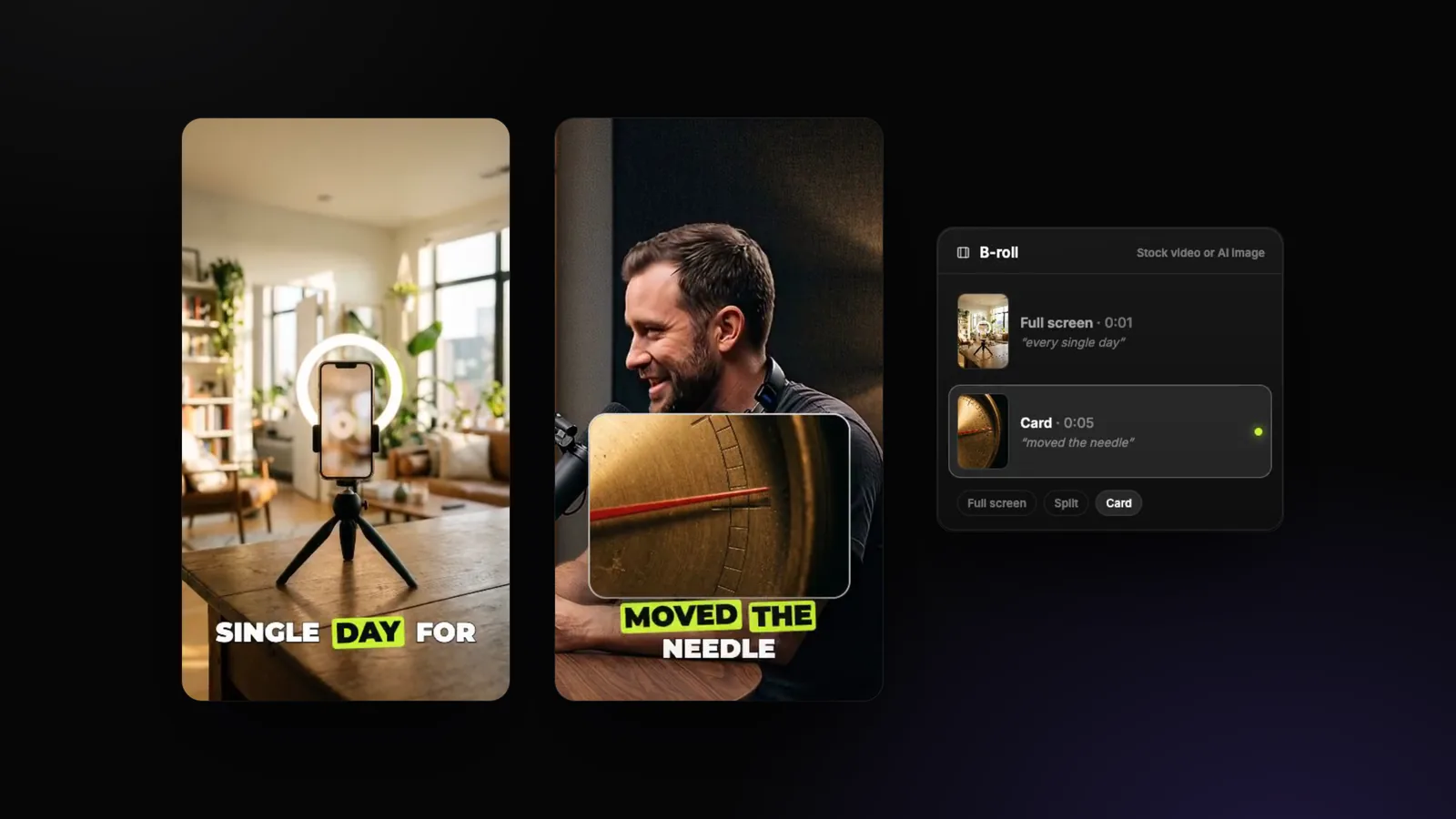
It does three jobs: it shows what you say ("we posted every single day" over a phone on a tripod), it resets attention with a change of picture, and it hides cuts, since a jump cut in your face disappears under a cutaway.
It also has a cost: every second of B-roll is a second without your face, and your face is why people follow you. That is why the timing rules below matter more than the footage.
Where Should B-Roll Go, and Where Shouldn’t It?
- Not in the first 3 seconds. The opening is where viewers decide to stay, and they decide on a face and a hook.
- On a word you can picture. Start the insert on the word it illustrates: "ring light", "ninety days", "the needle moved". Abstract sentences ("it changed my mindset") are better left on your face.
- Short. 1.5 to 3 seconds per insert. Longer, and it feels like stock footage instead of an edit.
- With room between. At least a few seconds of you between two inserts. StoryCut never puts two closer than 2 seconds, and aims for about 5.
- As often as your format needs. A calm explainer might use one a minute, a fast Short three or more. In StoryCut, the edit style sets it: a few (about one a minute) or some (about three a minute).
- Illustrate, don’t translate. Saying "phone" doesn’t mean you need a phone on screen every time. Pick the moments that add something.
Full Screen, Split or Card: Which Layout When?
The three ways StoryCut lays out an insert on a vertical video.
| Layout | What it looks like | Best for |
|---|---|---|
| Full screen | The B-roll covers the whole frame; captions stay on top | Strong moments, energetic edits, AI clips |
| Split | The B-roll fills one half, you are re-framed in the other half | Showing something while you keep talking |
| Card | A rounded card with a shadow under your chin, your face stays visible | Calm, professional videos where your face matters |
Calm and Clean edit styles mix cards and splits, Standard mixes splits and full screen, Energetic uses all three. A split or a card is only used where your face stays clear of it.
How to Add B-Roll Automatically in StoryCut
Upload your talking video
Start a new video from your dashboard and let the captions generate: B-roll is planned from what you say.
Pick an edit style with B-roll
In Settings → Edit style, styles such as Explainer, LinkedIn Pro, Product Demo, Motivational and Energetic include B-roll. Or set B-roll to A few or Some under Customize. The 18 edit styles
Generate
Press Generate in the editor’s B-roll card, or run Auto Edit, which adds B-roll after the cuts and zooms. StoryCut picks the moments, searches stock video for each, and lets an AI choose the clip that fits best.
Check each insert
Each insert has a card showing its frame and the words it covers. Change its layout (Full screen, Split, Card), or open the swap panel: five other clips found for that moment, a stock search of your own, and Undo.
Export
The export draws the B-roll exactly as the editor preview shows it, muted, with your captions on top.
What It Looks Like
A full-screen cutaway on "every single day", then a card on "moved the needle", with the editor’s B-roll card beside the video.
Where Does the Footage Come From?
StoryCut searches free stock videos on Pixabay, two or three searches per moment, and keeps clips that are long enough for the insert and sharp enough for their place on screen. An AI looks at a frame of each candidate and picks the best fit, or rejects them all. The editor credits each clip ("Video by … from Pixabay"), as Pixabay’s terms ask.
When no stock clip fits a moment, StoryCut makes an AI image for it. AI images never show a face or text: a stranger’s face full screen in your video is the last thing you want.
AI clips get B-roll too, on Pro and up: when your edit style has B-roll and is applied to a run, the three best clips get full-screen cutaways.
How to Do It by Hand
Any editor works (CapCut, Premiere Pro, DaVinci Resolve):
- Read your transcript and mark 1 to 3 picturable words per minute.
- Search free stock sites such as Pixabay or Pexels for each one, and download vertical clips if you post Shorts.
- Put each clip on the track above your video, starting on its word, 1.5 to 3 seconds long, muted.
- Scale it to cover the frame (no see-through overlays), and keep captions above it.
- Watch it back once without sound: if you can’t tell what you’re talking about from the pictures, the B-roll is too abstract.
Most of the time goes into searching for footage, which is the part worth automating.
B-Roll Mistakes to Avoid
See-through overlays
A half-transparent image over your face looks like a mistake. Cover the frame, or use a card or a split.
Inserts that last too long
Past 3 seconds, viewers miss your face. Keep each one short.
B-roll in the hook
Keep the first 3 seconds on you and your opening line.
Strangers’ faces
A random person on screen competes with you. Prefer objects, places and hands.
The same layout every time
Alternate full screen, split and card so the edit doesn’t feel like a template.
Text in the footage
Signs and screens with text fight your captions. Pick clean shots.
Frequently Asked Questions
How long should B-roll be in a Short?
Is the stock footage free to use?
Can I use my own B-roll?
Does B-roll work on AI clips?
Which plan includes B-roll?
Related Tools & Features