
Features
Tools
Pricing
Affiliate
How to resync subtitles
Add your SRT or VTT file
Click "Upload SRT / VTT file", drop it on the box, or paste its content.
Shift or resync
Same delay everywhere? Shift all times by a number of seconds. Getting worse over time? Use "Resync two points" and type when the first and last lines are really spoken.
Download the synced file
The result keeps the original format (SRT stays SRT, VTT stays VTT) and the same text.

Captions that are in sync from the start
StoryCut transcribes your video and times every caption to the word, then animates them in 1,000+ styles for TikTok, Reels and Shorts. No subtitle files to fix.
AI Captions in 1 Click
50+ Transitions
Auto Zoom Effects
Clean Audio AI
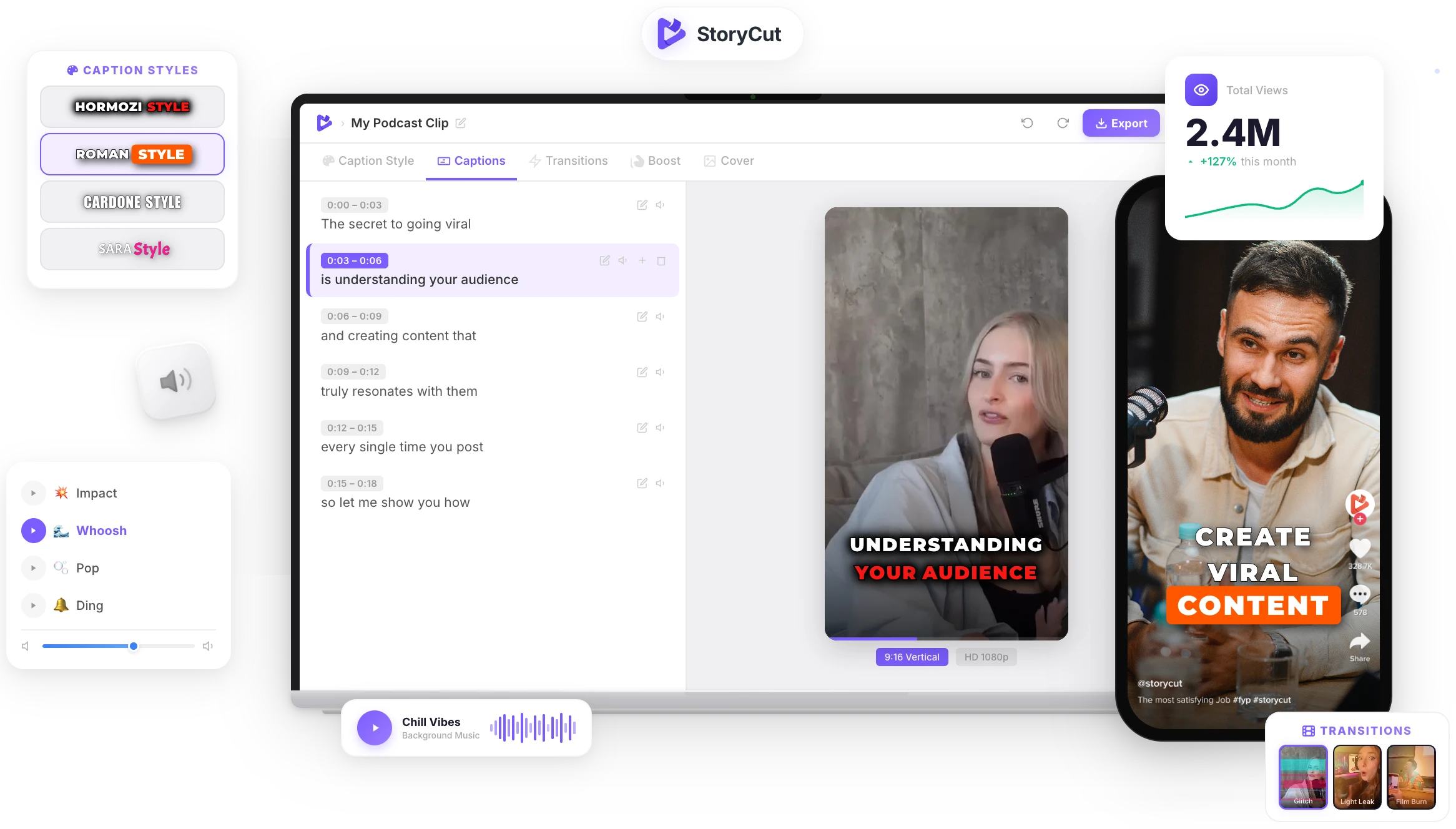
Video & Subtitle Tools
Why are my subtitles out of sync?
If the subtitles are early or late by the same amount everywhere, the video was trimmed or has a different intro than the version the subtitles were made for: a simple shift fixes it. If they start right and drift further off over time, the subtitles were timed for a different frame rate (for example 23.976 vs 25 fps). A two-point resync stretches all timings so the first and last lines match, and everything in between follows.
Tips for a perfect sync
- Positive values make subtitles appear later, negative values earlier.
- Find a line in the middle of the video, note how early or late it is, and shift by that amount.
- For drift, pick a line near the start and one near the end, play the video and note when each is spoken.
- Use the nudge buttons (±0.1 s and ±1 s) to fine-tune, then test in your player.
- Captions that would start before 0:00 are moved to 0:00, and the tool tells you how many.
Two ways to fix timing
Shift by Any Amount
Move every caption earlier or later by seconds and milliseconds, with nudge buttons for quick fine-tuning.
Two-Point Resync
Fix subtitles that drift: set the real time of the first and last line and every caption in between is stretched to match.
SRT and VTT
Keeps the original format, text, tags and VTT cue settings. Only the times change.
Nothing Uploaded
Your browser does the work, so the file never leaves your device.
FAQ
You Might Wanna Know...
You’ve Got the Subtitles.
Now Make the Video.
You just used a free tool to resync your subtitles. Now imagine dropping a raw video into StoryCut and getting it back fully edited — captions styled to your brand, zoom effects synced to every beat, transitions between scenes, audio cleaned up — all in under 2 minutes.
No timeline. No learning curve. No exporting headaches. Just upload, let the AI work, and post. That’s what 10,000+ creators do every day with StoryCut.
This tool gave you the words. StoryCut gives you the video.
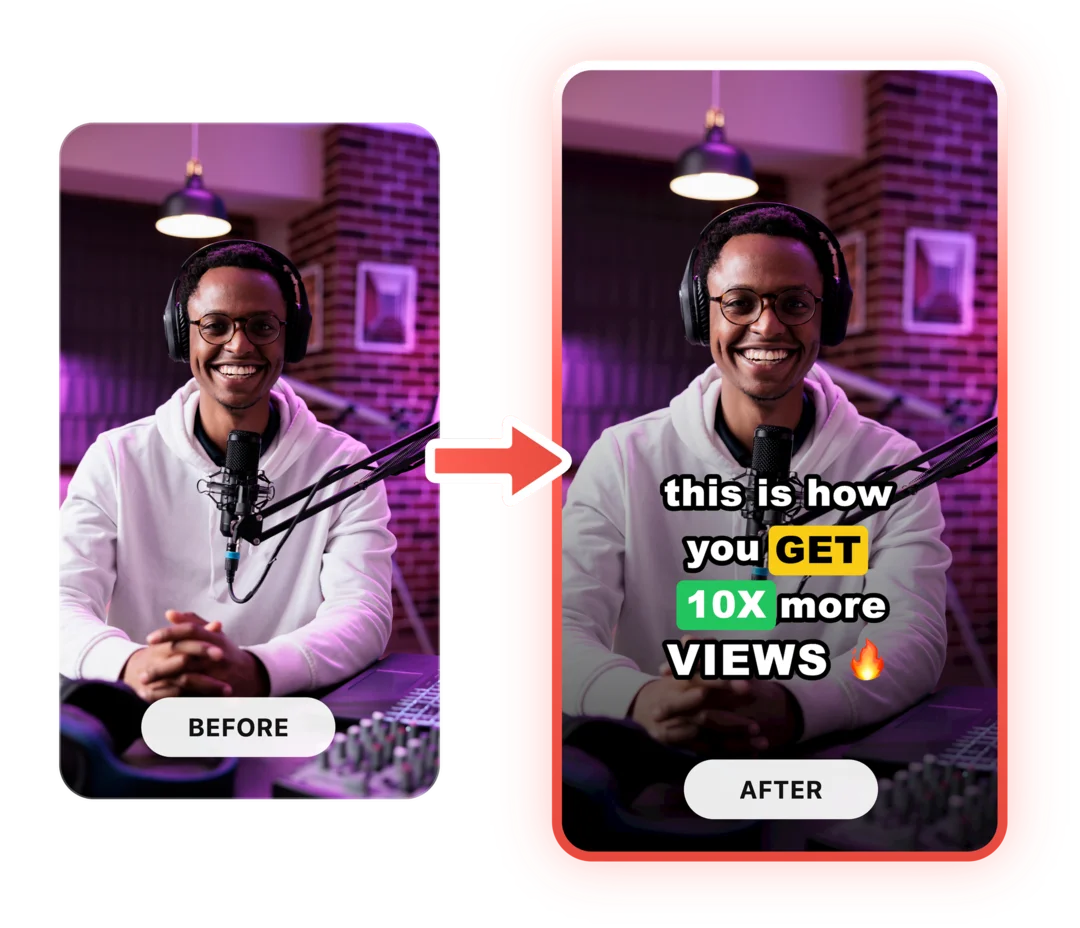
Your Next Viral Video Starts Here
Join 10,000+ creators who save hours every week with AI-powered editing. Upload a video, get a scroll-stopper back.
No credit card required • Free plan, no time limit • Cancel anytime

AI video editor for creators who want viral content without the editing grind.
Features
All FeaturesAI CaptionsHormozi CaptionsMrBeast CaptionsAdd Subtitles to VideoSubtitle GeneratorAI Video EditorAI Clip GeneratorYouTube to ShortsEye Contact FixMagic ZoomTransitionsClean AudioAI MusicSound EffectsAI Auto EditRemove SilenceAI ThumbnailsBrand KitsCommunity StylesAI Video TranslatorFree Tools
Video Hook GeneratorTikTok CaptionsInstagram CaptionsYouTube TitlesTikTok HashtagsVideo Script GeneratorAI Video IdeasContent CalendarTikTok TranscriptVideo to TextFree SRT GeneratorSubtitle TranslatorFree TeleprompterWords to MinutesSRT to VTT ConverterTikTok Safe ZoneFree Sound EffectsAll 40 Tools →Use Cases
TikTok CreatorsYouTube ShortsInstagram ReelsPodcastersClippersAgencies & TeamsLinkedIn VideosTeleprompter Eye ContactPremiere Pro Eye ContactDaVinci Resolve Eye ContactFinal Cut Pro Eye ContactLoom Eye Contact