How to Add Captions on TikTok
TikTok can caption your video for you, and for many posts that’s enough. When you want bold, animated subtitles that stay on the video wherever it’s posted, StoryCut’s TikTok subtitle generator burns them in. Here are the steps for both.
- Free plan: videos up to 4 min, 720p with a watermark
- 9:16 MP4
- No credit card
Captions on TikTok: key facts
- Short answer
- In the TikTok app, record or upload your video, then tap Captions on the editing screen. TikTok transcribes the speech, you fix any word, and you post. For animated, styled captions, make them in a tool like StoryCut first and upload the finished video.
- TikTok’s auto captions
- Free and built into the app. They use TikTok’s standard caption look, viewers can turn them off, and they only exist in that TikTok post.
- Burned-in captions
- Part of the video itself: always visible, styled and animated word by word, and still there when you post the same file to Reels or Shorts.
- StoryCut
- Free plan: 3 videos at a time, up to 4 minutes, 720p with a watermark. Starter ($7/mo billed yearly): 1080p, no watermark. You download a 9:16 MP4 and upload it to TikTok yourself.
- Looking for post captions?
- The text you write under a TikTok is also called a caption. For that, use StoryCut’s free TikTok caption generator tool.
Need the text under your TikTok, not subtitles on the video? Try the free TikTok caption generator.
How It Works
Method 1: TikTok’s built-in auto captions
Free, inside the TikTok app.
- 01
Record or upload
Open TikTok, tap the + button and record a video, or upload one from your gallery.
- 02
Tap Captions
On the editing screen, tap Captions. TikTok transcribes what you say and places captions on the video.
- 03
Fix and post
Tap the captions to correct any word, then continue and post. Viewers can switch the captions off on their side.
TikTok auto captions vs animated burned-in captions
TikTok’s auto captions are the quickest option: they’re free, they take a few taps, and viewers who want them can read along. They are also limited. They use TikTok’s standard look, so they won’t match a bold creator style. Viewers can turn them off. And they belong to the TikTok post: if you post the same video file to Reels or Shorts, you have to caption it again there.
Burned-in captions are drawn into the video before you upload it. You choose the font, colors and animation, keywords can light up as they are spoken, and the captions show everywhere the video goes. The trade-off is an extra step before posting, and viewers can’t hide them. If you post the same video on TikTok, Reels and Shorts, burning the captions in means you caption it once.
How It Works
Method 2: Animated TikTok subtitles with StoryCut
Burned in, styled, ready to upload.
- 01
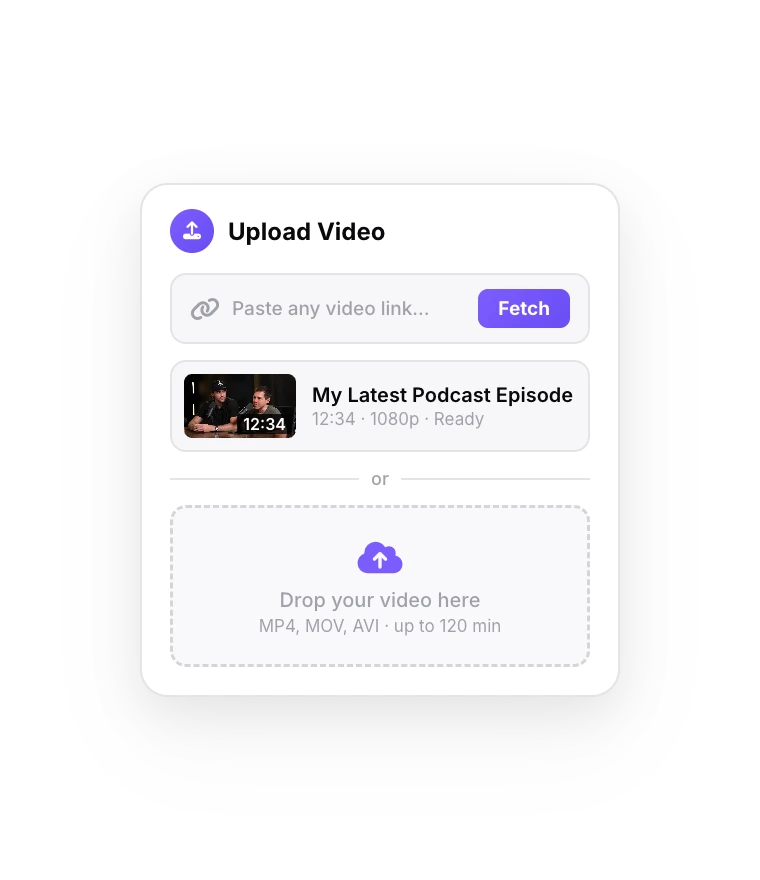
Upload your clip
Upload from your phone or computer (MP4, MOV or WebM). Subtitles start generating as soon as the upload finishes, in 49 languages.
- 02
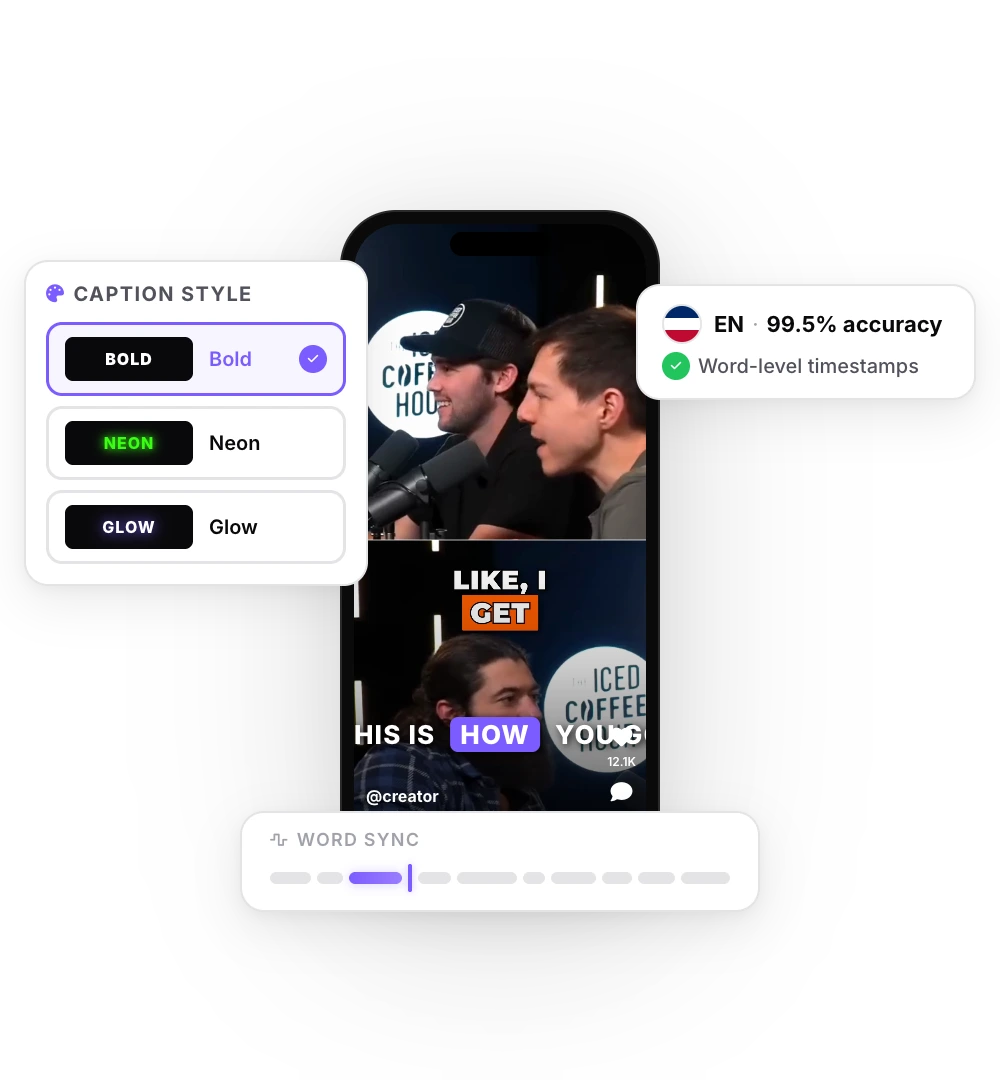
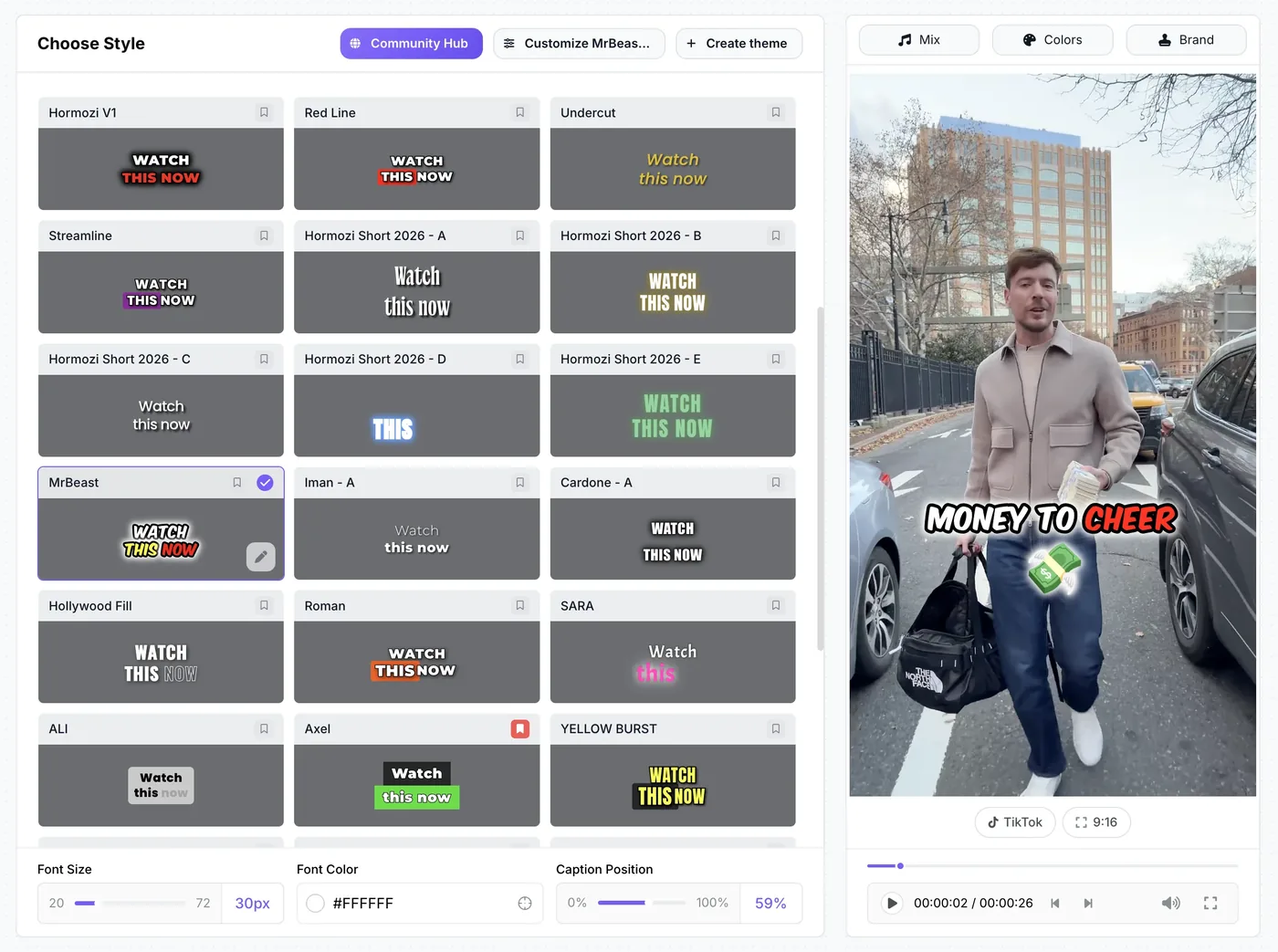
Pick a style
Choose one of 26 styles, like the Hormozi or MrBeast looks, set the words per line, fix any word and pick 9:16.
- 03
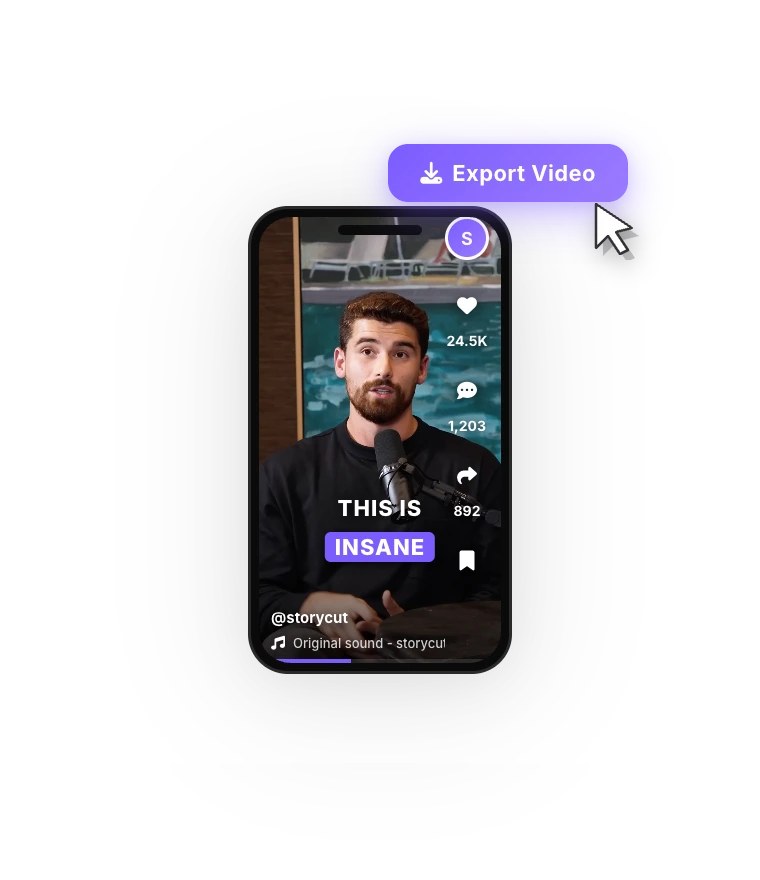
Download and post
Export the MP4 and upload it in the TikTok app or on tiktok.com. StoryCut doesn’t post for you.
What StoryCut adds to your TikTok captions
Word-by-word animation
Each word pops in or lights up as it’s spoken, with keywords in color and optional emojis.
Your look on every video
Save your font, colors and position as a custom style (any plan) and apply it to the next TikTok in one click.
Placement you control
Move the captions up or down so TikTok’s buttons and description don’t cover them.
Extras in one click (Pro)
Magic zoom on key lines, sound effects on key words and AI music under your voice.
Tips for captions that work on TikTok
Keep it short on screen: one to three words at a time is easier to follow on a phone than a full sentence. Keep the captions in the middle band of the frame, above the description and away from the buttons on the right. Use a thick outline or shadow so the words stay readable on any background. Highlight the words that carry the point, not random ones. And check names and slang before you post: speech recognition is good, but it doesn’t know your inside jokes.
Comparing TikTok caption tools?



FAQ
Frequently Asked Questions
Caption Your Next TikTok
Upload your video. Get back a scroll-stopper with viral captions, cinematic transitions, auto zoom, and clean audio. The same tools top creators use to explode views.
Upload a video, pick a style, download a 9:16 MP4 with animated subtitles. Free plan, no credit card.
- Join 10,000+ creators
- No credit card required
You Might Also Like
The TikTok Video Editor That Does Your Captions for You
A TikTok video editor that runs in your browser. Upload a talking video and word-by-word captions start on their own. Pick one of 26 styles, add zoom, sound effects and music in one click each (Pro), and download a 9:16 MP4 ready for TikTok.
Add Subtitles to Video Automatically
Upload an MP4, MOV or WebM and StoryCut transcribes the speech word by word, then lays out timed subtitles you can edit and style. Export the video with the subtitles burned in, or download them as an SRT file.
Hormozi Style Captions, Generated for You
Bold uppercase words, two or three at a time, the key word in color and a quick pop-in. Upload a video and StoryCut transcribes it and animates the captions in the Hormozi style.

AI video editor for creators who want viral content without the editing grind.
Features
All FeaturesAI CaptionsHormozi CaptionsMrBeast CaptionsAdd Subtitles to VideoSubtitle GeneratorAI Video EditorAI Clip GeneratorYouTube to ShortsEye Contact FixMagic ZoomTransitionsClean AudioAI MusicSound EffectsAI Auto EditRemove SilenceAI ThumbnailsBrand KitsCommunity StylesAI Video TranslatorFree Tools
Video Hook GeneratorTikTok CaptionsInstagram CaptionsYouTube TitlesTikTok HashtagsVideo Script GeneratorAI Video IdeasContent CalendarTikTok TranscriptVideo to TextFree SRT GeneratorSubtitle TranslatorFree TeleprompterWords to MinutesSRT to VTT ConverterTikTok Safe ZoneFree Sound EffectsAll 40 Tools →Use Cases
TikTok CreatorsYouTube ShortsInstagram ReelsPodcastersClippersAgencies & TeamsLinkedIn VideosTeleprompter Eye ContactPremiere Pro Eye ContactDaVinci Resolve Eye ContactFinal Cut Pro Eye ContactLoom Eye Contact