Canva Eye Contact: What Canva Can’t Do, and How to Fix Your Gaze Before You Edit
Canva has no eye contact correction in its video editor or its AI tools. If you read a script while recording, correct the video before it goes into your Canva design: it takes a few minutes in the browser. Checked on Canva’s pages on October 9, 2026. StoryCut is our product.
- 1 free video up to 4 min
- No credit card
- No watermark
Canva eye contact: the short answer
- Does Canva fix eye contact?
- No. Canva’s AI video tools are Magic Video, Highlights, the video Background Remover, the AI Voice Generator, Image to Video and the video generator. None of them changes where you look.
- What is Eye Trace?
- A third-party app in Canva’s Apps Marketplace that shows what draws viewers’ attention in a design (“Track visual focus in designs with AI”). It is an attention heatmap, not gaze correction: it doesn’t move your eyes in a video.
- Recording in Canva
- Record yourself, in the Uploads tab, records your camera, your screen or both, in Chrome and Safari. Camera mode gives your face the whole frame, which is what a correction works best on.
- The workaround
- Correct the file first. Upload the recording to StoryCut, download the corrected MP4 and upload it to Canva, which accepts video files up to 1 GB.
- StoryCut price
- 1 free video up to 4 minutes, then 5 videos for $9 one-time, or Pro with 10 a month. Your Canva plan stays as it is.
Canva vs StoryCut for a talking-head video
| What you get | Canva |  StoryCut StoryCut |
|---|---|---|
| Eye contact correction | No | Yes1 free video, then $9 for 5 |
| Eye Trace app | Attention heatmap for designs | — |
| Record yourself | YesYes: camera, screen or both (Chrome, Safari) | Noupload a recorded file |
| Design templates and graphics | Yesits core strength | No |
| Video uploads | MP4, MOV, MKV, WebM and more, up to 1 GB; 4K stored as 1080p | MP4, MOV, AVI, MKV, WebM; 2 GB on Free, 5 GB on Pro, 10 GB on Business |
| MP4 download | Free: up to 1080p and 30 min. Pro: up to 4K and 2 hours | Corrected MP4 at the original resolution, up to 4K |
| Model | — | NVIDIA Maxine Eye Contact |
Checked on October 9, 2026 from each product’s public pages. Sources: Canva AI video editor, Canva Apps: Eye Trace, Canva Help: Record videos in the editor, Canva Help: Upload formats and requirements, Canva Help: Download designs as video, StoryCut pricing.
How It Works
How to fix eye contact for a Canva video
Correct the recording first, then design with it.
- 01
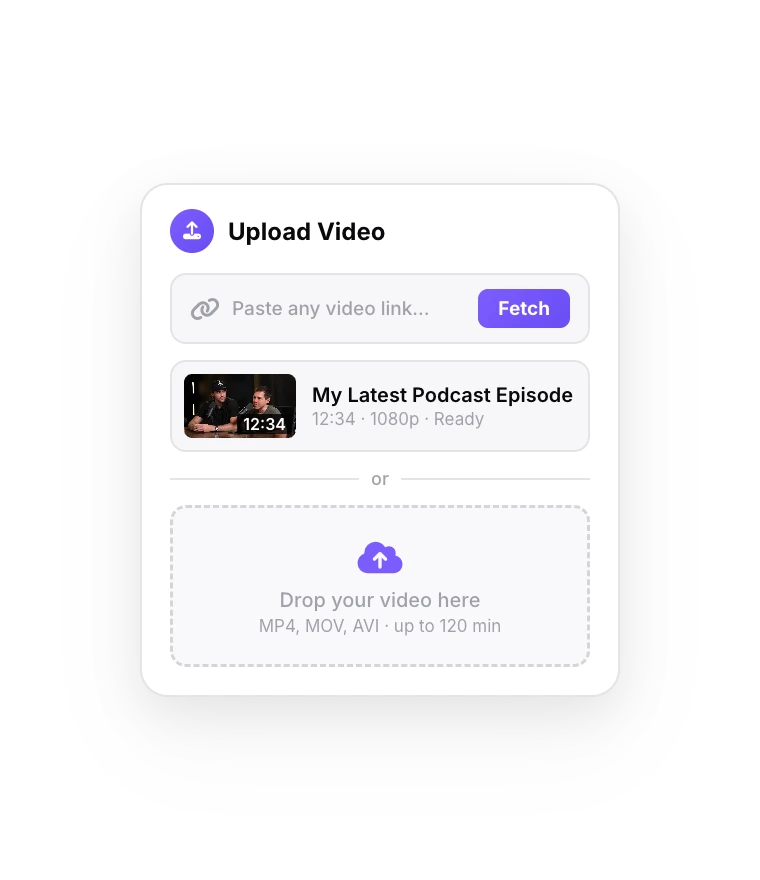
Upload the raw recording
Sign up free and drop in the original video from your phone, webcam or camera. If you recorded in Canva, download the recording first (see below).
- 02
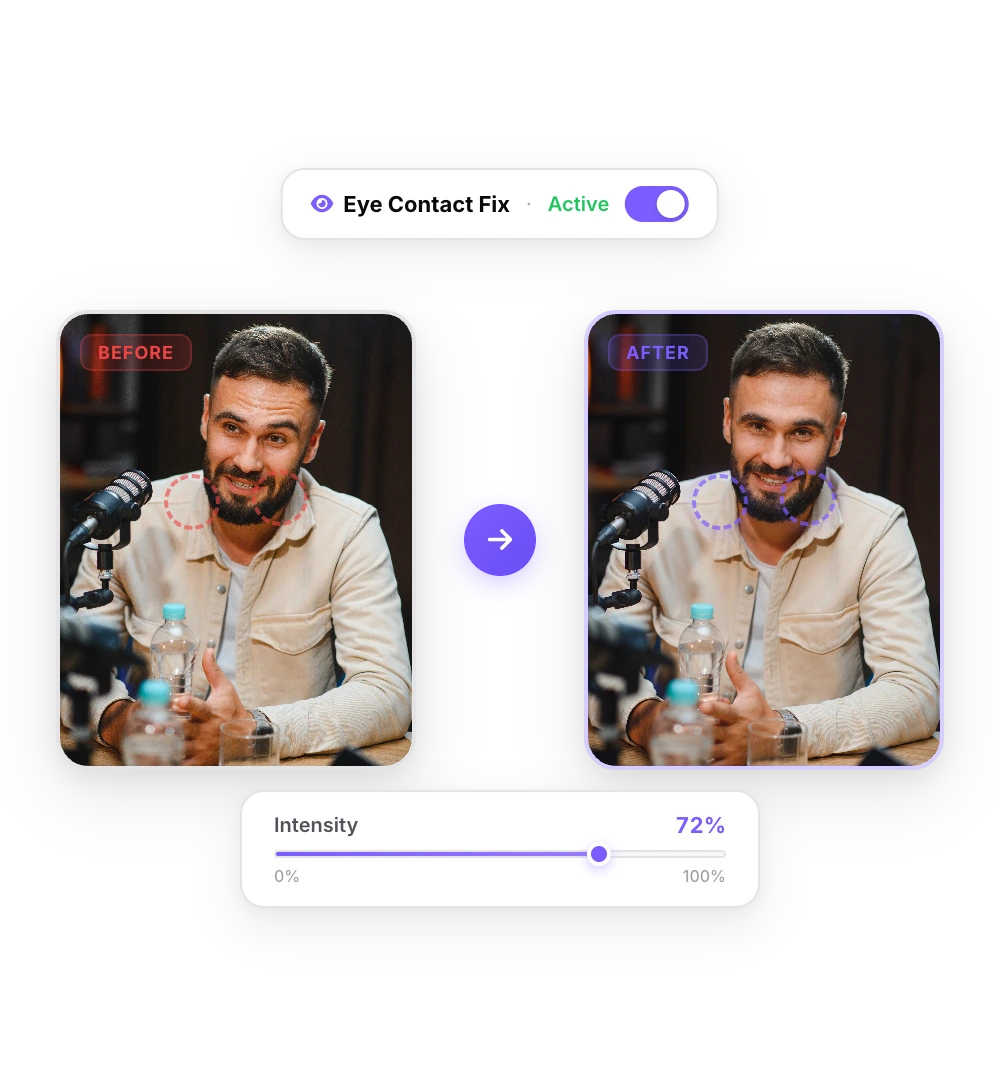
The AI fixes your gaze
NVIDIA’s Maxine Eye Contact model points your eyes at the lens in every frame. A short video takes a minute or two.
- 03
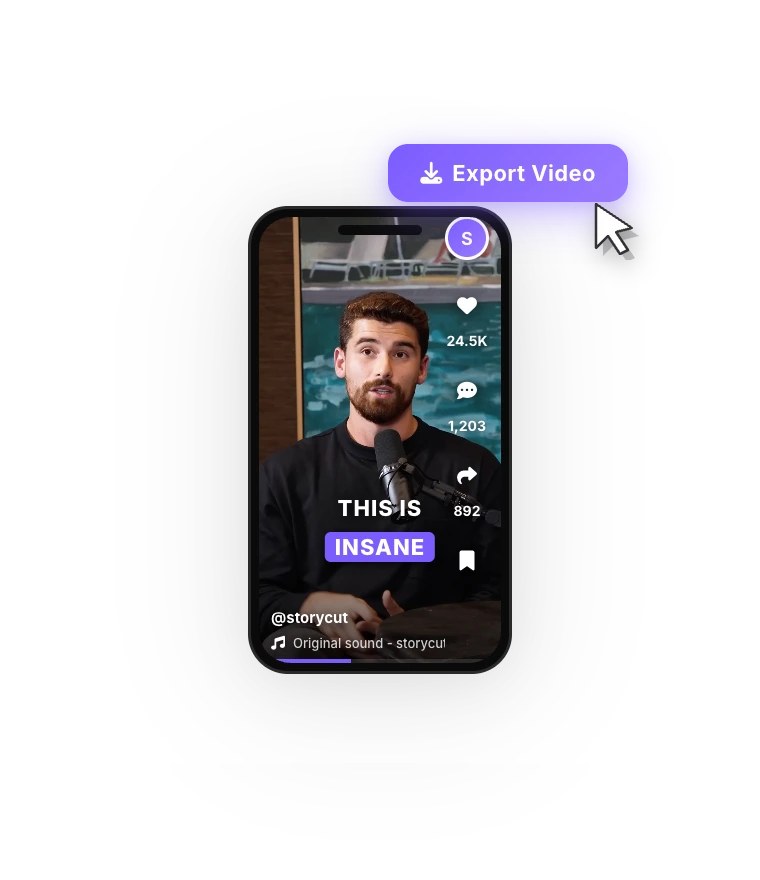
Upload it to Canva
Download the corrected MP4, upload it in Canva’s Uploads tab and use it in your design in place of the old clip.
Getting a recording out of Canva, and back in
If you filmed with Record yourself, the recording is saved in your Uploads and placed on the page as a video element. To get a clean file, put it on its own page with nothing on top and download that page: Share > Download, file type MP4 Video, This Page. Canva Free downloads MP4 at the default quality, up to 1080p (choosing another quality asks you to upgrade); Pro goes up to 4K.
After the correction, upload the MP4 from the Uploads tab and swap it for the old clip in your design. Canva accepts video files up to 1 GB and keeps uploads at 1080p even when the file is 4K, so a 1080p file is all you need, and it stays well under the size limit.
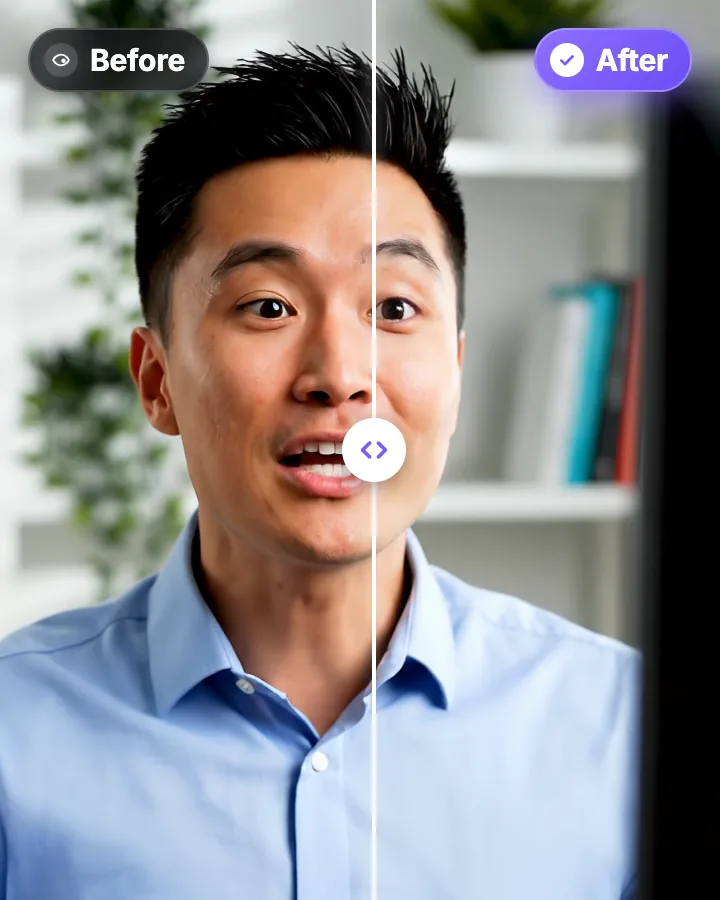
Before and after
The same take before and after correction in StoryCut. Only the eyes change: the framing, the blinks and the audio stay as recorded.
Recording tips for Canva talking heads
Use Camera mode, not Camera and Screen, for the parts where you talk to viewers. In a screen recording your face is a small bubble, and any correction has less to work with. Face a window or a lamp, and keep the camera at eye level.
If you read a script, keep it close to the lens. StoryCut’s free online teleprompter runs in another browser window: shrink it to a narrow strip right under the webcam. Whatever drift is left, typically a few degrees, is well inside the roughly 20° the correction fully covers.
Tools and guides for talking to camera
 Descript eye contact: price and limitsRead
 Captions eye contact on web and AndroidReadFix eye contact in Premiere Pro footageRead
 CapCut eye contact on PC, Mac and webReadFix eye contact in DaVinci Resolve footageReadFix eye contact in Final Cut Pro and iMovieReadLoom eye contactReadBIGVU pricing and AI eye contactReadRiverside eye contact: what it can’t fixReadVEED eye contact: price and limitsReadKapwing eye contact: credits and cost per minuteRead
 Submagic pricing and AI eye contactReadElgato Prompter alternativeRead
FAQ
Frequently Asked Questions
Fix the Gaze, Then Design in Canva
Upload your video. Get back a scroll-stopper with viral captions, cinematic transitions, auto zoom, and clean audio. The same tools top creators use to explode views.
Upload your recording, download it looking into the lens, drop it into your design. 1 free video, no credit card.
- Join 10,000+ creators
- No credit card required
You Might Also Like
AI Eye Contact and Gaze Correction for Recorded Videos
Read a script, checked your notes or watched yourself on screen? Upload the video and the AI points your gaze back at the lens in every frame, keeping your resolution, frame rate and audio. Your first video is free.
Teleprompter Eye Contact: Read a Script and Still Look at the Lens
A teleprompter puts your script in front of the lens, yet viewers can still see your eyes scan each line. Here is how wide to set the text, how far to sit, and what to do when the take is already recorded.
Best AI Eye Contact Correction Software in 2026, Compared
Which tools fix eye contact in a video you already recorded, which only work on a live webcam, and what each one costs. Checked on each vendor’s own pages on October 8, 2026. StoryCut publishes this page and is one of the tools listed.

AI video editor for creators who want viral content without the editing grind.
Features
All FeaturesAI CaptionsHormozi CaptionsMrBeast CaptionsAdd Subtitles to VideoSubtitle GeneratorAI Video EditorAI Clip GeneratorYouTube to ShortsEye Contact FixMagic ZoomTransitionsClean AudioAI MusicSound EffectsAI Auto EditRemove SilenceAI ThumbnailsBrand KitsCommunity StylesAI Video TranslatorFree Tools
Video Hook GeneratorTikTok CaptionsInstagram CaptionsYouTube TitlesTikTok HashtagsVideo Script GeneratorAI Video IdeasContent CalendarTikTok TranscriptVideo to TextFree SRT GeneratorSubtitle TranslatorFree TeleprompterWords to MinutesSRT to VTT ConverterTikTok Safe ZoneFree Sound EffectsAll 40 Tools →Use Cases
TikTok CreatorsYouTube ShortsInstagram ReelsPodcastersClippersAgencies & TeamsLinkedIn VideosTeleprompter Eye ContactPremiere Pro Eye ContactDaVinci Resolve Eye ContactFinal Cut Pro Eye ContactLoom Eye Contact