
12 free transition sound effects
When to use a transition sound effect
- On a scene or topic change, so viewers feel the new section start.
- With a visual transition (zoom, spin, glitch, slide): match the sound to the effect.
- Reverse whooshes: end the sound exactly on the cut.
- Use one style of transition sound per video for a consistent feel.
Auto sound effects
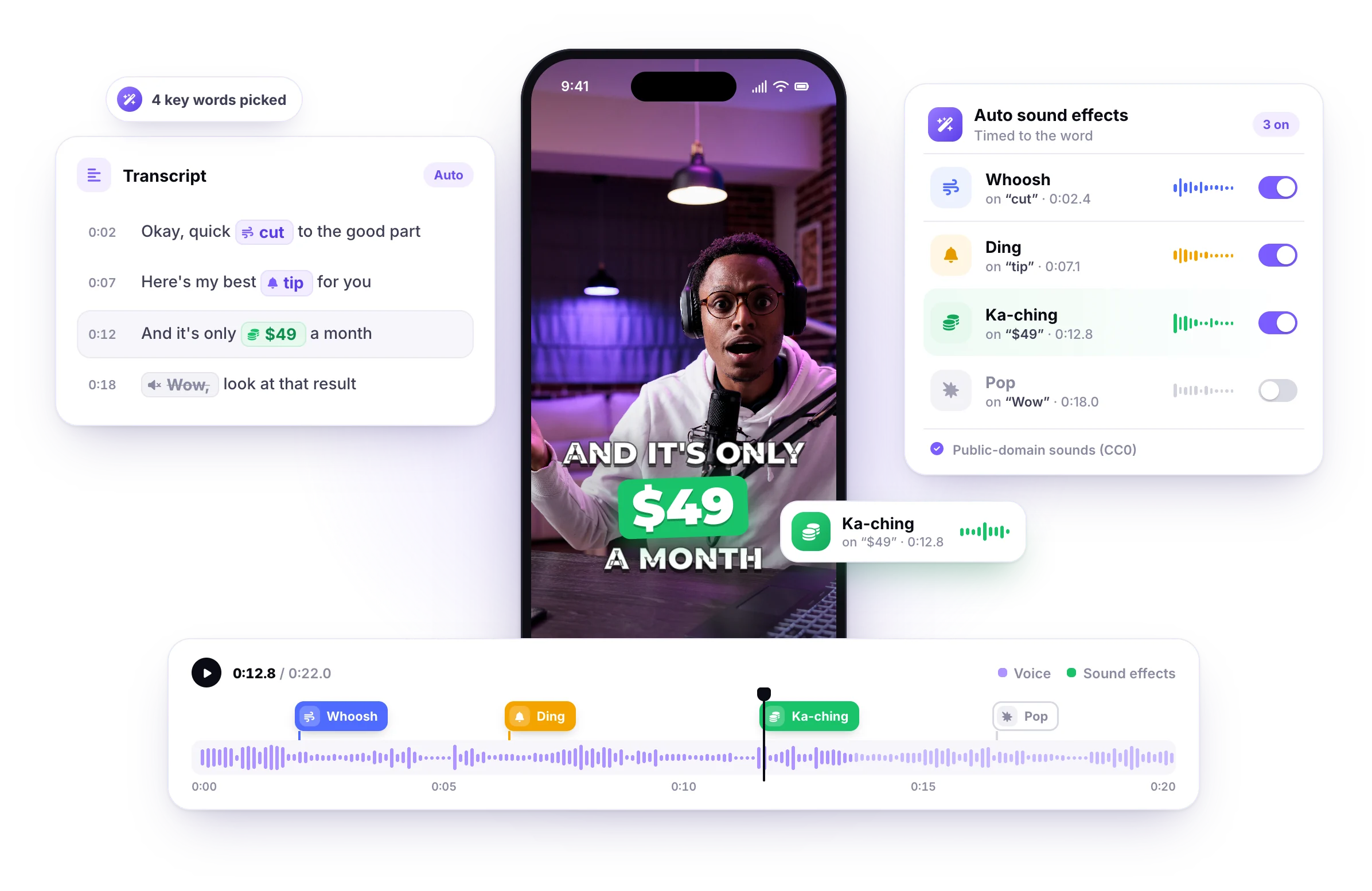
StoryCut adds these automatically on your key words
Upload a talking-head video and StoryCut’s auto sound effects pick 4 to 8 key words in your transcript and place a matching public-domain sound on each one, timed to the word: a whoosh on a cut, a ding on a tip, a ka-ching on a price. Switch off any sound you don’t want before you export.
- Picks 4 to 8 key words
- Timed to the word
- Public-domain sounds (CC0)
- Switch off any sound
Included in Pro ($14/mo billed yearly) and Business.
How to add these sounds to TikTok, Reels, Shorts and CapCut
TikTok
The TikTok editor adds sounds from its own library. To use a downloaded sound, mix it into your video in an editor first (CapCut, StoryCut or any desktop editor), then upload the finished video.
Instagram Reels
The Reels editor uses Instagram’s library. Meta’s Edits app can import audio files from your phone, or mix the sound in an editor before you upload.
YouTube Shorts
The Shorts editor adds one track and a voiceover. For sound effects at exact moments, place them in an editor and upload the finished Short.
CapCut
Import the MP3 (desktop: drag it into the media panel; mobile: tap Audio, then Sounds, and import it from your device), drag it to the cut or the word, and keep it quieter than your voice.
Timing and volume matter more than the sound: start it on the first syllable of the word, peak whooshes on the cut, and keep effects 6 to 12 dB under your voice. More in our guide to adding sound effects.
Free for commercial use, no credit needed (CC0)
Every sound in this library is published on Freesound.org under CC0 1.0, the Creative Commons public-domain dedication. You can copy, edit and use it in personal and commercial videos, ads and client work, on any platform, without asking permission or giving credit.
How we picked them: we searched Freesound for CC0 sounds only, kept short, clean, well-rated ones, left out recordings of trademarked sounds (phone, app and game sounds), trimmed the silence, matched the loudness and converted them to MP3. The original sound and its creator are linked under each one.
Source: Freesound.org (CC0). StoryCut is not affiliated with Freesound.
FAQ
Frequently Asked Questions

AI video editor for creators who want viral content without the editing grind.
Features
All FeaturesAI CaptionsHormozi CaptionsMrBeast CaptionsAdd Subtitles to VideoSubtitle GeneratorAI Video EditorAI Clip GeneratorYouTube to ShortsEye Contact FixMagic ZoomTransitionsClean AudioAI MusicSound EffectsAI Auto EditRemove SilenceAI ThumbnailsBrand KitsCommunity StylesAI Video TranslatorFree Tools
Video Hook GeneratorTikTok CaptionsInstagram CaptionsYouTube TitlesTikTok HashtagsVideo Script GeneratorAI Video IdeasContent CalendarTikTok TranscriptVideo to TextFree SRT GeneratorSubtitle TranslatorFree TeleprompterWords to MinutesSRT to VTT ConverterTikTok Safe ZoneFree Sound EffectsAll 40 Tools →Use Cases
TikTok CreatorsYouTube ShortsInstagram ReelsPodcastersClippersAgencies & TeamsLinkedIn VideosTeleprompter Eye ContactPremiere Pro Eye ContactDaVinci Resolve Eye ContactFinal Cut Pro Eye ContactLoom Eye Contact